

Store — subscriptions and chart regions
The Store tab has four sections: For you, Charts, Plans and
Jules. An ordinary visit starts with For you. A link from a chart,
Remote or Jules still opens the relevant offer directly.
Buying without an account
You do not need a captain account to buy anything in the Store — plans, charts,
Real-Time Remote or Jules token packs. Your purchases follow your App
Store account, the same Apple account that pays for them. Signing in is
optional, and it is never a step in front of a buy button.
things that need a captain account: chatting with Jules and
starting Remote. Until you sign in, a Jules
token pack you bought is safe and shows in your bonus balance, and a Remote
subscription is safe and waits for the account.
Anything you bought before signing in on this device is carried over to that
account, and a short message confirms it. If that message does not appear, or
says the move did not finish, tap Restore Purchases at the bottom of
Store → Plans.
under For you → Store account. You do not have to sign in first:
AnchorQueen asks the App Store for your purchases and reattaches them. A
purchase that already belongs to a different captain account is not moved
onto yours.
captain account, and the Store will not charge you a second time for one.
For you — choose what you need
Find charts for your cruising area, keep watch from ashore with Remote, or
choose a plan for broader cruising tools. The short plan chooser takes you
to the relevant section; it does not subscribe you or change your coverage.
Current promotions remain available here. Your local anchor watch stays free.
The Pro card
On the Free plan, For you opens with a photo card for AnchorQueen Pro
on the yearly plan. It lists four highlights — three chart regions of
your choice, depth-aware routing on your included charts, the 3-day and 7-day
marine weather forecast, and Jules reading your chart — the live yearly price
from the App Store, what that saves against paying monthly, and a primary
button.
trial, the button reads Start free month and the line under it reads
Free for 1 month, then (price) / year. Cancel anytime. Any other trial
length is described without naming its duration.
yearly price: (price) / year. Cancel anytime. A trial is never promised
to an Apple ID that has already used one.
about (price) / month* — only when the App Store's own monthly and yearly
prices prove it; with no monthly price loaded it shows the per-month
equivalent alone, and with neither it says nothing.
changes: the headline reads Complete your plan with Pro, a Remote holder
is told how many chart regions Pro adds to the one Remote includes, and a
weather-pass holder sees History of every stay at anchor in place of the
weather line. You are never sold something you already have.
not need an account, and any message — an error, an approval pending —
appears in the same kind of alert. The App Store's own sheet shows the final
price and terms before anything is charged.
selected — see [Compare plans](#compare-plans). You stay where you are; closing
the sheet returns you to the card.
price line is hidden and the button opens Plans instead of buying.
links sit at the bottom of the card.
The card appears only on the Free plan. On Pro or Max — including a plan
bought outside the App Store — For you keeps the plain Plan your next passage
card. The photo is credited in its corner. Text follows the device's text-size
setting; at the largest sizes the card grows and nothing is cut off.
Charts for your area shows one card for each chart region that covers
the place you are looking at or the place you are. Chart suggestions use the
center of the chart you are viewing. If your current location is in a
different catalog region, a separate suggestion helps you find coverage there
too. Regions shared by both positions are not shown twice. Location
suggestions need a recent, accurate fix; the Store does not ask for location
permission just to sell a chart. When no matching region is available, browse
or search the full catalog manually.
Each card is built from the same pieces as the region's detail sheet:
flags of the countries it reaches along the bottom of the map and the map
credit in the top corner.
when the chart is installed, Included when your plan already covers it
(with how many included charts you have left when your plan has a limit).
When nothing pays for the region, the pill says what its free download gives
you — Free · 14 days full access, Full access · N days left or
Free to view (see [Free downloads and 14 days of full
access](#chart-trial)). Prices are in the region's detail sheet.
AnchorQueen chart at that place and its name. Regions without curated
destinations show none.
When every card comes from the same place, one line under the heading says
so (Covers the area you are viewing or Covers your current location).
When the suggestions come from different places, each card carries a small
chip instead — On your map or Your location.
With one suggestion the card fills the width. With two or more they sit in a
row you swipe sideways, each card snapping into place with the next one
peeking in from the edge. At the largest accessibility text sizes the cards
stack one under the other instead, and nothing is cut off.
Tap anywhere on a card, or View region at its foot, to open the region's
detail sheet with its coverage and existing download or purchase options.
Suggestions do not buy, claim or download anything by themselves. A region's
coverage boundary is the starting point for choosing it; inspect the detail
sheet and data sources before relying on its contents. VoiceOver reads each
card as one item — region, status, countries covered — and the pictures are
skipped.
Interactive transitions and button feedback follow Reduce Motion in iOS
accessibility settings. Text follows the device's text-size setting.
Plans — subscriptions
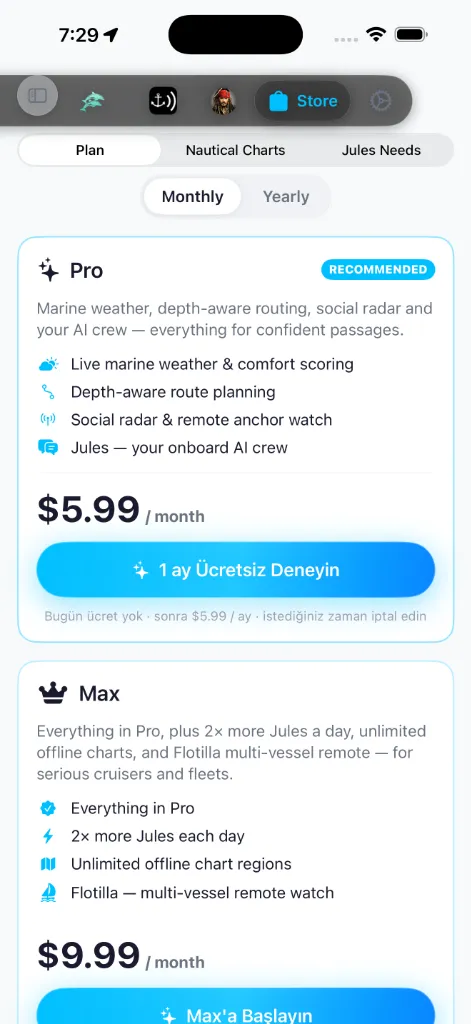
An ordinary Plan visit opens with the chart decision: Pro includes three
regions of your choice; Max includes every region without a limit. Two paid
plans — Pro and Max — follow, with a shared Monthly / Yearly toggle
above them. Pro carries a RECOMMENDED badge.
If you arrive after tapping a locked Remote action, the same section preserves
that intent: Real-Time Remote appears first, ahead of the general plans.
Its watch-status preview shows the kind of state a person ashore receives —
live connection, recent fix, device battery, and movement — without using
your real boat data inside the Store. The action reads Watch my boat from
ashore. After a successful purchase, the confirmation offers Choose your
chart packs or Remote, so the one included chart can start downloading
immediately or the captain can return to live watch. If you have not signed in,
the confirmation says your purchase is safe and offers Create Account
instead — starting Remote needs a captain account, and the Remote card keeps a
Create your captain account to start Remote step until you have one.
Charts lead each plan card. Pro shows a three-folio chart locker and Max
shows a continuous all-regions atlas. The chart entitlement is followed
immediately by the live Store price and purchase button; weather, routing,
Remote, Flotilla, and Jules appear below as supporting benefits. This order is
deliberate: you can decide first how much offline cruising coverage you need.
The plan you are currently on is marked Current Plan, and shows when it
next renews — Renews 12 May 2026 — or, if you have cancelled, when it
will lapse — Expires 12 May 2026.
If your active plan was bought outside the App Store, Plans shows a notice
above the plan cards saying where the subscription is managed, and the plan
purchase buttons are greyed out, so you are not billed twice. Independent
chart-region subscriptions remain available. That plan is your plan
everywhere: the chart locker on the Pro card counts the
regions you have actually claimed, and the rest of the app — forecast horizon,
route weather, the sidebar plan badge — reads it too. Once that plan
has expired the notice and its blocked buttons go away, and you can buy a plan
here instead.
From the free tier the purchase button reads Start Pro or Start Max,
with a Cancel anytime · no long-term commitment line beneath it. If you
are already on Pro and looking at the Max card it reads Upgrade to Max.
On your own plan's card, flipping the Monthly / Yearly toggle to the cycle
you are not on turns the button into Switch to Yearly / Switch to
Monthly — the App Store replaces your running subscription, so you are
never billed for both cycles. On Max, the Pro card's button stays disabled
(Max Active) with a note explaining that moving down to Pro happens at
your next renewal via Manage Subscriptions at the bottom of the page.
If the App Store offers your Apple ID an introductory free trial, the plan
button says so — Try N days Free — and adds a No charge today · then
(price) · cancel anytime line that shows the length and what you will pay
afterwards. If it doesn't — for example because this Apple ID has used a trial
before — you pay from the day you subscribe, and the button reads Start Pro
/ Start Max as described above.
The Yearly billing option carries a SAVE % badge (or a BEST VALUE
badge while exact savings are still loading) and a "Billed yearly · about
≈ per-month equivalent" note so you can compare against Monthly at a glance.
The whole Store — Plan, Jules Needs, and the chart-region cards — follows your
device language; on a Turkish device every label, button, and badge is shown
in Turkish.
Below both plans, a Daily Jules AI Allowance banner (the octopus card) sets
out how much Jules each tier gets per day:
a snapshot of your chart.
Jules answers with the same AI model on every plan; the plans differ in the
daily allowance and the chart-reading tool, not in the model.
This is a daily budget that refills each day; for one-time top-ups on top of
it, see [Jules Needs](#jules-needs) below.
What the subscriptions unlock:
7d ranges of the Meteogram.
watchers, and push-ashore drift alerts that reach the people on shore
the moment your anchor drags. When a Remote, Pro, or Max captain arms
SafeAnchor, AnchorQueen also turns on Live Beacon and prepares the
private Remote channel automatically. Free captains can receive public
beacons and join an invited channel, but do not broadcast or create a
channel automatically.
is not locked to a plan: on Free it works on any single region you buy.
History of every stay, unlimited 3D terrain
fly-overs, and no advertising.
The Pro card lists these benefits. If you already pay for Real-Time Remote,
its Remote line is replaced by the shore-facilities line; if you hold Oceanic
Tides, its weather line is replaced by History — the card never repeats what
you already have.
Max lists what it adds on top of everything in Pro, every number read
from the same table the app enforces:
(Pro: 12 hours and 7 days).
Hybrid Satellite; see Satellite & Hybrid).
clips, 20 reels, a corner mark).
Compare plans
Compare Free, Pro, and Max on Plans, and Compare plans on the Pro
card in For you, open one sheet. It is built to fit the width of the phone,
so there is nothing to scroll sideways, and it can start the purchase itself.
from the Pro card, which sells the yearly plan. From Plans it opens on
whichever side you had selected there. The Yearly side shows SAVE %
only when the App Store's own prices prove a saving.
of the paid ones shows its App Store price for the side you chose; Free
reads No subscription. The plan you are on carries a Current Plan badge.
Tap a tile to select it: the selected plan is outlined in its own colour (Pro
cyan, Max orange) and its column is tinted in the table below.
three plans' values underneath in equal columns: a check mark for included, a
dash for not included, and short text only where a number or a difference
matters — 3 chart regions on Pro, Unlimited on Max, Buy individually
on Free. Fourteen rows: local anchor watch, chart regions, depth-aware routing
(On a bought chart on Free), marine forecasts, the anchor drift forecast
(1 hour / 12 hours / 3 days), weather along your route (7 / 16 days),
3D terrain fly-over (Preview only on Free), History of every stay, shore
facilities & coastal photos, Director clips & reels (15 s · 3 a day / 60 s
· 20 / 5 min · 50), satellite imagery (On a bought chart / *Hybrid, over
your charts / High-res, worldwide), the Jules daily budget (*10× / 40×
Free), Remote watch, Flotilla (10 / 100 vessels) and ad-free. At the largest text sizes
each row becomes a line such as Free: — · Pro: ✓ · Max: ✓, and VoiceOver
reads each row in words. How chart coverage works and the note about
buying regional charts individually stay at the bottom of the page.
button. If the App Store offers your Apple ID a free trial, it reads Start
free month (or Start free trial for any other length) and the line under
it says how long the trial lasts and what you pay afterwards; otherwise it
reads Continue with Pro (or Max) followed by the price and whether it
is per month or per year. The renewal terms and the Terms of Use (EULA) and
Privacy Policy links sit under the button; at the largest text sizes, and on
a short screen, they move to the end of the page so they never crowd it.
a plan bought outside the App Store is not charged a second time;
an error or an approval that is still pending appears in an alert on the
sheet, and the App Store's own sheet shows the final price before anything is
charged. When the purchase completes, the sheet closes and Plans confirms
it — you see one message, not two.
You're on Free, Included in your plan (for a plan below the one you
have) or Current Plan. On your own plan, the other billing side reads
Switch to Yearly or Switch to Monthly; the App Store replaces your
running subscription, so you are never billed for both.
tiles show a grey placeholder instead of a price and the button is disabled —
Loading price…, then Retry.
Real-Time Remote card
A dedicated Real-Time Remote card — separate from the Add-ons row below —
offers the standalone yearly subscription that unlocks the paid
SafeAnchor Remote features: private channels, extra
watchers, flotillas, push-ashore drift alerts, automatic Live Beacon, and
one chart region of your choice while Remote remains active. It does
not upgrade your plan: Jules allowance, weather, routing, and every other
Pro/Max benefit stay at your existing tier. Remote is also bundled into
Pro and Max.
The card shows whenever it is still useful to you:
standalone subscription as a lighter-weight alternative to Pro/Max.
the card stays visible with Remote Active, its own renewal date, and no
purchase button, so you always have a way to check on and renew it.
If you are already on Pro or Max and have never bought standalone Remote
separately, the card doesn't appear — Remote is already included with your
plan and there is nothing to sell you.
If the App Store price can't be loaded (no network, or a cold cache) but your
Remote subscription is active, the card still shows your status and renewal
date without a price — it never disappears just because pricing failed to
load.
Oceanic Tides — the weather pass
Below the Remote card sits Oceanic Tides, a yearly subscription that
unlocks the Meteo tab and the forecasts at anchor at their full depth:
It is Meteo and anchor watch only. Weather along your routes — the wind, wave
and tide series in the route panel, the 7- and 16-day route forecast and the
strip while navigating — and pinpoint weather on chart marks are Pro and
Max features, as are charts, Jules and the rest of a plan. Anyone can buy
it, with or without a captain account, and it stacks with a Pro plan (a Pro
captain gains the 3-day drift forecast). A Max captain already has every
weather service, so the card is hidden for Max unless you also hold Oceanic
Tides. Once
it is active the card shows Oceanic Tides active until …, and a teal
TIDES badge appears next to your plan on the captain page
and in the sidebar. You will also find the same card in the Meteo tab's
Marine Weather dashboard and on the Radar upgrade sheet;
there it carries its own Restore Purchases link, the renewal terms and the
Terms of Use (EULA) and Privacy Policy links under the buy button.
Below that, a small Add-ons row appears only when there is an
extra product on offer — right now there is none, so you will not see the row.
(The High-Res Satellite Unlock and Captain's Logbook products are no
longer sold; a purchase you already made still restores.)
Checkout, cancelling and restoring
Only one Apple purchase sheet can be active at a time. While checkout is being
prepared or verified, the other Store buttons wait. Ask to Buy and other
approval flows leave the purchase in Pending; access updates automatically
when the App Store confirms it. Keep the same account — signed in or not — in
the app until checkout finishes so the purchase can be linked securely.
Apple handles billing. To cancel, tap Manage Subscriptions at the bottom
of Plans, or use iOS Settings → your name → Subscriptions —
AnchorQueen stays on the free tier when the paid period
ends.
When you sign in or tap Restore Purchases, AnchorQueen also securely links
App Store purchases to the current account — your captain account if you are
signed in, otherwise the account this device created for your purchases. The
app sends Apple's signed transaction—not a self-reported plan or expiry—to the
server for verification. This is retried on later Store refreshes if the
network is unavailable. A purchase made without an account can move to the
captain account you later sign in to, but a purchase that already belongs to a
captain account is never moved onto another one. If the server is busy you may
see Too many attempts right now. Please try again later. — wait, then tap
Restore Purchases again. Keep the intended account in the app while
restoring on a shared device.
Legacy App & Product Migration
With the launch of the unified AnchorQueen app (which merges the legacy standalone AnchorAlarm and SeaTracker platforms into a single unified workspace), we have streamlined our subscription plans and retired legacy products:
Charts — regions
The Charts section both manages the regions you already have and lets you
browse and download new ones — every region is a free download (see
[Free downloads and 14 days of full access](#chart-trial)). It is split by a
My Maps | Store segmented picker:
ground.
same way.
Both tabs section regions into Mediterranean, Northern Europe, United
States, Mexico, Caribbean, Pacific, East Asia, Worldwide — the same groups
and order used in Settings → Installed Regions —
plus an Other catch-all for anything not yet classified. Group headers
follow your device language.
At the top, a storage hero shows three stats: Installed (region
count), Storage Used (disk used) and Chart Updates (Up to date, or
N New in orange). Beneath them: Check for Updates (forces a catalog
refresh and shows a toast — All charts are up to date. or *N updates
available.), Update All (N) while an update is pending, and *Add
Charts, which takes you to the Store tab. Pull down to refresh runs
the same check silently. The very same hero heads the Charts tab of the
Chart Layers panel, so both places report your charts the
same way.
A Map / List toggle (top right) switches how the catalog is shown:
sheet. A legend sits in the corner: green Installed, orange
Downloading, indigo Available, grey Unavailable.
One card everywhere. Every chart in the Store — the Charts for your
area suggestions, the browse lists and My Maps — and in the Chart Layers
panel is the same card: a map of the area with the pack outlined, the flags of
the countries it covers, the region's name with a state pill, a one-line
tagline and up to three marquee-destination thumbnails.
Tapping a card opens the region's detail sheet — see
[The region detail sheet](#region-detail). Cards in the browse lists carry no
buy or download button of their own: the pill only describes what the sheet
will offer (Included, Included · N left, Free · 14 days full
access, Full access · N days left, Free to view, or On your
device), and the sheet's action bar is the single place where a chart is
claimed, bought, renewed or downloaded — the same on every screen.
An installed card adds a footer under the card:
on disk and the data grade (survey-grade ENC, high-res bathymetry or
coastline baseline), plus what the pack contains (depth-aware routing,
layers).
(orange), Subscription ended, or Free to view for a region your 14
days of full access covered — and, beneath, the Snoozed chip when
you have postponed an offered update, the Wi-Fi auto-update chip, and the
licensing badge (see [My Maps — subscription status](#my-charts)).
tap the chip to re-download just the broken offline files (your personal
data is never touched).
visibility toggle (switch the region off on the chart without deleting
it — the card dims) and a menu: Cruising Guide & Coverage, Update to
v…, Remind me later (snoozes that exact version until a newer one
publishes), Repair / Re-download and Delete Chart Data. Each of the
last three asks you to confirm first.
Free downloads and 14 days of full access
Every chart region is a free download — on the Free plan, without a
captain account, on any plan. What a free download gives you depends on where
your account stands:
every region you download works completely, even with nothing paying for
it: depth-aware route planning, starting navigation, the
Passage 3D replay and automatic updates. Regions you
add later in the window share the same end date — the 14 days run once per
account, not per region.
device and keep drawing everything — depth shading, soundings, hazards,
marks — for as long as you keep them. What stops: depth-aware route
planning, starting navigation, Passage 3D and automatic updates over those
regions. You can still download any region by hand, at no cost.
regions, Max every region — see [Chart packs included with your
plan](#included-packs)) or buy the region's own yearly chart subscription.
The 14 days belong to your account. Signing in after downloading on a new
install keeps the earlier start date — signing in does not begin a second
window. Regions your plan or a chart subscription covers never count against
the 14 days and are never limited to viewing.
Where you see it:
download, Full access · N days left while the window runs, Free to
view after it.
saying the same; Buy this region and the plan link follow underneath.
See [The region detail sheet](#region-detail).
Routing needs a plan (orange) under each such card. See [My Maps —
subscription status](#my-charts).
over a view-only region says *Your 14 days of full chart access have ended
— subscribe in the Store to plan depth-aware routes.*, and starting
navigation shows Full chart access has ended with a Subscribe
button. See Troubleshooting.
The free-chart card and the 14-day reminders
Two small nudges follow the 14 days:
world coastline and you have not started your 14 days, a card at the bottom
of the chart says Your area's chart is free and names the region under
the viewport. Download opens the Store on that region; Not now puts
the card away until the next time you open the app. The card never appears
over a live race, an armed anchor watch, navigation or the Live 3D page, and
it goes for good once a chart is installed, the window has started or a
plan or chart subscription covers your charts.
schedules two notifications on this device: 2 days of full chart access
left on day 12 and Your charts are view-only now on day 14. Tapping
either opens the Store's Charts section on the chart you downloaded. They
are cancelled the moment a plan or chart subscription covers your charts,
and when you sign out. Notifications must be allowed for the app
Chart packs included with your plan
Your plan includes complete high-resolution chart regions at no extra cost:
[14 days of full access](#chart-trial), then free to view.
Remote subscription is active.
nothing to claim or buy separately. Every available catalog card shows
Download, never a region price, and new regions are covered automatically
as they are baked.
While a Remote or Pro pack remains, every available catalog card shows
Download and the number of choices left. Tapping it first binds that region
to the secure entitlement ledger, then starts the download. Remote confirms its
one choice; Pro confirms its third and final choice. No separate region price
is shown while an included choice is available.
After all three Pro choices are used, unclaimed regions are still free
downloads ([14 days of full access, then free to view](#chart-trial)), and their
sheet offers the current yearly price from the App Store under Buy this
region. Tapping it opens Apple's payment sheet and a successful purchase
starts the download. There is no limit on how many additional regions you can
buy.
The permanent pack ledger (anti-cheat policy)
To keep the allowance fair and prevent cycling exploits (repeatedly taking,
deleting, and re-taking regions), included chart packs use a secure server-side
ledger:
permanently bound to that region for as long as your subscription runs.
does not give a pack back.
any time for free, so you can manage disk space without losing access.
are stored locally and securely, and are never deleted or affected by
changes to your chart licence or subscription state.
Max captains have no ledger at all — coverage comes from the plan itself and
lasts exactly as long as the plan does.
If your plan changes
Moving from Max down to Pro means your coverage narrows from every region to
three. When that happens, AnchorQueen shows a Choose your chart packs sheet
listing the regions you have downloaded that are no longer covered, and lets
you pick which of them your new plan keeps.
Nothing is deleted. Regions you don't pick stay on your device and stay
readable — they simply stop receiving updates and depth-aware routing. You can
buy any of them separately at any time, or move back up to Max to get them all
back at once. If you'd rather decide later, the sheet has a Decide later
button and won't nag you again until something changes.
Included in your plan — pinned section
When you are browsing the Store sub-tab, any region that costs you
nothing right now is lifted into an Included in your plan section pinned to
the top of the list. Its header carries your running balance — "*2 chart packs
left", or "every region included*" on Max — so you always know where you
stand before you tap anything. This covers two cases:
Included · N left. Once your packs are spent (or on the Free tier, which
has none), the section collapses and only entitled regions remain.
The [14 days of full access](#chart-trial) do not lift a region into this
section — it lists only what your plan or a purchase covers.
Tap a card to open its sheet and take the region with Download. Taking your
last included pack asks you to confirm there, so a scroll-past tap can't
spend it for you.
Once no included choice remains, the rest of the catalog appears below,
grouped by coastline — still free to download, with the pills described in
[Free downloads and 14 days of full access](#chart-trial).
The region detail sheet
Tap any region card — in For you, Included in your plan, the catalogue
or the map — to open its detail sheet, which reads like a short cruising
guide for the area. A drag indicator sits at the top (pull down to dismiss) and
Close is at the end of the details. The details scroll, but the action
bar stays pinned to the bottom of the sheet, so how to get the region is
always on screen — you never scroll past the guide to find it.
neighbouring chart regions dashed, so you see at a glance which coast it
covers. Below the map: the size of the area in nautical miles (W × H, for
example ≈ 821 × 1035 NM, written the same way whatever region format your
device uses) and its south-west → north-east corner coordinates. The map
needs a connection the first time you open the region; until then — or
offline — a plain latitude/longitude outline stands in.
with a picture of the AnchorQueen chart there. Pictures load the first time
you open the region and are then kept for offline use; until they arrive a
simple illustrated tile stands in.
coastline fusion, marinas, navaids, charted hazards).
you stand with the region:
yours (bought outright, included with your plan, or covered by Max).
choice to your plan before the bytes start.
line saying what it gives you: *your first chart download starts 14 days
of full access*, how many days of full access are left, or — once they
have ended — that the download is free to view and routing, navigation
and updates need a plan or the region's subscription. Below it,
Buy this region
regions; Max covers every one). If the App Store has not returned the
price yet, the button reads just Buy this region, and the sheet asks
the App Store again each time it opens. If buying still fails, the
message tells you to check your connection. The renewal terms and the
Terms of Use (EULA) and Privacy Policy links sit under the buy
and renew buttons.
If the subscription behind that region has ended, the bar also offers
Renew this region (or Buy / Include, whichever fits), with a note that
the charts stay on your device until you delete them. A region your
[14 days of full access](#chart-trial) covered says instead that those
days have ended and the charts stay on your device to view.
instead of a button.
looks like a frozen button.
belong to, and disappear when you close the sheet.
another app open; pause and cancel are available. Tapping
Download while another chart is downloading shows Another chart is
downloading. Wait for it to finish. and leaves you where you are. If a
Wi-Fi auto-update is transferring when you start a download by hand, the
update pauses, your download starts, and the update resumes later.
at the bottom shows the download's progress and speed; tap it to come back
to My Maps.
At the largest accessibility text sizes a pinned bar would crowd out the
details, so the actions appear right under the region's header instead.
3D terrain
Some regions offer an optional 3D terrain add-on: the shape of the sea
floor and the land for the whole region, for [sea-floor relief on the
chart](chart.html#seafloor-relief). It is included with the region —
anyone who has the region can download it, at no extra cost.
how big it is.
new download, an automatic chart update, or a region you already had when
the add-on first appears), AnchorQueen fetches the terrain right after the
charts, the same way it [keeps charts up to date](#auto-update): only on
Wi-Fi — not on mobile data, a personal hotspot or Low Data Mode — not in
Low Power Mode, and only when there is enough free space. Otherwise it
waits and tries again on the next check.
Download now
away, even on mobile data; Downloads automatically on Wi-Fi. says the
automatic download is still to come.
the add-on is not on your device, and 3D terrain on this device once it
is. On the Live 3D chart, No 3D terrain here ·
Download appears over an installed region whose terrain you don't have
yet; tap it to open the region's sheet.
on Wi-Fi too (or tap Update now
relief keeps working.
downloading it automatically for that region — tap Download now to
bring it back (and turn the automatic download on again). Deleting the
region removes its terrain too.
After Apple verifies a new chart subscription, AnchorQueen closes the purchase
sheet and starts that region's download immediately. If the purchase is still
pending approval, no download starts until the App Store confirms it; a
verification message remains available instead of silently treating the
purchase as cancelled.
A region you install becomes available offline on every chart tab —
AnchorQueen, Sea Sports, Capt's Notebook, and Merconi.
My Maps — subscription status
Regions you have claimed or subscribed to appear under Store → Charts → My
Maps, and each card shows where its licensing status stands:
Expiration and Grace Period Lifecycle
To balance security with safety at sea, expired regions (both paid subscriptions and expired free packs) transition through a 3-state expiration lifecycle. The state shows on the region card as one of the badges described in [My Maps](#my-charts) above — a green Renews / Free Pack Active, an orange Expired · Routing disabled / Free Pack Expired / tappable Renew · (price), or a red Expired · Locked:
A chart's status updates automatically when it renews, when you cancel, or after a Restore Purchases.
Your charts follow your account. A chart subscription you bought on another device — including one signed into a different Apple ID, or one bought outside the App Store on the same captain account — counts as yours here. On a new device the pack appears in the Store with a DOWNLOAD button, ready to fetch; nothing needs to be bought again. This includes regions sold elsewhere under a different product — Western Mediterranean, Central Mediterranean, Adriatic & Ionian, Aegean & East Mediterranean and the three Mexico regions: a purchase of any of them shows Download on iPhone, never Buy, as long as you are signed in with the same captain account. Included packs (the ones your plan covers) sync the same way, and the Free Pack badges reflect your plan wherever it was bought.
Jules — token packs
Every plan gives Jules a daily token budget that resets each
day. If you run out before the reset — a long planning session, a busy
passage — the Jules section sells one-time token packs that add
bonus capacity on top of your daily budget.
At the top, a usage panel shows where you stand today:
Below that are three packs, smallest to largest:
BEST VALUE marks the pack with the lowest App Store price per token in
your storefront, worked out from the live prices — it can land on any pack,
and it is hidden until all three prices load (or when two packs tie). The
Navigator Pack carries POPULAR unless it is the best value.
Each card shows its token count, a one-line tagline, and a Buy · (price)
button; Apple shows its own confirmation sheet. As soon as the purchase clears,
the tokens are added to your bonus balance and the usage panel updates.
You can buy a pack without an account, but Jules chat needs one. If you are
not signed in, a card reads Sign in to use your Jules tokens with a Sign
In button; your tokens are saved against your App Store account, appear in the
bonus balance, and move to the captain account you sign in to.
Token packs are a one-time purchase, not a subscription. Bonus tokens
never expire, and they are only drawn down after your daily plan budget is
used up — so a pack you buy today still helps weeks later.
3D model of my boat
A one-time purchase (not a subscription) of a detailed, animated 3D model of your own boat,
with three revision rounds. It is sold from the boat editor of a saved boat, not from the
Store tab — see 3D model of my boat. Apple shows its own
confirmation sheet; if the purchase waits for approval (Ask to Buy), the model starts as soon
as it is approved. A purchase that has not reached our server yet is picked up automatically
the next time the app opens. If the boat already has a model in progress, the purchase is
kept and starts a new model once that one is done.
Updates
AnchorQueen 2.4.6 reads a new chart catalogue. If it cannot be reached, the
app quietly uses the previous one, so the Store never goes empty. A chart
that needs a newer AnchorQueen says This chart needs a newer version of
AnchorQueen. Update the app to download it. instead of downloading.
When new data is published for a region, an update badge appears on
the Store tab itself and on the region card. Tap Update to pull the
fresh data; the old install is replaced atomically. You can leave the
chart open while it installs — the new data draws as soon as the update
finishes, with no restart.
If the region was on your chart during this session, the storage its
previous version used is freed the next time you open AnchorQueen. The
same applies when you delete a chart you have been looking at.
Automatic updates on Wi-Fi and 5G
Installed charts keep themselves up to date. When new data is published
for a chart you have installed, AnchorQueen downloads it on its own —
on Wi-Fi or 5G, never over 4G/LTE, a personal hotspot or a network you
have put in Low Data Mode. If an update starts on 5G and the phone drops
to 4G, it pauses and carries on from where it stopped once you are back on
Wi-Fi or 5G. To keep updates to Wi-Fi only, turn off Also update on 5G
in Settings → Chart → Chart updates. On a
boat whose Wi-Fi rides a satellite or 4G link, turn on Low Data Mode for
that network in iOS Settings to keep updates off it.
Each update is checked before it touches your chart: the download must
match its published fingerprint, and every file is verified after it is
unpacked. If anything goes wrong with an automatic update, your current
chart stays exactly as it was and AnchorQueen stops trying on its own: it
asks you to approve the update instead, and Update Now runs the same
download you would start by hand. The region card shows where it is:
| Card label | Meaning |
|---|---|
| Updating on Wi-Fi… 42% or Updating on 5G… 42% | Downloading now. It keeps going with the screen locked or another app open. |
| Update waiting for Wi-Fi or 5G | Found, but you are on neither Wi-Fi nor 5G (or the network is metered / Low Data Mode). It continues on its own as soon as one is back. With Also update on 5G off, the card reads Update waiting for Wi-Fi. |
| Update paused — Low Power Mode | Resumes when Low Power Mode is off. |
| Update needs 1.2 GB free | Free up space on the device. |
| Update ready + INSTALL | Downloaded and checked, but your anchor watch, route guidance or a recording is active — the chart never changes under you. It installs by itself when they end (or next time you open the app). Tap INSTALL to install it now. |
| Updated to 2026.09.30 | Installed. A short message also appears on the chart. |
| Couldn't update automatically — tap Update Now | The automatic update ran into a problem. It is not tried again by itself. Tap Update Now on the card (or UPDATE on the strip) to download it yourself, or ✕ on the strip to put it away — the same as Remind me later, so it stays away until a newer revision is published; if you have already allowed notifications, a quiet notification tells you too. A newer revision of the chart is tried automatically again. |
The same messages appear on the [chart-transfer
strip](basic-ui.html#chart-transfer-strip) at the bottom of every screen, so
you can watch an update from the chart, from Jules or from Settings. A message
that can last all day — waiting for Wi-Fi, Low Power Mode, not enough space —
shows for a few seconds and then steps aside; the card keeps it. Update
ready stays until you tap INSTALL, close it, or the update installs.
Downloads keep going when you leave the screen. A chart download —
one AnchorQueen starts by itself, or one you start with Download or
UPDATE — is handed to iOS, which carries it on while the phone is
locked, while you use another app, and even if iOS closes AnchorQueen to
free memory. You do not have to keep the screen on or the app open, and
nothing has to be started again. When the file arrives, iOS wakes
AnchorQueen for a moment so it can check and unpack the chart.
When the new chart appears. The downloaded chart is only swapped in
at a safe moment, never while AnchorQueen is in the background:
app, the chart installs at once.
time you open AnchorQueen.
anchor watch, route guidance or a recording is active it waits until
they end, so the chart never changes under you. A chart you started
yourself that finished in the background follows the same wait.
already allowed notifications, a quiet notification tells you it is ready.
AnchorQueen never asks for notification permission because of a download.
Good to know
from the app switcher, iOS cancels its downloads and does not start the
app again on its own. Open AnchorQueen and the download carries on from
where it stopped.
were away can wait a little before it is checked. It is never lost.
Mode network. 5G is used unless you turn off Also update on 5G.
5G, it pauses and waits for Wi-Fi.
Turn automatic updates off in
Settings → Chart → Chart updates; the UPDATE
button on each card keeps working either way, and uses any connection you
choose.
3D models
Store → Charts → My Maps shows a 3D models card under the storage
summary: the five packs of 3D vessels, AIS ships, marina props, sea-sports
gear and landmarks, each with its version, Bundled or Downloaded,
its status and — when an update is out — What's New. They are free for
everyone and need no plan. Check for Updates looks now, Update All
downloads every pack that can update, and Auto-update 3D models is the
same switch as in Settings → Chart → 3D models.
A pack marked Needs app update waits for a newer AnchorQueen; until then
the models built into the app are used.
Searching and filtering
A search bar narrows the catalog by name. Filter chips group regions by
sea or continent.
If something goes wrong
confirm the device is using the Apple ID you bought it with. You do not need
to be signed in to a captain account for that.
same captain account you used there. A chart region bought there counts as
yours here and shows Download; nothing needs to be bought again. See
[My Charts](#my-charts).
the app could not prepare the purchase, usually because the device is
offline. The message says Couldn't prepare your purchase. Check your
connection and try again.; nothing was charged. Reconnect and tap buy again.
You do not need a captain account to buy. See Captain for the
account itself.
access could not be verified — the message on screen names the reason. "Your plan
didn't cover this pack" on a plan you know is active means the subscription
record has not caught up: tap Restore Purchases, then try again. If it
persists after a renewal has cleared your card, [contact
support](safeanchor.html#feedback-support) — it is not something you can fix
from the app.
cancel and start over on a better connection.