

Captain — your profile
The Captain's Dashboard is your account home. It looks different
depending on whether you are signed in.
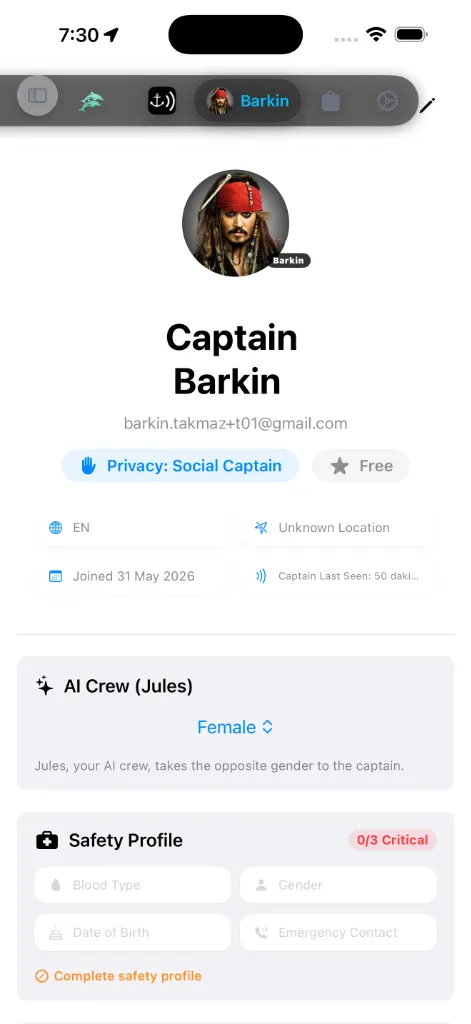
Signed in
When you are signed in the dashboard shows:
four info capsules below it: your country, your last known
place (a town or coast name, not raw coordinates — shown only while
your privacy level is Social Captain, otherwise it reads *Location
private*), the month you joined, and when you were last seen.
Routes and Anchorages. Each is a lifetime total with a small
twelve-month trend line and, once you have a full season behind you, how
it compares with the year before. The counts appear only after you have
recorded something; a brand-new account sees nothing rather than three
zeroes. See [Your record](#your-record).
number costs you. See [Your vessel's specs](#vessel-specs).
open Privacy Settings and change who can see you.
when it renews. Tap it to open the premium Licenses Ledger. If you
subscribe to Oceanic Tides, a teal TIDES
badge sits beside it.
Language is the same setting as
Settings → General → Language: change either and
the other follows. It sets the language of the app and of Jules' answers,
and it is saved to your account so another device you sign in to can pick
it up. Units is the same unit system as Settings → Units — see
[In Edit Profile](#edit-profile). Theme lives in
Settings, not on this dashboard.
To sign out, tap the pencil to open Edit Profile — the Sign
Out button is at the bottom of that screen. There is no sign-out
control on the main dashboard.
Your record
The three counts read from what you have actually recorded:
counts here, not as a passage.
The trend line under each is the last twelve months, oldest on the left,
this month on the right. The percentage compares those twelve months with
the twelve before them — a whole year against a whole year, because
sailing is seasonal and comparing one month with the last would report a
collapse every autumn. In your first season there is nothing honest to
compare against, so a dash appears instead of a number.
The totals are lifetime figures and never shrink: an old passage still
counts even after it has scrolled off the trend line.
Your vessel's specs
The Vessel card is the instrument panel for the boat you are on. It is
drawn in the same dark instrument style as the route panel on the chart:
the boat's picture (or its class artwork), its name, class and length up
top, and six figures underneath — DRAFT · AIR DRAFT · BEAM and
AVG SPEED · FUEL BURN · SAFETY MARGIN — in the same thin numerals the
route panel uses, in your own units.
Every figure says where it came from. A small word under each label
tells you whether the number is yours (you typed it), class (the app's
estimate for a boat of that class and length) or measured (average speed
over your own recent passages). A figure the app cannot estimate reads as a
dash in amber, with a line underneath saying what stops working without it.
Your boat's class does the paperwork. You never have to look these
numbers up before the app can work. The moment a boat card has a class
(Sailboat, Motor Yacht, Trawler, Powerboat, Motorboat, Catamaran, Gulet,
Trimaran, Dinghy) and a length, the app fills in what a typical boat of
that class and size does: its draft and beam, how high its mast or radar
arch reaches, the speed it cruises at, and what it burns doing so. The
figures come from published owner and trade data — a 40 ft trawler holding
hull speed burns about a tenth of what a 40 ft sport cruiser burns on the
plane.
Tap any figure to change it. Tapping a cell, or EDIT SPECS at the
bottom of the card, opens the spec editor for that boat with the tapped
figure already focused. Each row shows a large field in your units (metres
or feet; knots, km/h or mph; litres or gallons per hour) and, beside it,
the class estimate as a ghosted value — tap the ghost to hand that one
figure back to the class default, or USE CLASS DEFAULTS at the bottom
to hand all of them back. SAVE writes the figures to that boat.
Every boat keeps its own numbers. Specs belong to the boat card, not to
the app: a shoal-draft catamaran and a deep-keel sloop in the same fleet
each remember their own draft, air draft, speed and fuel. Making another
boat active (see [My Vessels](#my-vessels)) switches every figure the
chart, the route planner and the FUEL cell use to that boat's own —
what you typed for it, or its class estimate where you typed nothing.
Average speed is measured, not guessed. Once you have completed three
passages on the active boat the figure is your own average over the last
twelve, marked measured. Before that it shows the cruise speed — the
class default, or the one you typed, marked yours. This is the speed
every ETA in the app starts from.
A missing number says what it costs. Without air draft, bridges and
power lines are not checked on your routes. Without fuel burn, a passage
cannot estimate its fuel cost and the route panel's FUEL cell shows a
dash. Nothing else about the app changes; those specific checks simply do
not run.
Licenses Ledger (App Store Accounting)
Tapping the plan capsule (★ and your plan's name) on your profile card opens the Licenses Ledger. This acts as the official visual accounting dashboard for your active App Store licenses, direct region purchases, and complimentary chart pack slot allocations.
If you hold both a paid plan and a separately-purchased Real-Time
Remote subscription, a Real-Time Remote also active ·
line appears under the plan name — Remote has its own renewal cycle, so the
ledger states it explicitly rather than folding it into the plan's date.
Complimentary Chart Pack Slots
Premium memberships grant complimentary, permanent slot allocations for
high-resolution chart regions:
* AnchorQueen Free: 0 complimentary slots.
* AnchorQueen Pro: 3 complimentary slots, chosen one at a time.
* AnchorQueen Max: unlimited — every region is included, so the ledger
shows a coverage card instead of a slot roster; nothing to claim or
choose between.
* Real-Time Remote (standalone, not a plan): 1 complimentary slot
while the subscription is active.
If your account is grandfathered (an early lifetime account), the
ledger labels it AnchorQueen Grandmaster with *Grandfathered Lifetime
Access* and a crown. This is not a fourth tier you can buy — it is a badge
for legacy lifetime accounts, with Max-level capabilities.
Slot Licensing States
Each slot in the roster dynamically tracks the status of its bound license:
* 🟢 Active (Expires : The region is fully active with offline capabilities and passage planning.
🟡 Expired · Routing Disabled: The region's subscription has expired. Offline viewing of vector charts remains fully active, but advanced Hybrid A-APF passage routing within the region is locked.
* 🔴 Expired · Locked: The region's slot is expired and offline downloading is locked.
The Captain's Safe Data Guarantee
Signed out
When you are not signed in the tab is a sign-in screen:
The same screen appears wherever you reach your profile from — the
Captain tab, or the captain card at the top of the
sidebar, which reads Sign In while you
are signed out. Opened from the sidebar it arrives as a sheet with a ✕
in the top-right corner; close it to go back to the chart. Once you sign in,
the same sheet becomes your dashboard.
You need to be signed in to use Jules chat and to start the
Remote tab. You do not need to be signed in to buy — see
[Purchases and your account](#purchases-and-account).
My Vessels
The My Vessels card is your garage: every boat you have registered, with
the active one first.
showing the boat's picture or class artwork, name, class and three quick
figures (draft · average speed · fuel burn). This is the boat the chart
draws, the route planner plans for and the 3D fly-over sails. It is
remembered between launches.
below; swipe sideways through them. Tap SET ACTIVE on a card to
switch boats; the whole app follows at once, including every figure on
the [Vessel card](#vessel-specs).
Pick the class that fits your boat under Select Vessel Class —
Sailboat, Motor Yacht (flybridge or pilothouse cruiser,
18–22 kn), Trawler (displacement hull held at 7–9 kn), Powerboat
(planing express or sport cruiser, 22–28 kn), Motorboat (small open
or day boat, usually outboard-powered), Catamaran, Gulet,
Trimaran, Dinghy or Other; each chip shows the drawing the
chart uses for that class — and its length. The class and length seed
every planning figure for the boat and choose the hull drawn on the chart
and in the 3D fly-over.
Classes that come in several models then show a Select Vessel Model
row: Trawler — Classic, Hardtop, Black Top or
Expedition; Motor Yacht — Motor Yacht or Superyacht;
Catamaran — Sailing Catamaran or Power Catamaran; Other —
Sailboat or Houseboat. Each chip shows the drawing and a short
description. The model only changes how your boat looks (chart symbol,
the 3D model at the top of the editor, the fly-over); speed, fuel and
every other figure stay the class's. Until you pick a model, a Motor
Yacht of 30 m or more is drawn as a superyacht. See
[Atelier vessels](#atelier-vessels).
Edit card (name, class, length, photo, home port) and Edit specs
(draft, air draft, beam, speed, fuel — see
[Your vessel's specs](#vessel-specs)).
it reads Remove. Deleting asks you to confirm and cannot be
undone; removing the active vessel leaves the garage with no active
boat until you pick one.
your first.
3D model of my boat
A one-time purchase turns your own boat into a detailed, animated 3D model, built from your
photos and the boat card. It replaces the class artwork for that boat on the chart, in Live
and in Passage 3D. Open a saved boat in the boat editor and find the 3D model of my boat
card below Usage; it shows the App Store price and what is included — one model, three
revision rounds before you approve, animations (lights, anchor, flag, sails and more).
Buying needs a captain account and a boat card that has synced to your account (the card
says so if the boat still has to be saved or the phone is offline).
After the purchase the card opens the Boat Model screen:
hull), the bow, the stern (transom, platform, name) and, if you can, the top.
Add optional notes for the modeller (colours, the name on the hull, equipment the photos
miss). Photos are resized on the phone before upload and carry no location data. Then
Send photos; the first round takes a few minutes.
zoom. Approve builds the final model from that round (you confirm first; no changes
after that). Request a change describes what to change in up to 1,000 characters and
uses one of the three revision rounds — a change outside what the model can do is
explained and uses no round. Review with Jules opens Jules,
who can show the renders, take your changes and approve for you.
navigation or recording is running) and appears in the showroom: drag to orbit,
pinch to zoom, switch Day / Night lighting and play the animations the boat has
(Drop anchor, Hoist sails, Tack, Navigation lights …). Use on chart
(on by default) draws it as your boat on the chart, in Live and in Passage 3D, where the
three.js engine plays the anchor, tack and sail animations along the film. Turn it off to
go back to the class artwork.
If a round fails, it does not count against your revisions. A refunded purchase stops the
work; a model already on the phone stays there.
Sea sports gear
Your kayak, jet ski, kite or paddleboard live on the captain page too, right under My Vessels.
See also Sea Sports on the chart.
Sea Sports
Below your record strip (passages · routes · anchorages), once you have recorded a Sea Sports session or added gear:
Base marina
Each boat in the garage can be tied to the berth it actually lives in. Tap
⋯ on the boat's card (or long-press it) → Edit card, and use the
BASE MARINA & AREA BEACON card under the boat's picture; tap Save to
keep it. A new boat gets the same card from +.
searches real marinas worldwide by name. Pin on Map drops a crosshair —
on the berth already set, otherwise on your current position — so an
unlisted quay, cove or private pontoon still counts; standing on your own
pontoon, just tap Confirm Marina. The card shows the berth's
coordinates once it is set. Saving a base marina also adds it to your
Favourites.
you are sailing is drawn at its berth with its own hull art, scaled to its
length. Boats sharing one marina are spread along adjacent slips so they
do not stack. The boat you are aboard is drawn at your live position
instead, so you never see it twice.
the active vessel, and the whole app follows: the chart hull, the route
planner's draft and speed, and the Helm figures. Leaving needs 900 m, so
walking the pontoon cannot make it flicker. Two fixes are required before
it acts, and if you switch boats by hand the automatic switch stands down
for half an hour.
there, nothing changes. Otherwise the one you sailed most recently takes
the helm.
Journal with the local clock time and the marina's name.
Always location permission, which AnchorQueen only asks for when you
arm the anchor watch. Without it the switch still happens, but only while
the app is open.
Save. The boat no longer has a berth, so there is no beacon and no
automatic switch. The card shows BEACON ARMED while a berth is set.
Safety Profile
The dashboard shows a Safety Profile card (SOLAS SAR / ISAF) — the
information rescue services ask for first. The card's header carries a
readiness badge: it reads SAR Ready (green) once all three
critical fields are filled, or N/3 Critical (orange / red) while any
are missing. The three critical fields are blood type, the
emergency-contact name, and your date of birth. While the badge
is below 3/3, a Complete safety profile prompt nudges you to fill in
the rest.
Tap the pencil to edit these details in Edit Profile:
clears it.
This is the SAR datum; it does not shape Jules.
responder should know.
emergency contact during a distress event. The dashboard card echoes
this as Jules can notify this contact once a contact is set.
Everything here stays on your device and in your synced account; it is
shared only when you trigger a distress alert.
Document Vault
A private store for your ship's papers — reached from the Captain tab.
Upload ICC, RYA, STCW certificates, insurance policies, vessel
registration, and crew manifests, sorted into folders.
that turns orange near full.
progress percentage.
delete existing documents to free space or choose a smaller file.
My shares
Every reel you have made — passage, route, anchorage or seamark, each with its own glyph — with the link that plays it.
Open it from the ⋯ menu in the routes and passages library — My shares.
Each row names the passage, when you created it, and a status: Queued,
Rendering, Ready, Failed or Revoked.
iOS share sheet. Watch plays it in the app.
own every 20 seconds and a footer says when it last heard from the server.
Pull down or tap ↻ to check right now.
and a revoked reel can take up to an hour to disappear from caches around the
world.
Shares belong to your captain account, so the list is the same on every device
you sign in on. See
Share your passage as a reel for how one is made.
Share the App
At the bottom of the dashboard a Share the App button opens the system
share sheet so you can pass AnchorQueen on to crewmates and fellow
skippers.
In Edit Profile
Tap the pencil to reach Edit Profile — one grouped page. The top shows
your photo, name and email with the same SAR Ready / N/3 Critical
badge as the dashboard, updating as you type. Tap the avatar to pick a new
photo.
searchable country list), home port and sailing qualification
(ICC, RYA Day Skipper, …). Your number and nationality are what a rescue
centre asks for first; the dashboard's globe capsule shows your
nationality once it is set.
(Metric, US, Imperial (UK)) with a glance at your depth, speed and
temperature units, and Customise per quantity, which opens the full
unit editor: region auto-match, preset, and every quantity from depth to
coordinates. It is the same setting as Settings → Units. These apply
instantly — no Save needed.
[Safety Profile](#safety-profile).
Off by default.
and Delete Account (see [Delete your account](#delete-account)).
As soon as you change a profile field, a Save Changes bar slides up
from the bottom — it stays above the keyboard. Discard puts every
field back. Saving stores the profile in your account, so it follows you
to every device you sign in on.
Delete your account
You can permanently delete your AnchorQueen account from inside the app.
Open Edit Profile (the pencil on the Captain tab) and tap Delete
Account, then confirm.
This permanently removes your account and the data tied to it — your
captain profile, boats, saved routes, marks, and voyage data — and cannot
be undone. Deletion runs on our servers, so the account is fully removed,
not just signed out, and you are returned to the sign-in screen.
Two things it does not touch:
not cancelled by deleting your account. Manage or cancel it in
Settings › Apple ID › Subscriptions on your device.
anonymous seabed reports) and legally required accounting records are
kept, with no link back to you once the account is gone.
If deletion can't complete — usually a connection problem — nothing is
deleted and you can try again.
What signing in does
Signing in connects your device to the AnchorQueen cloud so that:
Your sailing data on the chart and in Capt's Notebook stays on the device
unless you choose to sync.
Purchases and your account
You can buy anything in the Store without a captain
account. Plans, chart regions, Real-Time Remote and Jules token packs are all
bought with your Apple account, and your purchases follow that App Store
account — signing in is optional and never a step in front of a buy button.
charts unlock on every device you sign in on.
bought is safe until then — the Store shows Sign in to use your Jules
tokens — and a Remote subscription waits for the account, with a Create
your captain account to start Remote step.
Whatever you bought on this device before signing in is carried to that
account, and a short message says so. A purchase that already belongs to a
captain account is never moved onto another one.
to sign in first.
If something goes wrong
connection.
says your purchases could not be moved yet — tap Restore Purchases in the
Settings and make sure they agree.
Atelier vessels
Every vessel class is drawn with detailed Atelier artwork in navigation, anchor watch, simulation and replay, and in the boat editor's 3D model (drag to orbit, pinch to zoom). Charter gulets have their own two-masted image.
Each class has a hull of its own: a Motor Yacht is a 24 m flybridge yacht (or the 40 m tri-deck Superyacht model — picked for you from 30 m until you choose), a Trawler the reference displacement trawler in the model you pick — Classic, Hardtop (a hard roof over the flybridge), Black Top (dark superstructure top) or Expedition (high-bowed long-range cruiser) — a Catamaran a sailing or a power catamaran, a Powerboat a navy deep-V express cruiser with open cockpit, sunpads and radar arch, and a Motorboat a centre-console open boat with a light T-top and a single outboard. Trimaran and Dinghy (a RIB tender) have detailed models of their own too. Every hull is scaled to your boat's length.
Vessel model. Open the boat editor, pick the class, then pick the model under Select Vessel Model; the 3D model at the top switches as you tap. An Other boat can be drawn as a sailboat or a Houseboat. The model is stored with the boat, so it follows the card to your other devices; changing the class clears it, and a card without one draws the class's usual hull (a card saved before 2.4.6 keeps it). At very large text sizes the class and model chips stack in a column so every name stays readable.