

Getting started
What to do in your first five minutes with AnchorQueen.
1. Splash screen
When you open the app you see the splash for a few seconds while the chart
and services warm up.
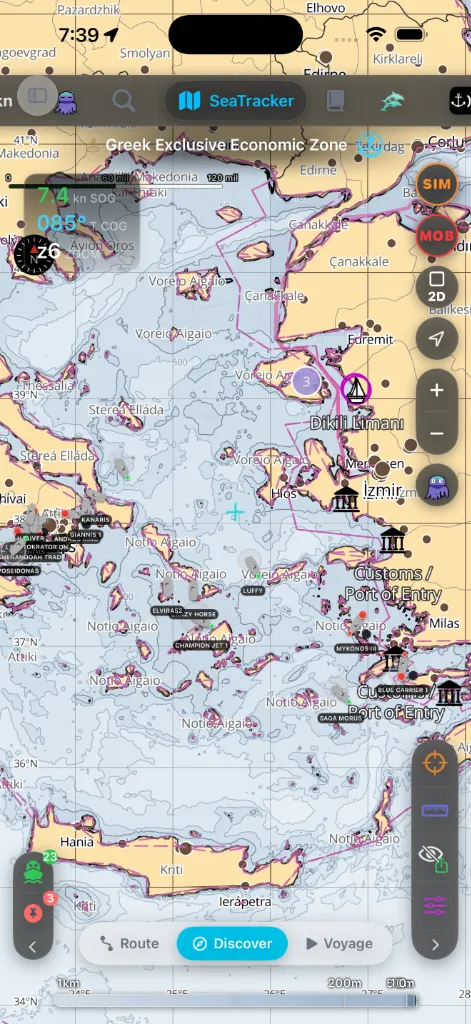
Once it clears, you land on the AnchorQueen chart in
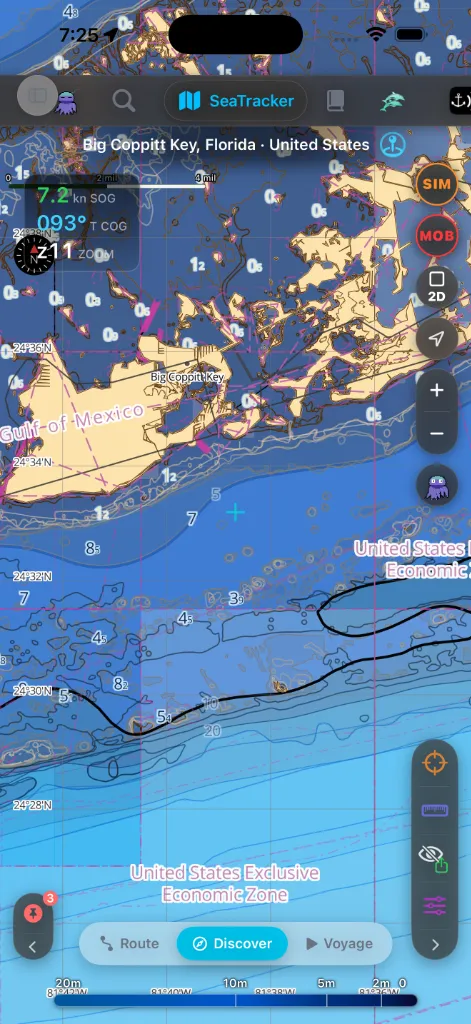
2. Grant the permissions
AnchorQueen asks for location in two steps, and never before it has told you
why.
Step one — "AnchorQueen needs your position." After the splash, a short
explainer screen sets out what the fix is used for: drawing your boat on the
chart, watching your swing circle, and recording routes and voyages. Tap
Continue and iOS asks for location access; choose While Using
the App.
Step two — background access, when you arm the anchor watch. The moment
you drop the anchor, iOS asks
whether AnchorQueen may use your location Always. Allow it. An anchored
boat drags at night with your screen off and the app suspended, and only
background access lets the alarm keep comparing your position against the
swing circle — and lets iOS relaunch the app on its geofence. While Using
is not enough: the watch goes quiet the moment you leave the app. (See
Troubleshooting: alarm did not fire
if you decline.)
What background access costs. Continued use of GPS running in the
background can dramatically decrease battery life. AnchorQueen says so on the
first explainer screen and again on the panel where you drop the anchor, and it
keeps the GPS awake only while an anchor watch, a voyage recording or active
navigation is running — never just because the app is installed. See
Troubleshooting: battery draining overnight.
Three more permissions matter:
with the phone on Silent or in a Focus. iOS asks in the same prompt as
notifications, the first time you open SafeAnchor.
Check it with Test Alarm Sound in
If you missed a prompt, Settings shows what is missing and
takes you to the iOS Settings page to fix it. Nothing in the app forces you to
Settings on first launch — you can always decide later.
3. Clear the first-run prompts
On a fresh install the free tier shows ads, so right after the permission
prompts you will see two more dialogs:
where your region requires it). You can change this later under
your activity…" Your choice here is yours; the app works either way.
A Pro plan removes the ads.
4. Install a chart region
AnchorQueen is offline-first — charts come from regions you download, not
from a live connection. Do this on Wi-Fi before you cast off.
region(s) covering your cruising area.
plan — three regions of your choice on Pro, every region on Max. The Free
plan includes none, but every region is a free download: your first one
starts 14 days of full access, after which the
charts stay free to view. Any region can also be bought on its own. See
The fastest way there: tap the pulsing Charts button (map icon) in the
chart's right-edge column — it suggests the chart for the area you are
viewing and for your GPS position, starting with the free World Coastline base map
on a fresh install. See
Chart downloads for this area.
Without a downloaded region the chart falls back to a low-detail base map and
will not show soundings offline — see
Troubleshooting: chart will not load offline.
5. Sign in (recommended)
Browsing charts works signed-out, but a free Captain account unlocks
vessel sync, the Document Vault, signing
community marks, and managing your subscriptions
across devices.
Open the Captain tab and Create account (or Sign in
with Apple / Google where available).
6. Take the tour
The app teaches itself as you go — look for two cues:
used yet. Tap one and a short tooltip bubble explains what it does, then
the dot clears.
Search (magnifier) button, switch to the Features tab, and leave the
box empty — it lists every hinted feature so you can jump straight to one.
Details in Basic UI.
Then skim the essentials:
button shared by every tab.
7. Set your first anchor
sets a GPS-aware alarm radius for you, and the watch arms itself — there is
no separate Arm step. The scope chip reads Alarm On.
Full detail is in SafeAnchor.
If something goes wrong
Troubleshooting: app won't load.