

Jules — your AI marine officer
Jules is AnchorQueen's AI marine officer. Ask a question and a veteran
crew member answers — by text or by voice.
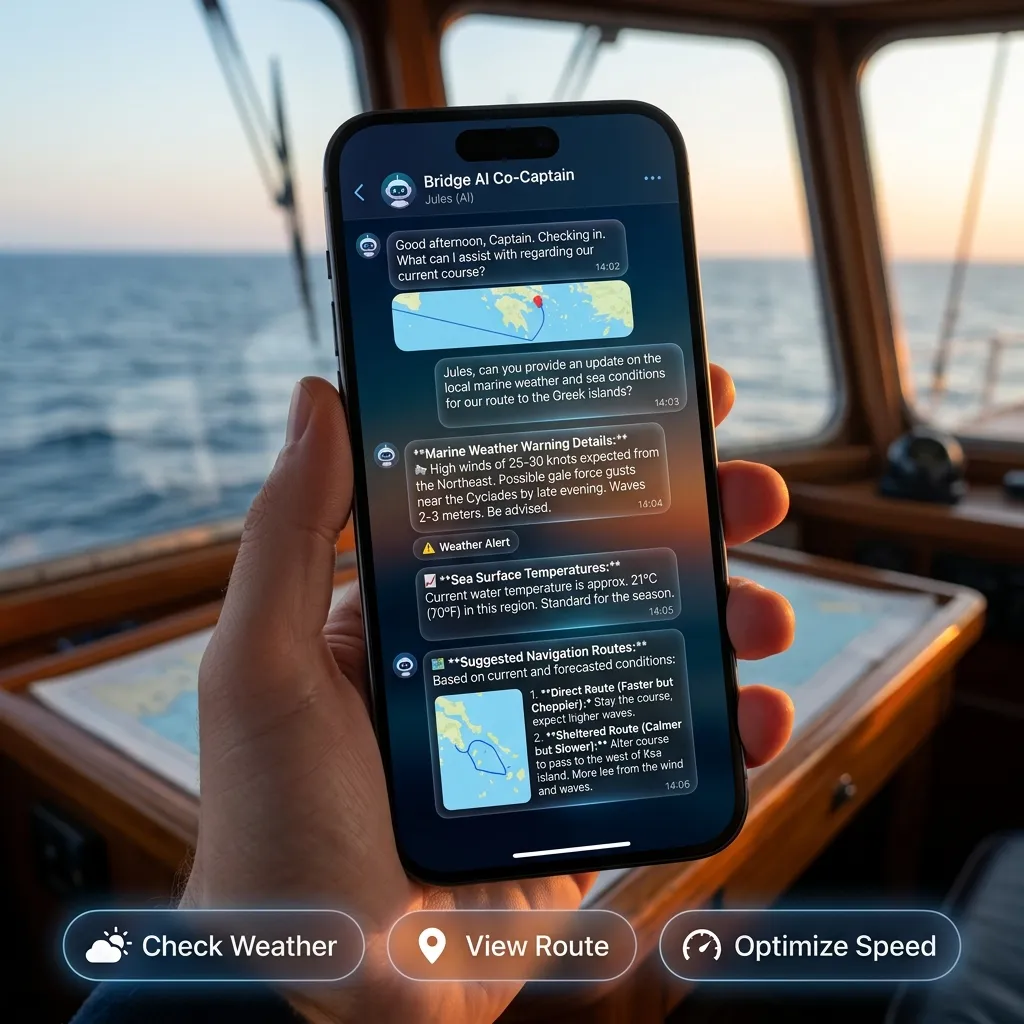
The chat
A simple two-column conversation. Your messages on one side, Jules's
replies streaming back on the other, with avatars and timestamps.
A row of officer pills at the top lets you pick which officer you are
talking to. Each has their own background and area of expertise — a
meteorologist, a navigator, a passage planner. Tap a different officer to
switch context for the next question.
Beside Jules's avatar in the header sits a short status line that
reflects her current mood — calm, working, or a weather alert such as a
storm warning. It shows on one line and may end in an ellipsis when long;
tap it to expand the full message, and tap again to collapse.
Chat history
Jules keeps every conversation as a separate thread — just like ChatGPT,
Gemini, or Claude. Tap the history button (the clock-with-arrow icon)
at the top-left of the chat to slide open the chat-history drawer. It is
separate from the app's Left Menu — opening the history drawer closes the
Left Menu, and vice versa, so the two never overlap.
Previous 7 Days, and Older — newest at the top.
and a one-line preview of the latest reply. The active chat is
highlighted.
which officer you were talking to in it.
your other conversations are kept, not wiped.
Delete it.
When you reopen the Jules tab, you land back on your most recent
conversation. If you are signed in, your chat history syncs across your
devices automatically.
How Jules works
Jules answers in real time over the cloud (Gemini 2.5 Flash), with replies
streaming back token by token. When your device has a local AI engine
available, Jules tries it first for the whole reply and falls back to the
cloud automatically — that fallback is what the Engine fallback banner
reports (see [Banners](#banners)). Either way, the on-chart actions below
always run on your device, against your downloaded charts.
There are two lanes, and the pill next to the + button in the input bar
always tells you which one is in use:
on your own Ollama server costs nothing and does not touch your daily
Jules allowance (see [Free, PRO & MAX](#pro)). It also works offline.
Jules still knows AnchorQueen there: a built-in guide to every tab,
button and setting ships inside the app, so "how do I…?" questions get
the real taps even with no signal — in your language. On Apple
Intelligence she can also find a place, read the charted depth and
seabed, list nearby harbours and anchorages, move the chart, and list or
replay your recorded passages. The
trade-off: planning routes, live weather, the other chart tools below and
image questions need the cloud.
with the full set of chart tools and image understanding, and it spends
your daily allowance.
Jules picks between them for you unless you say otherwise — see
[Choosing an AI engine](#ai-engine).
Each reply ends with up to three follow-up suggestion chips — short
questions Jules thinks you might ask next. They arrive in a hidden marker
block the app strips before display, so you only ever see the chips, never
the markup. Tapping a chip just re-asks Jules that question — it does
not open another tab or move the chart. See
[Suggestion chips](#chips).
Jules can act on your chart — 16 tools
Jules isn't a passive chatbot. To answer you she can reach into the app and
do things, then read the result back into her reply. The sixteen actions
she can take:
the worldwide marina database, charted features, your saved marks).
distance, duration and average speed; she can search it by name.
voyage, playing immediately (see
[Your recorded passages & replay](#passages)).
beacons.
official manual page for the topic and answers from it, in your language.
she asks our charter partner for the fleet at a base (see
[Renting a boat with Jules](#charter)).
Jules can see your chart
Ask "look at my chart and tell me what you see" and Jules takes a snapshot
of the chart exactly as you're viewing it and reads it with her vision
model. This only works while the chart screen is open — if you ask from
elsewhere, she'll tell you to open the chart first.
You can also show her the chart yourself: pick Attach Chart Snapshot
from the + menu in the input bar. A preview thumbnail appears above the
text field — tap ✕ to discard it, or send it with your question (send with
no text and Jules is simply asked what she sees). The snapshot appears in
your message bubble so you always know exactly what she looked at.
Reading a picture takes the cloud lane, so a message with a snapshot
attached always goes to the cloud and spends your daily allowance — even
if you normally answer on a local engine (see
[How Jules works](#how-it-works)). The
snapshot stays in front of Jules for that whole answer, including any chart
tools she runs along the way; it isn't carried into your next question, so
attach it again if you want her to keep looking.
Chart reading needs Pro or Max. On the Free plan the option is locked
and tapping it takes you to the Store — Jules can still answer from your
position, your chart's current view, and everything else she knows, she
just can't look at a picture.
She knows where the picture is, not just what's in it: the exact patch of
sea on screen, the scale, which way is up if you've rotated the chart, which
chart style and depth palette you're using, what depth unit your soundings
are in, and which layers you have switched on. That's why she can say "the
shoal in the lower-left is about here" instead of guessing — and why she'll
tell you a label is too small to read at that zoom rather than inventing it.
Pan in and show her again for a closer look.
Jules reads your instruments
If you've linked a Signal K server or an NMEA gateway (see
Settings — instruments), Jules knows about it. Ask *"how
much water is under me?" or "what's the wind doing?"* and she answers from
your own sounder and anemometer rather than from the chart or the
forecast — the forecast is what happens later, your instruments are what is
happening now, and she'll tell you which one she used.
She also knows which boat the server is reporting: a Signal K server can
carry several vessels, and she uses the one it publishes as its own.
Two things she is careful about, both on purpose:
its transducer sits, and only some gateways publish the offset down to
your keel. When Jules can give you real under-keel clearance she says so;
when she can't, she tells you the number is measured from the transducer
or the waterline instead of quietly presenting it as the water under your
boat. If that's not what you want to hear, the fix is at the gateway —
publish the keel offset.
go stale, Jules says the feed is down and falls back to charted and
forecast data, rather than repeating the last number that arrived.
Jules knows your boat
Jules is told your boat's draft, beam, length overall, safety margin, air
draft and cruise speed — the numbers you set under
Vessel Profile on the Settings Nav
tab. They are the same numbers the route planner and the grounding alarm
use, so a depth, anchorage or berth answer is about your boat rather than
a typical one.
If you have never opened that screen, the app sets it up from your boat
card the first time: your length is your own figure, and the starting
draft and beam are those of a typical boat that size. Jules is told which
parts are yours and which are estimates, so she will say so and ask for your
real draft rather than quietly answering a depth or anchoring question from
an assumed one. Setting your real draft is the single most useful minute
you can spend on Jules's answers.
She also knows your boat's name, type, builder, model, year, home port and
home marina from your boat card, and whether your plan is Free, PRO or MAX.
When Jules doesn't know where you are
Jules only speaks about your position when the app actually has one. If
location services are off for AnchorQueen, if the first fix has not arrived
yet, or if the last fix is more than ten minutes old, she is told there is
no position — and she will ask you where you are instead of guessing.
While that is the case, four things are simply unavailable to her: your
coordinates, the place name, the waters you are in (see
[Where am I?](#zones)), and the list of
[nearby harbours](#places). Questions that don't depend on your position —
about a place you name, a point you tap on the chart, or the app itself —
are unaffected.
You can still get position-aware answers by naming the place ("what's the
holding in Sarsala?") or by asking about somewhere you have moved the chart
to; see [Jules can see your chart](#vision).
Jules sets her own mood
The status line by her avatar (see [The chat](#chat)) is something Jules
writes herself — she picks a mood and a short activity line in your
language as she works. It's rate-limited so it can't flicker between states.
Jules takes the opposite gender to you
Set Your Gender under the AI Crew (Jules) section of the
Captain tab and Jules adopts the opposite gender for
her persona. Left unset, Jules defaults to female. This is separate from
your safety-profile gender — it only shapes Jules.
The + menu
The + button at the bottom-left of the input bar, under the text field
and just before the engine pill, opens the chat menu. The chat header
has no menu of its own: just the history button, Jules's status line and
your usage. A small dot on the + means you have saved reports.
The menu opens with Attach Chart Snapshot — stage a picture of the live
chart for Jules to read (see [Jules can see your chart](#vision)) — followed
by two sections:
Conversation
history drawer, see [Chat history](#history)).
Library
report Jules has filed in your log, beside that day's log entries and
recorded passages, readable offline. See
count in brackets once you have some. Tap the bookmark under any
finished Jules reply to save it; Saved flashes beside it.
[Choosing an AI engine](#ai-engine).
On the Free plan a last entry, Upgrade Plan, opens
What Jules can do for you
Jules doesn't just answer questions — she acts on the chart for you.
Talk to her in plain language; you never need to read out coordinates.
When you say "here" or "near me" she uses your live GPS position, and
if there's no fix she uses the centre of the chart you're looking at.
The sections below show what to ask. Everything here works in everyday
language — these are just examples.
Weather & forecasts
Jules pulls live marine weather and multi-day forecasts for your
position or anywhere you name.
> "What's the weather right now?"
> "Give me the 24-hour forecast here."
> "What's the 3-day outlook for Mykonos?"
"Show me the week ahead — is there a good window to cross?"
She reports wind and gusts, waves, pressure, and conditions, and for
multi-day questions summarises each day's peak wind, wave height, and
rain chance.
Routes & navigation
Jules plans depth-aware routes that keep you in safe water, saves
them with a "Jules" badge, and can extend them.
> "Plan a route from here to Mykonos."
> "Take me to Delos, then on to Mykonos."
> "Add a waypoint at the headland to that route."
"List my saved routes."
Routes she plans appear in your Saved Routes alongside your own, clearly
marked so you can review, follow, or delete them.
When Jules plans a route, her reply also carries a route card — a
small map preview of the planned track with the route's name, distance,
and waypoint count. Two buttons act on it directly:
It also selects the route, so the passage is drawn whichever chart
mode you are in — including Voyage, where the chart otherwise shows
only recorded passages.
immediately.
If you tap either while Jules is open as a panel over the chart, the
route is framed in the part of the chart you can still see rather than
behind the panel. Drag the panel down by its handle for the full view.
The card stays in your chat history, so you can return to an earlier
conversation and start that passage later. If you delete the saved
route, the card remains as a reminder of its name and distance but can
no longer open it. The preview needs a network connection the first
time it draws; the buttons work regardless.
Jules also sees your live navigation. While you're navigating a route,
every question you ask carries the current leg with it — the route's name,
the waypoint you're heading for, distance and bearing to it, how far off
the track line you are and to which side, and your ETAs — so *"am I on
track?"* gets a real answer from the numbers, not a guess. The same goes
for whatever route or passage you have selected on the chart: ask
"how long is this route?" or "when did I sail this?" and she reads the
one you're looking at.
Your recorded passages & replay
Jules keeps your voyage log at hand. Every passage you record in the
chart's Voyage mode — with its date, distance, duration and average
speed — is hers to search:
> "Which passages did I record last week?"
> "Find our trip to Poros."
"How far did we sail on Saturday?"
And she can put one back on the water: ask her to replay a passage
and the chart's passage replay starts playing it immediately — the vessel
sails the recorded track again with its speed trail and the replay deck's
controls, exactly as if you had started it from the passage yourself. Name
the passage you mean, or just say "replay it" with a passage selected on
the chart — otherwise she takes your most recent recording. If the chat is
covering the chart, drag it down by its handle to watch.
Only recorded passages replay — a planned route has no recorded track
to sail. Replay itself is described in Chart.
Anchoring
> "Is this a good place to anchor?"
> "What's the seabed like here?"
> "How deep is it where I'm pointing?"
"How crowded will this bay be in a few hours?"
Jules reads the seabed type and gives a holding score, checks charted
depth, and predicts anchorage crowding.
Places, harbours & ports of entry
> "What's this place called?"
> "Find marinas near me."
> "Where can I anchor tonight?"
> "Where can I clear customs nearby?"
"Any lighthouses or buoys around here?"
She names the bay, island, or town you're looking at, lists nearby
harbours and marinas, finds customs and immigration offices (ports of
entry), and locates charted seamarks — buoys, beacons, and lighthouses.
Where a harbour has a community pilot-book page, Jules can pass you the
link for approach and berthing notes.
Ask her where to anchor and she checks the charted anchorages near
you the same way you'd read the chart yourself: each one comes with its
charted depth, the seabed type and anchor-holding quality where surveyed,
and whether it's a designated anchorage area — the same shaded areas you
see on the chart. She combines that with what other
captains report — check-ins, ratings, the seabed, which winds a bay is
sheltered from — and with where boats have anchored before, to recommend
where to drop the hook. Ask *"Where can I anchor out of the northerly
tonight?"* and she favours spots sheltered from that wind. Where a harbour
master has designated an official anchorage area she says so (and until when
it is valid), she warns you about official no-anchoring zones such as
protected seagrass plots, and in bays with a mooring-buoy field she tells you
to pick up a buoy instead of dropping the hook. On Apple
Intelligence she can do this on your iPhone too, offline, for any area
your chart has already loaded.
When you ask Jules to find a named place ("Take me to Setur Kalamış
Marina"), she searches exactly the same sources your own chart search
does — online places, the worldwide harbour database, charted features,
and your saved marks — so she finds marinas and landmarks a plain map
lookup would miss. Each place Jules looks up is added to your Recent
searches in the chart search panel, tagged with her ✦ badge so you can
tell her lookups apart from your own (and filter to just hers).
Where am I?
> "Whose waters am I in?"
"Am I inside territorial waters here?"
Jules tells you the maritime jurisdiction — the territorial sea, EEZ,
and sovereign state — at your position or any point on the chart.
Live traffic & your chart
> "Any boats anchored near me?"
> "What's the live traffic around me?"
> "Show me Mykonos harbour." (Jules moves the chart for you)
> "Zoom in."
"Look at my chart and tell me what you see."
Jules reads nearby vessels (AIS) and other anchored boats, can pan and
zoom the chart to show you a place, and can even look at the chart
you're viewing to answer questions about what's on screen.
Drop marks
> "Drop a mark here called 'Lunch stop'."
"Mark this as a good anchorage."
Marks Jules drops are saved on the chart with your notes, tagged so you
always know which were hers.
Help with the app itself
> "How do I set the anchor alarm?"
> "I can't find the voyage recorder."
"What does the Merconi tab do?"
Ask Jules how any part of AnchorQueen works and she reads the official
in-app manual page for that topic before answering — so her directions
match the real screens and buttons, in your language. If the manual
doesn't cover something, she says so instead of guessing.
Renting a boat with Jules
> "Rent a catamaran in Göcek next Saturday."
> "What can we charter for eight people near here under €600 a night?"
"Any gulets for hire in Bodrum this August?"
Jules searches charters only when you ask to rent, charter, hire or
book a boat — asking about your own vessel, AIS traffic or a marina's
facilities never triggers it. She resolves the place you name (or uses the
chart position), turns "next Saturday" into a Saturday-to-Saturday week in
your local time, and asks our charter partner, BOATAROUND, for the fleet —
the same partner catalogue the Yacht charter section on a marina card
uses. She lists at most eight boats with type, size, berths, year,
nightly price and a link, and reminds you that the coordinates are the
charter base · not a live position.
Under her reply a Charter offers row appears:
price and the Rent button, which opens the partner's page for that boat
in your browser. Nothing is booked inside the app.
with the same place, dates and filters so you can compare and track prices.
When the boat you named is taken. Ask her about a particular boat for a
week somebody else already has, and rather than a dead end she comes back with
up to five alternatives — the partner's own similar boats — and says plainly
that the one you asked for is not available for those dates.
Jules never invents availability or prices. When the partner returns
nothing she says so and offers a link to the full search instead. Charter
search needs a network connection.
Your boat's 3D model
While a 3D model of your boat is being made, Jules can tell
you where it stands, show each review round as a card under her reply — the renders, the
revision rounds left, Approve model (you confirm first) and Open (the Boat Model
screen) — take a change in your own words and approve the model for you. Photos are not sent
in the chat: Jules points you to the Boat Model screen for them. These turns do not use your
Jules tokens.
Talk or type
Type in the input bar, or hold the microphone and speak — release to
send. The first time you press the microphone, iOS asks for Speech
Recognition and Microphone access; once you allow both, hold it again to
talk. Opening Jules never asks for anything. Jules answers in whatever language you write or speak to her —
switch mid-conversation and she follows — and her replies stream in as
she writes them.
Jules remembers you
Jules carries context across sessions and devices. Tell her your boat's
name, draft, and home waters once and she'll remember — so "is it deep
enough for me here?" already knows your draft. She also adapts to you:
she replies in the language you talk to her in and matches the persona
to your profile.
Choosing an AI engine
Open AI Engine from the + menu (or just tap the engine pill in the
input bar). The screen has two tiers, and most captains never need the
second one.
1. Status. The card at the top answers, in plain words, *what Jules is
using right now and what it costs you* — "Answering from the cloud",
"Answering on this iPhone", or "Answering via your Ollama server". If you
forced a specific engine and it isn't reachable, an orange line says which
engine actually took over, so the screen never contradicts your saved
choice.
2. Automatic (Recommended). The single choice worth making. Jules
picks the best engine for each reply — on-device first, cloud when the
question needs chart tools or a capability the local model doesn't have.
3. Advanced. Tap to expand only if you want to pin one engine:
FREE. Private, worksoffline. Needs an Apple Intelligence-capable device with the feature
switched on in iOS Settings; if it can't run, the card says why. Knows
the app, can look up places, depth and harbours, and can list and replay
your recorded passages; route planning,
weather and images need the cloud. A message it can't handle — in a
language Apple Intelligence doesn't speak yet, say — goes to the cloud
on its own, and the next one tries on-device again.
FREE. Any model running on your Mac,reached over Wi-Fi. Knows the app; no chart tools.
allowance.
Local engines are free on every plan — Free, PRO and MAX alike.
Below the engine list, the Ollama setup block walks you through the
one fiddly path:
dot;
run ollama serve, enter your Mac's address);
active;
your local network. Enter the tag, watch the progress bar, and the model
becomes active automatically when the download finishes. The file lands
on the server, not on your iPhone.
If on-device AI hasn't been switched on for your app, the screen shows a
single Jules runs in the cloud card instead — Jules answers from the
AnchorQueen cloud and there is nothing to configure.
Free, PRO & MAX
Jules is included with your captain account and free to use every day.
Free captains get a generous daily allowance of Jules conversations.
Your remaining allowance refreshes after every reply, so the count always
reflects what you've just used. Only Jules's own words count against
the allowance — the charts, context, and manual pages she reads behind
the scenes to answer you are free. Heavy planning days — plotting passages,
comparing anchorages, running through forecasts — can reach that limit, and
Jules will let you know when you do. Once you're down to about the last
15%, a "running low" banner appears above the input bar, showing how
much of today's allowance you've used (for example 8.2k / 5k used) with a
small gauge. On Free, Jules keeps only the most recent turns of a long
chat in mind; if she has already let go of earlier turns, a second banner
says so at this point, with an Upgrade button. PRO and MAX captains
never see it. When the day's allowance is spent, Jules dozes off — her
octopus avatar closes its eyes with drifting Zzz in the chat header and
on the tab bar — and wakes again at the next daily reset (or right away if
you upgrade).
A local engine keeps you talking. Because on-device and Ollama replies
never spend the allowance, Jules carries on answering for free when the
cloud budget is gone — the limit banner says so ("Jules keeps answering
free on your local engine — cloud tools return tomorrow") and the input
bar stays unlocked. Route planning, weather and image questions still wait
for the reset, since those need the cloud.
AnchorQueen PRO and MAX raise the daily allowance substantially, so
you can plan, ask, and explore all day without interruption. Upgrade any
time from the Store; your higher allowance applies to Jules
immediately.
Suggestion chips
Above the input bar, chips like "Is this anchorage safe?" or *"What's the
weather?"* offer one-tap starting points that pick up your live position,
weather, and boat state. After a reply, the chips refresh to a few
follow-up questions Jules thinks fit the conversation. Tapping any chip
simply sends it as your next question — it never opens another tab or
moves the chart. The one exception is the Charter offers row after a
charter search — those are boats, not questions, and tapping one opens the
boat's card (see [Renting a boat with Jules](#charter)).
Banners
Three banners appear when relevant:
replies can't arrive, but a local engine (On This iPhone, or Your Own
Server on the boat's Wi-Fi) still answers; Saved Reports stay readable.
cloud fallback was used.
Long-press a message
Long-press any message for Copy Text, Delete Message or Report
Response…. Under each finished reply, the share button sends its text
and the bookmark saves it to Saved Reports.
If you are not signed in
Jules requires a captain account. When you are not signed in the chat is
replaced by a sign-in screen — finish sign-in from the
Captain tab and Jules will be ready.
If something goes wrong
Troubleshooting: offline behavior.
Jules stopped before finishing.