
 Alarme de mouillage
Premiers pas
Ce qu'il faut faire dans vos cinq premières minutes avec AnchorQueen.
1. Écran de lancement
Lorsque vous ouvrez l'application, l'écran de lancement s'affiche quelques
secondes pendant que la carte et les services se mettent en route.
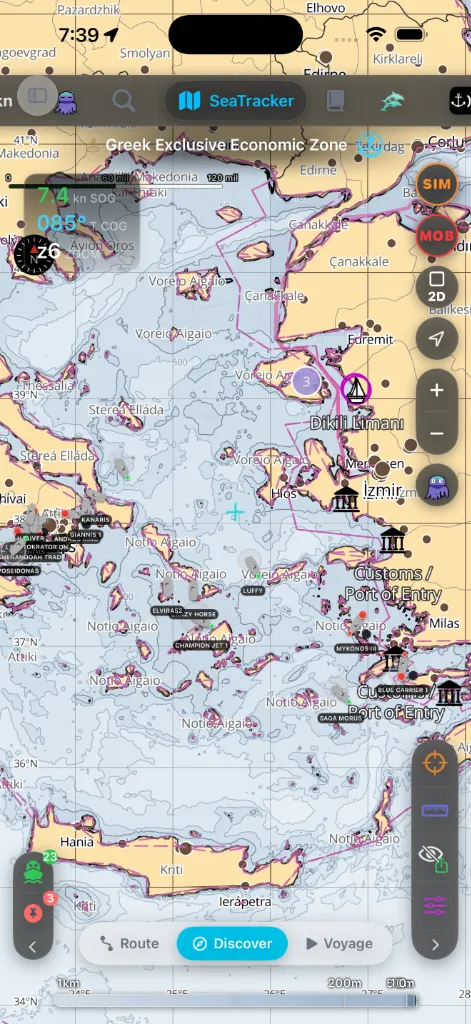
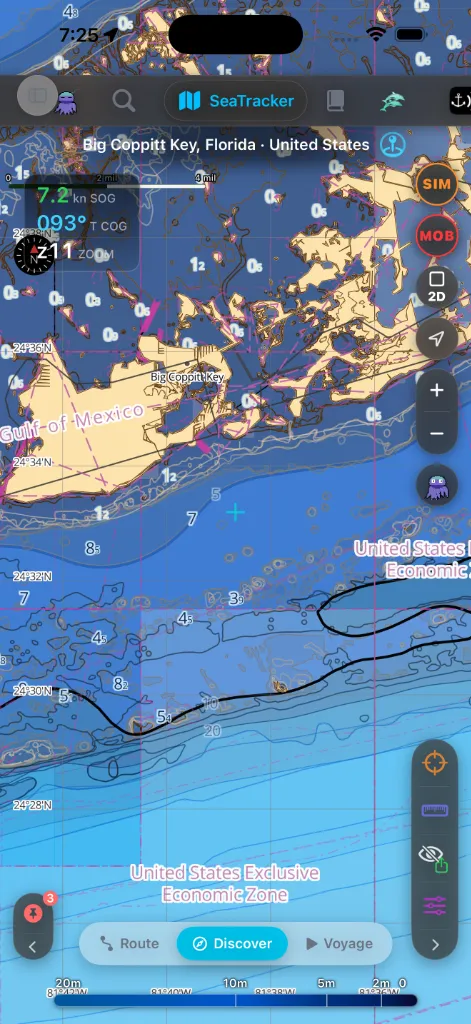
Une fois disparu, vous arrivez sur la carte SeaTracker en
2. Accordez les autorisations
AnchorQueen demande la localisation en deux étapes, et jamais avant de vous
avoir dit pourquoi.
Étape un — « AnchorQueen a besoin de votre position ». Après l'écran de
démarrage, un court écran d'explication indique à quoi sert la position :
dessiner votre bateau sur la carte, surveiller votre cercle d'évitage,
enregistrer routes et navigations. Touchez Continuer et iOS demande l'accès
à la position ; choisissez Lorsque l'app est active (ou Toujours, si iOS
le propose ici). Touchez Pas maintenant et la carte s'ouvre quand même — vous
n'aurez simplement pas votre position tant que vous n'aurez pas autorisé.
Étape deux — l'accès en arrière-plan, au moment où vous armez la veille. Dès
que vous mouillez l'ancre et fixez un rayon de garde,
iOS demande si AnchorQueen peut utiliser votre position Toujours. Autorisez-le.
Un bateau au mouillage dérape la nuit, écran éteint et application suspendue :
seul l'accès en arrière-plan permet à l'alarme de continuer à comparer votre
position au cercle d'évitage — et à iOS de relancer l'app sur sa barrière
géographique. Lors de l'utilisation ne suffit pas : la veille se tait dès que
vous quittez l'app. (Voir
Dépannage : l'alarme ne s'est pas déclenchée
si vous refusez.)
Ce que coûte l'accès en arrière-plan. L'utilisation continue du GPS en
arrière-plan peut réduire considérablement l'autonomie de la batterie.
AnchorQueen le dit sur le premier écran d'explication puis sur le panneau où vous
mouillez l'ancre, et ne maintient le GPS actif que pendant une veille au
mouillage, un enregistrement de navigation ou une navigation active — jamais du
seul fait que l'app est installée. Voir [Dépannage : la batterie se décharge
pendant la nuit](troubleshooting.html#battery).
Deux autres autorisations comptent :
vous atteindre.
tourner entre deux utilisations.
Si vous avez manqué une invite, les Réglages indiquent ce qui
manque et vous emmènent à la page Réglages d'iOS pour corriger. Rien dans l'application ne vous force à ouvrir les Réglages au premier
lancement — vous pouvez toujours décider plus tard.
> Une quatrième autorisation Alertes critiques — pour les alarmes qui
> sonnent même en mode Silencieux / Concentration — est prévue pour une version
ultérieure. Elle n'est pas encore active.
3. Passez les invites du premier lancement
Sur une installation neuve, l'offre gratuite affiche des publicités, donc juste
après les invites d'autorisation, vous verrez deux autres dialogues :
personnalisation des publicités (affichée là où votre région l'exige). Vous
pouvez la modifier plus tard dans les Réglages.
suivre votre activité… » Votre choix ici vous appartient ; l'application
fonctionne dans les deux cas.
Un abonnement PRO supprime les publicités et ces deux
invites.
4. Installez une région de cartes
AnchorQueen fonctionne hors ligne d'abord — les cartes proviennent de régions
que vous téléchargez, pas d'une connexion en direct. Faites-le en Wi-Fi avant
de larguer les amarres.
les) région(s) couvrant votre zone de navigation.
quelques emplacements de région sans frais.
Sans région téléchargée, la carte se rabat sur un fond de carte peu détaillé et
n'affichera pas les sondes hors ligne — voir
Dépannage : la carte ne charge pas hors ligne.
5. Connectez-vous (recommandé)
La consultation des cartes fonctionne hors connexion, mais un compte Capitaine
gratuit débloque la synchronisation des navires, le
Coffre-fort de documents, la signature des marques
communautaires et la gestion de vos abonnements sur
plusieurs appareils.
Ouvrez l'onglet Capitaine et Créer un compte (ou Se
connecter avec Apple / Google lorsque c'est disponible).
6. Faites la visite guidée
L'application s'enseigne d'elle-même au fil de l'eau — guettez deux indices :
marquent les fonctions que vous n'avez pas encore utilisées. Touchez-en un et
une courte bulle d'astuce explique ce qu'elle fait, puis le point
disparaît.
Ouvrez-la depuis le bouton Recherche (loupe), passez à l'onglet
Fonctions et laissez le champ vide — il liste toutes les fonctions
signalées pour que vous puissiez sauter directement à l'une d'elles. Détails
dans Interface de base.
Puis parcourez l'essentiel :
commandes de carte et le bouton MOB partagés par chaque onglet.
7. Mouillez votre première ancre
votre bateau.
marge pour la dérive du GPS.
Tous les détails sont dans SafeAnchor.
Si quelque chose ne va pas
Dépannage : l'application ne charge pas.