
 Alarma de fondeo
Capitán: su perfil
El Panel del capitán es el hogar de su cuenta. Se ve distinto según haya
iniciado sesión o no.
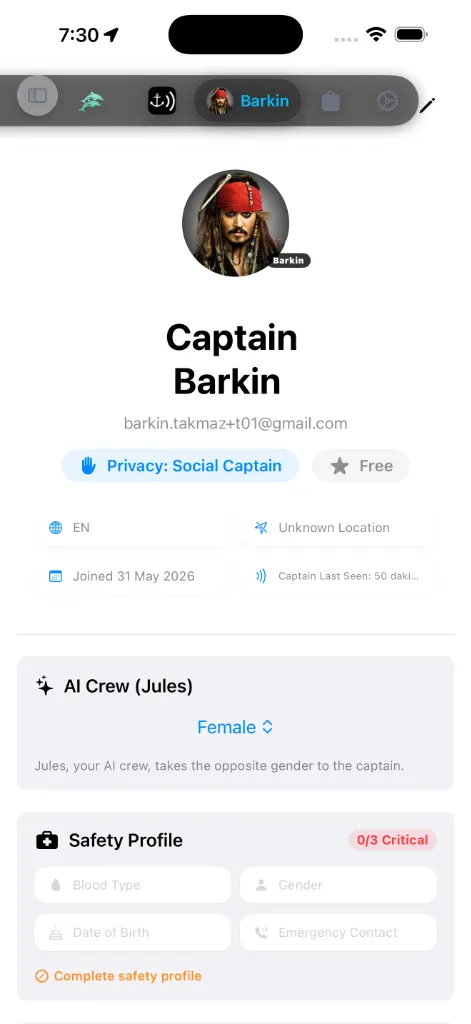
Con sesión iniciada
Cuando ha iniciado sesión, el panel muestra:
información debajo: su configuración regional preferida, última ubicación
conocida, la fecha en que se unió y cuándo se le vio por última vez.
para abrir los Ajustes de privacidad y cambiar quién puede verle.
cuándo se renueva. Púlsela para abrir el Registro de licencias premium.
única preferencia expuesta aquí. Las unidades y el tema viven en
Ajustes, no en este panel.
Para cerrar sesión, pulse el lápiz para abrir Editar perfil: el botón
Cerrar sesión está en la parte inferior de esa pantalla. No hay control de
cierre de sesión en el panel principal.
Registro de licencias (contabilidad de la App Store)
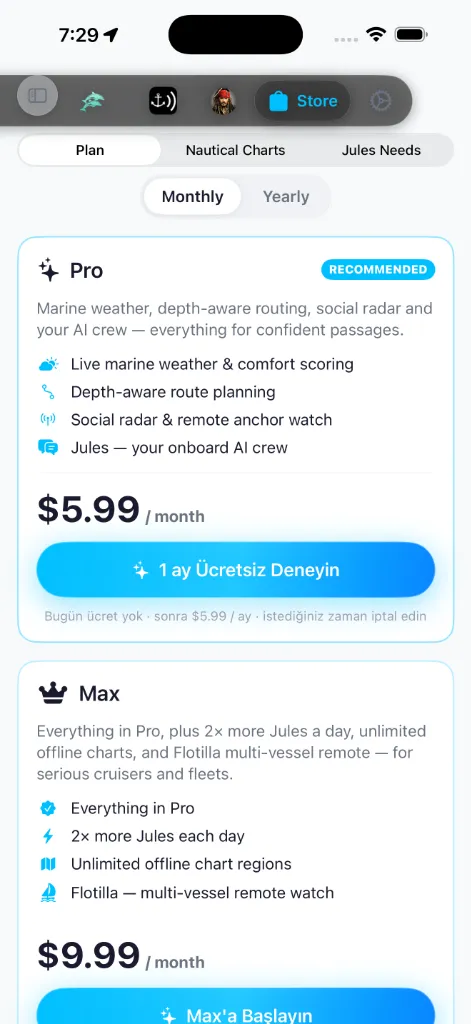
Pulsar la cápsula de Estado de la suscripción en su tarjeta de perfil lanza de inmediato el Registro de licencias (SubscriptionLedgerSheet). Este actúa como el panel oficial de contabilidad visual de sus licencias activas de la App Store, sus compras directas de regiones y sus asignaciones de plazas de paquete de cartas de cortesía.
Plazas de paquete de cartas de cortesía
Hay tres niveles de suscripción. Las membresías premium conceden asignaciones de plazas permanentes y de cortesía para regiones de cartas de alta resolución:
* AnchorQueen Free: 0 plazas de cortesía.
* AnchorQueen Pro: 1 plaza de cortesía.
* AnchorQueen Max: 3 plazas de cortesía.
Si su cuenta está acogida a derechos adquiridos (una cuenta vitalicia
temprana), el registro la etiqueta como AnchorQueen Grandmaster con *Acceso
vitalicio por derechos adquiridos* y una corona. Este no es un cuarto nivel que
pueda comprar: es una insignia para cuentas vitalicias heredadas, con
capacidades de nivel Max.
Estados de licencia de las plazas
Cada plaza del listado sigue dinámicamente el estado de su licencia vinculada:
* 🟢 Activa (Caduca el : la región está totalmente activa con capacidades sin conexión y planificación de travesías.
🟡 Caducada · Cálculo de rutas deshabilitado: la suscripción de la región ha caducado. La visualización sin conexión de las cartas vectoriales sigue totalmente activa, pero el cálculo avanzado de travesías híbrido A-APF dentro de la región queda bloqueado.
* 🔴 Caducada · Bloqueada: la plaza de la región ha caducado y la descarga sin conexión queda bloqueada.
La garantía de datos a salvo del capitán
Sin sesión iniciada
Cuando no ha iniciado sesión, la pestaña es una pantalla de inicio de sesión:
Necesita haber iniciado sesión para usar Jules y el submodo
Remoto de SafeAnchor.
Tripulación de IA (Jules)
Bajo su tarjeta de perfil hay una tarjeta de Tripulación de IA (Jules) con
un solo control:
de marina con IA, toma el género opuesto al del capitán, así que así es
como elige la persona de Jules. *(Este ajuste se trasladó aquí desde los
ajustes de Safe Anchor.)*
Esto es independiente del campo Género del [Perfil de
seguridad](#safety-profile) de abajo: aquel es un dato de búsqueda y rescate,
este solo da forma a Jules.
Perfil de seguridad
El panel muestra una tarjeta de Perfil de seguridad (SOLAS SAR / ISAF):
la información que los servicios de rescate piden primero. La cabecera de la
tarjeta lleva una insignia de preparación: lee Listo para SAR (verde)
una vez que los tres campos críticos están rellenos, o N/3 críticos (naranja
/ rojo) mientras falte alguno. Los tres campos críticos son el grupo
sanguíneo, el nombre del contacto de emergencia y su fecha de
nacimiento. Mientras la insignia esté por debajo de 3/3, un aviso de
Completar perfil de seguridad le anima a rellenar el resto.
Pulse el lápiz para editar estos detalles en Editar perfil:
es el dato SAR, distinto del género de Jules de tres opciones de
[arriba](#ai-crew).
alerta a su contacto de emergencia durante un evento de peligro. La tarjeta del
panel lo refleja como Jules puede avisar a este contacto una vez que hay un
contacto fijado.
Todo aquí permanece en su dispositivo y en su cuenta sincronizada; se comparte
solo cuando dispara una alerta de peligro.
Mis embarcaciones
La tarjeta Mis embarcaciones gestiona su flota y qué embarcación está activa
en este momento.
abrir el editor de embarcaciones.
de la tarjeta. Arrastre una embarcación del listado de la flota sobre él
para hacer activa esa embarcación. El recuadro se resalta en verde mientras
arrastra sobre él. La embarcación activa se recuerda entre arranques.
enumeran bajo la zona de arrastre. Aún no hay embarcaciones registradas se
muestra hasta que añade la primera.
confirmar y no se puede deshacer; eliminar la embarcación activa vacía la
zona de arrastre.
Caja fuerte de documentos
Un almacén privado para los papeles de su barco, accesible desde la pestaña
Capitán. Suba certificados ICC, RYA, STCW, pólizas de seguro, registro de la
embarcación y roles de tripulación, ordenados en carpetas.
como una barra de uso que se vuelve naranja cuando está casi llena.
un porcentaje de progreso.
elimine documentos existentes para liberar espacio o elija un archivo más
pequeño.
Compartir la aplicación
En la parte inferior del panel, un botón de Compartir la aplicación abre la
hoja de compartir del sistema para que pueda pasar AnchorQueen a sus compañeros
de tripulación y a otros patrones.
En Editar perfil
Pulse el lápiz para llegar a Editar perfil. Más allá del nombre visible, el
idioma, el Perfil de seguridad y Cerrar sesión, tiene:
(usted y nuestros socios). Desactivado por defecto.
Qué hace iniciar sesión
Iniciar sesión conecta su dispositivo con la nube de AnchorQueen para que:
Sus datos de navegación en la carta y en Capt's Notebook permanecen en el
dispositivo a menos que elija sincronizar.
Si algo sale mal
conexión.
la Tienda.
Ajustes y asegúrese de que concuerdan.