
 Ankarlarm
Merconi — marint liv och havsutforskning
Merconi är AnchorQueens utforskningsläge: ett sjökort avstämt för det levande
havet — dykplatser, observationer av marint liv, havsförhållanden och
fiskeaktivitet.
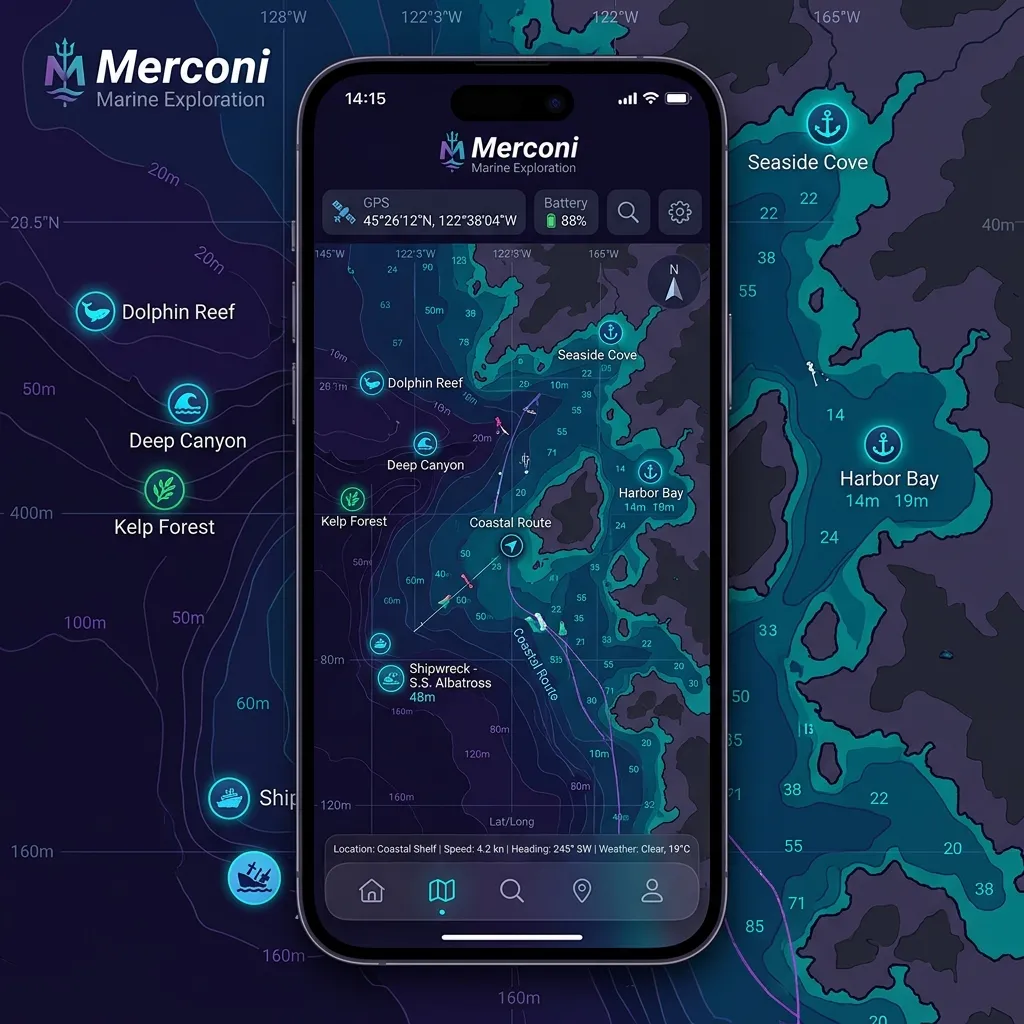
Vad som ändras
När du går in i Merconi:
sjökortsstil du än redan använde — den tvingar inte fram en egen stil. (Om du
vill ha den tealfärgade djuppaletten Reverse · Merconi Reef Guardian, välj
den själv; se [Reef Guardian-paletten](#reef-guardian).)
dykplatser, fiskebevakning och havsdata, växlade per mod (se tabellen nedan).
Dina ursprungliga lagerväxlar återkommer när du lämnar fliken.
Dykning — Upptäck — Fiske.
| Undermod | Vad som finns på sjökortet |
|---|---|
| Dykning | Förekomstpins för marint liv + dykplatser |
| Upptäck (standard) | Havsdatapunkter + artikelkapsel |
| Fiske | Global Fishing Watch-ansträngningsvärmekarta |
Varje undermod visar en fokuserad uppsättning lager, inte alla fyra på en gång.
Dykning
En dykarfokuserad förinställning som visar dykplatser och pins för marint liv
— fiskevärmekartor och havsdatapunkter förblir av så att sjökortet är ostökat.
Använd Dykning när du spanar in ett snorkelställe eller planerar en dykardag.
rapporterades och en länk till källposten. Namn berikas med trivialnamn
(folkliga namn) och, där det är känt, en bevarandebricka från IUCN — se [var de
här data kommer ifrån](#technical-engine).
har ser du:
vattentemperatur och strömstyrka.
en webbplatslänk.
Kaptensmärkesnålväxel.
per region — ett lugnt ställe kan bara ha ett namn och koordinater.
Upptäck (standard)
Merconi-standarden. Upptäck visar havsdatapunkter — sjöförhållanden samplade
över sjökortet — vid sidan av den alltid-påslagna artikelkapseln för
undervattensgeografi och biologisk mångfald. Pins för marint liv visas inte
här; de bor i [Dykning](#diving).
Havsrutnäten kommer från Copernicus Marine Service — se [var de här data kommer
ifrån](#technical-engine).
Fiske
Lägger en Global Fishing Watch-ansträngningsvärmekarta ovanpå ditt sjökort.
betyder fler fisketimmar.
Detta ställer in hur långt tillbaka ansträngningen summeras — det är inte ett
fartygstypsfilter.
flaggstat (fartygets land) med ett timmar-och-fartyg-stapeldiagram, rangordnat
efter fisketimmar. Du kan färglägga om valfri flaggas celler.
zooma-till-rutor med ett tryck när du är utanför det intervallet.
båtar arbetar.
> Fiskeöverlägget behöver en gratis Global Fishing Watch API-token
> konfigurerad i appen. Utan en visar panelen ett tillstånd "API-nyckel krävs"
och ingen värmekarta — se [Om något går fel](#if-something-goes-wrong).
Var Merconis data kommer ifrån
Merconis utforskningslager är levande, nätverksbaserade tjänster — den frågar
publika marina databaser på begäran och cachelagrar resultaten per region till
disk så att ett ställe du redan har tittat på fortfarande laddas när du är offline.
Inget av de här lagren är inbyggt eller förberäknat på enheten; ett tomt lager
betyder oftast inget nätverk eller inga poster för det området, inte ett fel.
Marint liv — OBIS + WoRMS
AnchorQueen frågar live-OBIS-webb-API:et efter poster inuti den synliga regionen
(inget konto behövs) och cachelagrar varje region till disk. Att trycka på en pin
visar arten, var och när den registrerades, och en länk till källposten.
(folkliga namn) på många språk, en bevarandebricka från IUCN:s rödlista där
en finns, en ungefärlig maxstorlek, en främmande/invasiv-flagga och — för fiskar
— en länk till dess FishBase-sida.
Fiskeansträngning — Global Fishing Watch
Fiske-undermoden lägger en kommersiell fiskeansträngningsvärmekarta från
Global Fishing Watch (GFW), renderad som raster-(PNG)-rutor som strömmas rakt
in på sjökortet — inte vektorkonturer ritade på enheten. Ansträngningen summeras
över tidsfönstret du väljer och delas upp efter fartygets flaggstat (land).
Det här lagret kräver en gratis GFW API-token konfigurerad; utan en förblir
det tomt och panelen visar en notis "API-nyckel krävs".
Havsförhållanden — Copernicus Marine Service
Upptäcks havsdatalager strömmar högupplösta havsrutnät från Copernicus Marine
Service (CMEMS), hämtade på begäran för det synliga området. Den underliggande
modellen publicerar 6-timmarssteg (inte minut-för-minut), så värdena
uppdateras i den takten. Lagren inkluderar havsytetemperatur, strömmar (fart och
riktning) och relaterade fält som är användbara för driftdykning och ruttplanering.
Steg-för-steg-utforskningsvägledning
Planera en dykardag
bekräfta att signifikant våghöjd är under din säkerhetsmarginal och att vinden
är frånlandsvind.
ta fram dykplatser och pins för marint liv över ditt aktuella sjökort. För ett
högkontrast-batymetriskt utseende kan du valfritt välja djuppaletten Reverse
· Merconi Reef Guardian själv i Sjökortslager-panelen —
Merconi växlar den aldrig åt dig.
(djupintervall, ingång, sikt, vattentemp, ström) och eventuella
dykcenterkontaktuppgifter.
för att se vilka arter som har registrerats vid de koordinaterna.
Undvika aktiva fiskezoner
konfigurerad — se [Om något går fel](#if-something-goes-wrong)).
6M · 1Y — för att ställa in hur långt tillbaka ansträngningen summeras. Ett
längre fönster avslöjar ihållande hotspots; Live visar bara den senaste
aktiviteten.
trafikerade fiskeområdena att hålla sig undan — och kontrollera uppdelningen
per flagga under kartan för att se vilka länders flottor som arbetar där.
Reef Guardian-paletten
Reef Guardian är en teal-och-cyan djuppalett, inte en baskarta och inte
något Merconi slår på åt dig. Om du vill ha den, öppna
Sjökortslager-panelen och välj Reverse · Merconi Reef
Guardian under djuppalettväljaren. Den parar de inverterat-luminanta djupen med
ljust grunt vatten, vilket läses väl över kustnära dykområden. Eftersom det är ett
normalt palettval består det tills du ändrar tillbaka det — i valfri flik, inte
bara Merconi.
Tips
klart sjötillstånd gör verklig skillnad för dykning eller fiske.
nyfiken utgångspunkt, inte en garanti.
Om något går fel
Watch behöver en gratis API-token konfigurerad i appen. Tills en läggs till
kan ansträngningslagret inte laddas; registrera dig på globalfishingwatch.org för
att få en token.
30D), kontrollera att du är mellan ungefär zoom 2 och 12 (använd panelens
zooma-till-rutor-knapp) och bekräfta att du har en nätverksanslutning — rutorna
strömmas live.
tjänster. Utan nätverksanslutning kommer regioner du inte har besökt tidigare
tillbaka tomma; en region du redan har laddat serveras från cachen på enheten.
Gå vidare eller zooma tillbaka till ett cachat område.
glesare i vissa områden; zooma ut för sammanhang.