
 Ankarlarm
Grundläggande gränssnitt — ramen kring varje skärm
Några få kontroller svävar ovanför varje flik. Lär dig dem en gång så fungerar
de överallt.
Flikfältet
Nio flikar låter dig byta yta:
den inledande kanten.
Varje flik känns igen på en ikon — ankare för SafeAnchor, delfin för
Merconi, pixeloctopus för Jules, kugghjul för Inställningar och så
vidare. Tryck på valfri flik för att byta.
En sidofältsväxel (ikonen sidebar.left) upptill öppnar eller döljer en
meny som listar alla flikar med fullständiga namn — användbart innan du har
memorerat ikonerna. En sök-funktion öppnar
[Kommandopaletten](#command-palette). På iPhone i stående läge sitter
sökknappen inbäddad i det övre flikfältet, direkt före SeaTracker-pillret —
så att nå sökningen och sjökortet är en enda gest. I liggande läge är det
ett förstoringsglas högst upp på sidoremsan.
En liten bricka på fliken Butik visar hur många av dina installerade
regioner som har uppdateringar som väntar.
Var appen öppnas
Allra första gången du öppnar AnchorQueen landar du på sjökortsfliken
AnchorQueen. Därefter minns appen var du var: stäng den på Meteo, Jules
eller Butik så öppnas den där nästa gång — inklusive det underläge du lämnade
sjökortet i (Rutt / Upptäck / Resa) och den skärm du lämnade SafeAnchor på
(Ankarvakt / Radar).
Två saker går före den ihågkomna fliken:
öppnas den alltid på SafeAnchor — den ytan går före allt annat.
Anchor → Start, se #navigation) går varje start
i stället till SafeAnchors Radarskärm.
Menyn i sidopanelen (liggande och iPad)
I liggande läge (och på iPad) öppnar kartan en storleksjusterbar
sidopanel vid den högra kanten. Där bor menyn inuti den panelen som dess
startskärm — den separata vänsterlådan och dess växel visas inte, eftersom
panelen redan ger menyn en permanent plats med betydligt mer utrymme. När du
trycker på en funktion på sjökortet (en hamn, ett fartyg, en teckenförklaring)
glider dess detaljer in över menyn; Tillbaka för dig åter till menyn. Fäll
ihop panelen med chevronen för att återta hela kartan; den smala listen som blir
kvar öppnar den igen.
I stående läge på iPhone, och på iPad i stående läge, finns ingen
sidopanel, så menyn stannar i den välbekanta vänsterlådan som öppnas av
växeln sidebar.left som beskrivs ovan.
Ruttplanering och Simulator dockas också här
I liggande läge flyttar paneler som annars skulle täcka botten av sjökortet
in i samma högra sidopanel, så att kartan hålls fri:
djup-/vind-/våg-/farts-graferna och ruttåtgärderna) fyller sidopanelen i
stället för ett bottenblad. Menyn är dold medan du planerar och återkommer när
du lämnar Ruttläget eller minimerar panelen.
simulatorn körs.
I stående läge visas båda fortfarande som dragbara bottenblad över sjökortet.
Sidofältets sidhuvud
Överst i sidofältet finns några snabblänkar ovanför fliklistan:
din kaptensprofil.
hoppar till Butikens prenumerationer.
dig (och underrubriken speglar öppna konversationer), och tryck leder rakt in
i tråden. Öppnar det inbyggda feedbackflödet där du kan rapportera ett fel
eller begära en funktion, bifoga en skärmdump och följa statusen för allt du
har skickat in (Öppen / Pågår / Löst / Stängd) — med teamets svar och dina
egna uppföljningar i en enda tråd. Samma skärm nås från menyn
SafeAnchor → Radar — se
Live Discover — vad du har samlat
På kartflikarna öppnas sidofältet med ett avsnitt LIVE DISCOVER. Allteftersom
du panorerar sjökortet hämtar AnchorQueen nautiska objekt från onlinetjänster —
fyrar, bojar, sjömärken, hamnar och marinor, ankarplatser, faror, landmärken och
vrak — och behåller dem medan du rör dig.
Varje rad visar två siffror, t.ex. Fyrar · 400 · +45:
appen startade; objekt som redan cachelagrats från en tidigare körning räknas
inte).
Ett +N-chip bredvid det pulserande LIVE DISCOVER-sidhuvudet summerar
sessionssumman över varje kategori — din "samlat hittills"-räkning.
Tryck på en rads +N-bricka för att öppna listan med just de nyligen samlade
objekten, sorterade efter avstånd. Tryck på valfri post för att se dess
fullständiga detaljer eller svep för att spara den som en waypoint.
(AIS-fartygsraden visar bara en liveräkning — fartyg kommer och går, så det finns
ingen sessionssumma.)
Ändra ordning på flikarna
Du kan placera flikarna i vilken ordning du vill:
position.
Tryck på Återställ i det övre högra hörnet när som helst för att återställa
den ursprungliga ordningen. Din uppställning sparas automatiskt och överlever att
appen stängs.
Det övre sidhuvudet (kartflikar)
På de tre kartflikarna (SeaTracker, Capt's Notebook, Merconi) rider
ett smalt sidhuvud över sjökortet med flikens namn, en brödsmulestig till din
aktuella plats och snabbåtgärder för sjökortsstil och lager.
Sjökortets kommandolist
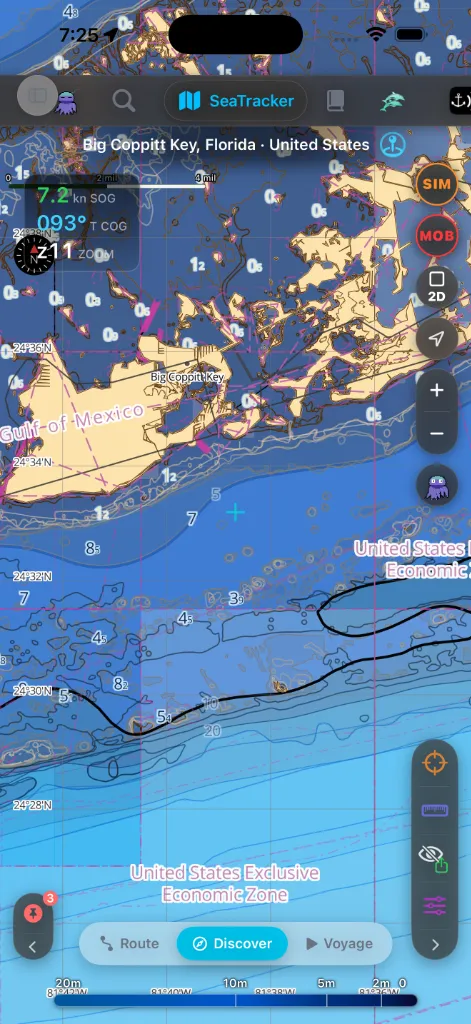
På valfri kartflik bor varje sjökortskommando på en enda glasplatta förankrad
vid en lodrät kant — kommandolisten. Den äger den avslutande kanten som
standard; [innehållslisten](#legends) äger den inledande. Ingenting svävar
längre löst över sjökortet: i liggande läge får kortet tillbaka hela sin höjd,
och kontrollerna hamnar exakt där dina tummar redan är när du håller telefonen
på tvären.
Överst på plattan sitter greppet (⋮⋮). Under det är cellerna grupperade
efter hur mycket du behöver dem, med en hårfin linje mellan grupperna.
Kritiska — aldrig dolda, aldrig flyttade.
(ruttväljare → start) eller, medan en rutt följs, stoppa den. Att trycka på
STOPP ber dig bekräfta först så att ett förlöpt rorkultstryck inte kan
släppa vägledningen. Medan en resa verkligen pågår stannar STOPP kvar på
skärmen i alla undermoder — du kan alltid avsluta vägledningen, oavsett
vart du har navigerat.
cellen brinner helröd medan en resa spelas in.
Dessa håller fasta platser. Att byta undermod, starta en rutt eller rotera
enheten flyttar dem aldrig undan från din tumme.
Kamera — aldrig dolda de heller.
din båt.
Kontextuella — det jobbet kräver just nu.
ihåg zoomen.
punkten.
Verktyg.
du tittar på. Öppnar en liten panel med den sjökortsregion som täcker den
aktuella vyn, den som täcker din GPS-position när de skiljer sig, den gratis
världstäckande baskartan så länge inget är installerat — plus varningar om
utgånget sjökort ("förnya") eller tillgänglig uppdatering. Cellen tänds i
accentfärgen medan något väntar på dig och lugnar sig när du har öppnat
panelen; varje post leder till Butiken.
att lämna kartan.
bäringslinjal, när du vill se sjökortet under båten ostört.
Celler visas bara där de gäller (Lägg till foto i Capt's Notebook; REC, MOB och
NAV i Resa; trion ADD / UNDO / DEL medan du placerar waypoints), så listen
visar aldrig kontroller du inte kan använda.
••• — fickan. Listen mäter sig mot skärmen den sitter på. Allt som inte får
plats hamnar i •••-fickan vid dess fot, som öppnar resten som ett rutnät
med två kolumner — bredvid listen i liggande läge, som ark i stående.
Kritiska celler och kameraceller hamnar aldrig i fickan och listen
rullar aldrig: på en kort liggande skärm är det verktygen som går i fickan,
aldrig zoom eller STOPP. I liggande läge ritas cellerna dessutom något mindre,
så att fler blir kvar på plattan.
Flytta listerna med greppet.
övre, mittre eller nedre del — bra när handen sitter lågt på
chassit.
byter kant i en enda rörelse, så att kommandona hamnar under den hand som är
ledig vid rodret.
listerna tillbaka till standardsida och -justering) och Byt sida.
Båda valen kommer ihåg, och det finns ingen ljudavstängningskontroll på
sjökortet.
> Ihopfällningschevronen och dockbytet är borta. Listen mäter nu sig själv,
> så det finns inget att fälla ihop, och de två listerna byter kant som ett
> par i stället för att byta topp/botten på samma kant. En uppställning du satt
i en tidigare version följer med första gången du öppnar sjökortet.
MOB-knappen
MOB-knappen är den viktigaste kontrollen på sjökortet — en svartglascirkel
med röd kontur och en röd MOB-etikett, placerad mitt i klustret så att den
alltid ligger i samma tumräckvidd som zoom och centrera om. Ett tryck:
Använd den i samma stund en person eller ett föremål går överbord. Den bor i
undermoden Resa — läget du är i medan du är under gång, vilket är precis när
en man överbord-nödsituation inträffar. Knappen gråtonas medan en man
överbord-händelse redan är aktiv, så att du inte kan utlösa en andra av misstag.
Hela returflödet — MOB-retur-HUD:en, hypotermibanderollen och utfallen
Verklig övning / Avbruten — dokumenteras i
GPS-HUD:en
Det mörkglasade HUD-kortet uppe till vänster på sjökortet visar dina
livepositionssiffror. Hopfällt staplar det tre avläsningar:
(för ankar → driver → marschfart → snabb) och fungerar dessutom som en tidig
signal om ankaravdrift: en ihållande långsam krypning gör den gulorange innan
det dedikerade larmet har tillräckligt delta för att utlösas.
z).Tryck på kortet för att expandera det. Det expanderade HUD:et lägger till:
Tryck länge på endera koordinatchipet för att kopiera det — menyn erbjuder de
marina formaten (DD / DDM / DMS), en geo:-URI, en Apple Maps-URL, en
AnchorQueen-länk och Dela…. Om du klistrar in en koordinat dyker ett piller
upp ovanför kortet med åtgärderna Flyg till och Lägg till WP.
På fliken SafeAnchor, där SOG och COG är brus för en ankrad båt, fälls kortet
ihop till bara zoomavläsningen.
Kommandopaletten
Sökfunktionen (se [flikfältet](#tab-bar)) öppnar en helskärms
Kommandopalett med två flikar som du växlar mellan upptill:
och dina sparade waypoints. Den behåller en SENASTE-historik som fungerar
offline, en åtgärd Rensa historik, och ett Jules-filterchip som visar
bara de sökningar Jules körde åt dig.
så att du kan hoppa rakt till en inställning utan att minnas vilken flik den
bor på.
Med rutan tom visar fliken Funktioner introduktionstips-funktionerna som en
inbyggd rundtur av vad appen kan göra.
Sjökortets innehållslist
Den inledande kanten bär den andra plattan — innehållslisten. Samma glas,
samma grepp, men den svarar på vad ser jag? i stället för vad gör jag?
Den bär en cell per aktiv kategori, var och en med ett levande
räknemärke för objekten som är i vyn just nu:
Kategoricellerna hör till sjökortets undermod
Upptäck. Varje kategori vars antal i vyfönstret är noll
döljer sig själv, så att tomt vatten inte stökar till kanten; panorera tillbaka
till befolkat vatten så återkommer cellen.
Tryck på en cell för att öppna dess panel. Panelen öppnas bredvid listen
i liggande läge och som ark underifrån i stående — och bara en är öppen åt
gången: att trycka på en annan kategori ersätter den. Högen av överlappande
svävande kort, och frågan om vilket som ligger överst, är borta.
Djupförklaringen bor här nu. Djupfärgskalan löpte tidigare tvärs över
sjökortets nederkant. Nu är den en cell på den här listen — tryck på den för
skalan, namnet på den aktiva paletten och påminnelsen om att paletter byts i
Sjökortslager. Bottenbandet den tog upp är sjökort igen.
Är fler kategorier aktiva än kanten rymmer hamnar de överskjutande i
•••-fickan precis som på [kommandolisten](#camera) — och greppet beter sig
likadant: dra upp eller ner för att justera, dra tvärs över sjökortet för att
byta sida på de två listerna, håll in för Alternativ för listen.
Undermodsfält (botten)
Flera flikar har ett frostat glaspillerfält nederst som visar flikens
undermoder:
Den valda undermoden är markerad. Tryck på ett piller för att byta omedelbart.
Ren export
Dataverktygen — hårkors, linjal, egen båt, Ren och Lager —
är nu celler på [kommandolisten](#camera). Den separata
Snabbåtgärdspanelen nere till höger där de bodde är borta: det finns ingen
andra svävande grupp att leta efter.
Vissa sjökortsbilder behöver sparas utan appkrom ovanpå. Att trycka på Ren
tar bort flikfältet, sidofältet, innehållslisten, alla paneler och resten av
överläggen. Kvar står själva kommandolisten, nedskuren till fyra celler:
greppet, ett tänt öga som tar tillbaka kromet, PDF och Bild.
Titelblocket och datakällsattributionen renderas in i den exporterade PDF:en
eller PNG:n — de är en del av den sparade filen, inte ett ständigt påslaget
överlägg du ser på skärmen. Tryck på ögat igen för att ta tillbaka kromet.
Om något går fel
flyttar verktygen dit först. Att rotera enheten ger listen mer plats.
[Flikfältet](#tab-bar) flyttas till sidan i liggande läge.
SeaTracker och tryck på Resa för att använda den.
Ankarzon i HUD
GPS HUD visar svajcirkelns status och kvarvarande marginal.