
 Ankeralarm
Einstellungs-Referenz
Der Einstellungen-Tab versammelt jede Einstellung plus Ihre installierten Regionen und
die Datenquellen-Seite.
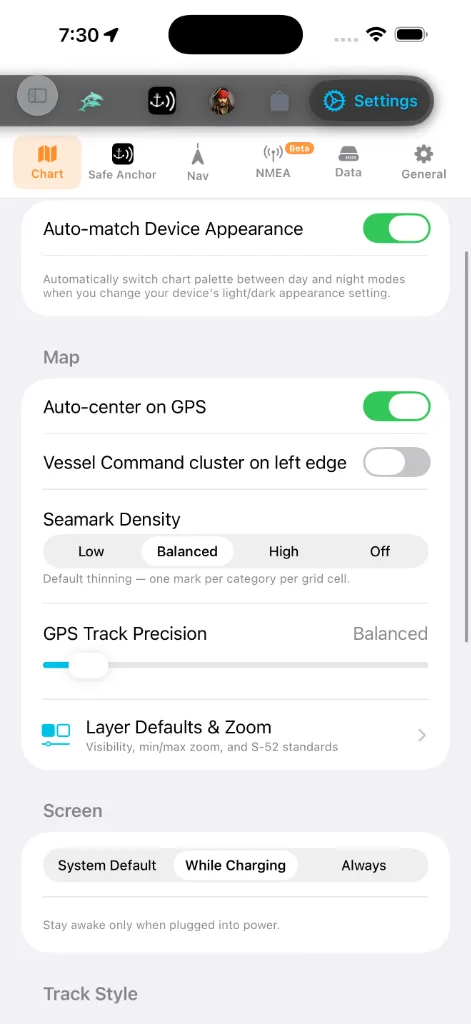
Eine Segmentleiste oben teilt den Bildschirm in sechs Tabs, sodass Sie direkt zu der
Familie von Einstellungen springen können, die Sie wollen, statt zu scrollen:
(Auto-Zentrieren, Rand des Befehlsbündels, Seezeichendichte, GPS-Track-Präzision,
Layer-Voreinstellungen & Zoom), Bildschirmwach-Richtlinie, Trackstil,
Kachelabruf-Engine.
(Berechtigungen, Alarmton + Test, GPS-Tracking-Modus, Stromverbrauch, Sicherung &
Synchronisierung, Datenschutz, Hilfe & Handbücher und die Über-Karte mit Ihrer
Live-Build-Nummer).
Routenparameter, Wegpunktoptionen, Törn-/TSS-Alarme, der Flachwasseralarm,
Live-GPS-Status und Simulatormodus.
NMEA-WLAN-Gateway oder ein Bluetooth-Pod, plus Live-Diagnose.
Opt-in-Ferndienste (z. B. NHC-Tropenwirbelstürme mit einem Verbindungstest-Knopf).
Sicherung & Synchronisierung ist nicht hier — sie wohnt unter dem
Safe-Anchor-Tab.
(Seemannssprache-Voreinstellung + Überschreibungen pro Größe), App-Sprache und die
Über-Karte.
Abschnitte innerhalb jedes Tabs, in der Reihenfolge, in der Sie sie sehen:
Kartenaussehen
Das einzige Aussehens-Bedienelement des Karte-Tabs ist ein Schalter:
automatisch zwischen ihren Tag- und Nachtvarianten um, während sich die Hell-/
Dunkel-Erscheinungseinstellung Ihres Geräts ändert. Schalten Sie ihn aus, um die
gewählte Palette unabhängig vom Systemthema zu behalten.
Der Basiskartenstil und die Tiefenfarbpalette werden nicht hier eingestellt.
Sie wohnen im in-Karte-Panel Kartenlayer → Karten — öffnen Sie die Karte, tippen
Sie das Layer-Bedienelement an und wählen Sie aus den Tag/Nacht-Karten- und
Palettenrastern. Siehe Kartenlayer.
Einheiten & Messung
Wohnt unter dem Allgemein-Tab. Zwei Schichten:
auf ein kohärentes System setzt. Die maritime Konvention bleibt in jeder
Voreinstellung erhalten: Entfernung ist standardmäßig Seemeilen und Geschwindigkeit
Knoten.
die Voreinstellung überschreiben müssen: Tiefe, Entfernung, Kurze
Entfernung, Geschwindigkeit, Wellenhöhe, Lufttemperatur,
Wassertemperatur, Druck, Schiffsabmessungen, Ankerkette / -trosse,
Volumen und Koordinaten.
Jeder andere Tab und jede Überlagerung folgt diesen Einstellungen.
App-Sprache
Bildschirme geschrieben sind. Die App liefert 13 Sprachen mit: Englisch, Türkçe,
Deutsch, Français, Italiano, Español, Ελληνικά, Hrvatski, Português,
Svenska, Norsk bokmål, Dansk und Suomi. Jede ist in ihrer eigenen Schrift
aufgeführt, sodass Sie Ihre Sprache erkennen können, selbst wenn die aktuelle
unvertraut ist.
Sprache, um sie nur innerhalb von AnchorQueen zu überschreiben.
starten — manche Bildschirme wechseln erst beim nächsten Start zur neuen Sprache.
Die Formatierung von Zahlen, Datum und Einheiten aktualisiert sich sofort.
Navigation
Reihenfolge, die Sie bevorzugen. Tippen Sie die Zeile an, um den Tab-Reihenfolge-Editor
zu öffnen, halten Sie dann den Griff rechts an einem Tab und ziehen Sie ihn nach
oben oder unten. Die Tab-Leiste aktualisiert sich in dem Moment, in dem Sie den
Finger heben. Tippen Sie Zurücksetzen oben rechts an, um die Werksreihenfolge
wiederherzustellen. Ihre Anordnung wird automatisch gespeichert und überdauert
App-Neustarts. Siehe Die Tab-Leiste anpassen.
einen Punkt speichert. Kürzer ist detaillierter; länger ergibt kleinere Dateien.
Sicherheitsalarme
Unter dem Nav-Tab, neben den Törn-Alarmen:
Fluss laufen oder innerhalb eines Verkehrstrennungsgebiets ankern
(KVR Regel 10). Standardmäßig an; beratende Fälle lösen ein gelbes Banner aus,
Verstöße ein rotes.
Wasser unter Ihrem Kiel lässt. Nutzt den Tiefgang Ihres Bootes aus dem
Schiffsprofil. (Vom Safe-Anchor-Tab hierher umgezogen.)
Wenn der Alarm tönt, können Sie ihn Verstummen (30 m), dann Fortsetzen, bevor
dieses Fenster endet.
Bildschirm
während AnchorQueen offen ist. Eine Navigations-App ist nutzlos, wenn die Karte
mitten auf der Fahrt dunkel wird, daher lässt AnchorQueen Sie die übliche
Auto-Sperre abwählen, ohne Ihre geräteweite Einstellung zu ändern.
der Standard: ideal für ein Telefon oder iPad, das an einer 12-V-Steckdose am
Steuerstand steckt, während ein Handgerät in Ihrer Tasche weiterhin schläft.
besten für lange Etappen, bei denen das Gerät dauerhaft mit Strom versorgt ist;
rechnen Sie sonst mit stärkerem Akkuverbrauch.
Das Backgrounding der App stellt immer das normale Schlafverhalten wieder her, sodass
das Gerät zwischen Sitzungen ruhen kann, gleich welchen Modus Sie wählen.
Trackstil
Unter dem Karte-Tab, unter Bildschirmwach. Eine Live-Vorschau oben am
Abschnitt zeichnet sich neu, während Sie ein beliebiges Bedienelement ändern, sodass
Sie das Ergebnis sehen können, bevor Sie die Einstellungen verlassen.
Linie schattiert von langsam zu schnell entlang des Tracks).
Farbrampe über die eigene Min-Max-Geschwindigkeit jeder Fahrt; Fest nutzt eine
konstante 0–12-kn-Skala, sodass Farben auf jedem Track dieselbe Geschwindigkeit
bedeuten.
Fahrt hervorsticht.
Passagen auf See automatisch aufzeichnen *(ebenfalls auf dem Karte-Tab, im
Abschnitt Karte)* — ein einziger Schalter für jede automatische
Aufzeichnung. Standardmäßig an: AnchorQueen zeichnet automatisch auf, sobald
Sie unterwegs sind — auf einer geplanten Fahrt oder frei segelnd — und
speichert die Passage, wenn Sie ankern oder an Land gehen. Schalten Sie ihn
aus, und die Aufzeichnung liegt allein bei Ihnen, auf der REC-Taste.
Er löst den getrennten Schalter Auto-record voyages früherer Versionen ab;
die beiden verlangten, einen „Törn“ von einer „Passage“ zu unterscheiden — eine
Unterscheidung, die die App sonst nirgends trifft. Hatten Sie den alten
Schalter bewusst ausgeschaltet, startet auch der zusammengeführte aus. Siehe
Automatische Passagenaufzeichnung.
Kachel-Engine
Unter dem Karte-Tab, ganz unten. Wählt, wie Seekartenkacheln abgerufen werden:
Netzwerk-Cache bedient, mit vorgeladenen Offline-Kacheln, wo verfügbar. Die richtige
Wahl für die Offline-Nutzung.
HTTP-Engine abgerufen, ohne Offline-Cache-Unterstützung.
Eine Bildunterschrift unter dem Wähler buchstabiert den Kompromiss für die jeweils
gewählte Engine aus.
Wegpunktbenennung
Ihre gespeicherten Marken wie „Turtle Cove“ statt Koordinaten lesen.
Bündel-Verhalten
daumenfreundliche einhändige Nutzung.
Installierte Regionen
Eine Liste jeder Seekartenregion, die Sie installiert
haben, gruppiert nach Revier — Mittelmeer, Nordeuropa, Vereinigte Staaten,
Mexiko, Karibik, Pazifik, Ostasien, Weltweit. Die Gruppen, ihre Reihenfolge und
die Länderflaggen in jeder Zeile entsprechen dem Katalog unter [Store →
Seekarten](store.html#regions), sodass ein Paket überall unter derselben
Überschrift steht. Jede Zeile zeigt:
Mehr Regionen holen ganz unten springt zum
Regionsdaten durchsuchen (ebenfalls ganz unten im Regionsbereich) öffnet einen
Low-Level-Inspektor für die installierten Daten — Regions-Manifeste, NavGrid-Dateien
und MBTiles-Metadaten. Doppeltippen Sie eine beliebige Datei, um sie zu inspizieren.
Es ist eine Diagnose-Oberfläche; Sie brauchen sie nicht für den Alltagsgebrauch.
Safe Anchor (Ankerwachen-Einstellungen)
Der Safe Anchor-Tab beherbergt nun die vollständigen Ankerwachen-Einstellungen
inline — nicht mehr als separates Blatt. Von oben nach unten:
Berechtigungen-Status, der Alarmton + Alarmtest, der GPS-Tracking-Modus
(Echtzeit vs. Gleitender Durchschnitt) und Stromverbrauch (Ausgewogen vs.
Höchster), Sicherung & Synchronisierung (siehe [#backup](#backup)),
Absturzbericht-Datenschutz, Hilfe & Handbücher und die Über-Karte. Siehe
SafeAnchor dafür, was jedes tut.
mit einer Fix-Schaltfläche, die die iOS-Einstellungen öffnet. Die Karte
schließt mit einem ständigen Hinweis, dass die fortgesetzte Nutzung von GPS im
Hintergrund die Batterielaufzeit drastisch verkürzen kann: AnchorQueen hält das
GPS nur aktiv, solange eine Ankerwache, eine Törnaufzeichnung oder eine aktive
Navigation läuft.
Radar-Bildschirm des SafeAnchor-Tabs — dem
klassischen Ankeralarm. Praktisch, wenn Sie AnchorQueen vor allem als
Ankeralarm nutzen. Das geht dem zuletzt genutzten Tab vor: ist die
Einstellung aus, setzt die App dort fort, wo Sie aufgehört haben (siehe
wo die App startet); ist sie an, ist jeder
Start Radar. (War bei Ihrer letzten Sitzung eine Ankerwache scharf, kehrt
die App unabhängig von dieser Einstellung zu SafeAnchor zurück.)
beide öffnen in Ihrem Browser.
installierte Version und Build-Nummer — zitieren Sie diese gegenüber dem Support)
und, wo eine Werbe-Einwilligung erforderlich ist (hauptsächlich EWR/UK), ein Knopf
Werbe-Einwilligung verwalten, der den Einwilligungsdialog erneut öffnet, sodass
Sie Ihre Wahl ändern können.
Der Flachwasseralarm wohnt nun unter dem [Nav](#navigation)-Tab (siehe
[Sicherheitsalarme](#safety-alarms)), und die Instrumenten-Datenquelle ist in
ihren eigenen [NMEA](#instruments)-Untertab umgezogen.
Simulatormodus
Überschreiben Sie Ihr echtes GPS mit einer Position, die Sie auf der Karte setzen —
nützlich für Vorführungen, das Planen einer Fahrt vom Steg oder das Testen der
Ankerwache, ohne die Marina zu verlassen.
Steuerpanel dockt unten an der Karte an.
MOB an den Bedienelementen am rechten Rand). Er setzt das simulierte Schiff
sofort in die Kartenmitte, wenn dieser Punkt über Wasser liegt; über Land bittet er
Sie, zuerst auf Wasser zu zentrieren. Tippen Sie SIM erneut an (es leuchtet
orange, während es aktiv ist), um die Simulation zu beenden.
nach einer Bewegung verlassen haben) beim nächsten Aktivieren des Simulatormodus
wiederhergestellt. Wenn aus, beginnt jede Sitzung frisch in der Kartenmitte.
Auf der Karte dockt eine Steuerstand-Konsole unten an. Ihr Boot erscheint mit
seinem Namen und Symbol, in seiner echten Länge gezeichnet, genauso wie der
AIS-Verkehr — sodass ein großes Schiff größer liest als ein kleines und mit dem Zoom
skaliert (die Abmessungen kommen aus Ihrem
Schiffsprofil). Die Konsole lässt Sie:
das Boot wollen, und tippen Sie dann, um das Schiff dort zu platzieren.
Sie mit dem Schieber. Das Boot beschleunigt wie ein echter Rumpf, statt zu springen.
realistischer Rate herum), Stetig hält den aktuellen Kurs, Rückwärts kommt
über Stag, Zum Kompass steuert dahin, wohin das Gerät zeigt, Alles stopp
bringt sie zum Halten.
beobachten können, wie sie sich entfaltet. Schalten Sie es aus, um frei zu schwenken.
schalten Sie den Simulatormodus in Einstellungen → Nav
aus.
Tippen Sie den Konsolenkopf an, um sie zu einem kompakten Autopilot-Streifen
zusammenzuklappen — einem großen Steuerkurs mit −10 / −1 / +1 / +10
Backbord-(rot) und Steuerbord-(grün)-Tasten für einhändige Kursanpassungen beim Segeln.
Tippen Sie ihn erneut an, um den vollen Steuerstand wieder zu öffnen.
> Der Simulatormodus ersetzt Ihre Position überall — die Karte, das GPS-HUD, die
> Track-Aufzeichnung und die Ankerwache folgen alle dem simulierten Boot. Ihr
> Kompasskurs bleibt echt — nur die Position wird gefälscht. Schalten Sie ihn aus,
um zu live GPS zurückzukehren.
NMEA — Instrumente
Der NMEA-Untertab (in der Segmentleiste als Beta markiert) ist die
Instrumenten-Datenquelle. Standardmäßig liest AnchorQueen Ihre Position vom
eingebauten GPS des Geräts. Wenn Ihr Boot NMEA-Instrumente hat, richten Sie die
App hier auf sie aus, um Masttopp-Wind, ein Echolot und ein festmontiertes GPS zu
erhalten.
richtige Wahl für die meisten Telefone und Tablets.
Gateway, das NMEA-Sätze aussendet.
192.168.4.1) und der Port (Standard 10110).
Pod in der Liste an, um ihn zu wählen. Bluetooth-Instrumente teilen keinen
gemeinsamen Standard, also wählen Sie einfach Ihr Gerät und Anwenden.
wiederherstellen. Nur für die NMEA-Quellen gezeigt.
letzten NMEA-Satz, sodass Sie bestätigen können, dass Daten fließen.
> NMEA-Daten brauchen ein WLAN-Gateway oder einen Bluetooth-Pod auf Ihrem Boot. Ohne
Gateway behalten Sie Eingebautes GPS.
Sicherung & Synchronisierung
> Wo Sie es finden: Sicherung & Synchronisierung ist eine Zeile unter dem Safe
> Anchor-Tab (in seinem Abschnitt Daten), nicht unter dem Einstellungen-Tab
> Daten. Öffnen Sie Safe Anchor → Sicherung & Synchronisierung, um die
untenstehenden Bedienelemente zu erreichen.
Halten Sie Ihre Kapitänsmarken, Routen und Ihr Bootsprofil sicher und konsistent über
Geräte hinweg.
Bootsprofil über jedes Gerät, das im selben Konto angemeldet ist. Zeigt den
Synchronisierungsstatus (Synchronisiert · Zeit, Synchronisiere… oder einen Fehler)
mit einem Knopf Jetzt synchronisieren für einen sofortigen Push.
Sicherungsdatei AES-verschlüsselt, und dieselbe Passphrase ist zum
Wiederherstellen erforderlich. Lassen Sie sie leer für eine unverschlüsselte
Sicherung.
oder geräteextern speichern können.
aktuellen Daten zusammen: Marken und Routen werden hinzugefügt oder aktualisiert,
nie gelöscht.
Datenquellen & Partner
Ein schreibgeschütztes Blatt, das jeden Anbieter auflistet, dessen Daten die App
speisen — OpenStreetMap und MapLibre, ESRI und Mapbox, NOAA und nationale
Wetterdienste, Wikipedia, Global Fishing Watch und andere — mit Links zur Website
jedes Anbieters.
Dienste
Fortgeschrittene Diagnose. Die nützlichste ist der NHC-Verbindungstest, der prüft,
ob der Wirbelsturm-Feed des National Hurricane Center erreichbar ist.
Über-Karte
AnchorQueen zeigt Versionsinformationen an zwei Stellen:
Version und Build-Nummer. Zitieren Sie dies, wenn Sie den Support kontaktieren.
statische Beschriftung), Kartendaten (OpenStreetMap), Modus (Nur GPS ·
Offline) und Karten-Engine (MapLibre GL). Sie verfolgt nicht Ihre Build-Nummer;
nutzen Sie die Safe-Anchor-Karte dafür.
Ihre Zwischengespeicherte Kacheln-Größe wird separat gezeigt, unter dem Abschnitt
Speicher des Daten-Tabs; sie wird im Hintergrund berechnet und liest beim
ersten Laden kurz „Berechne…“.
Falls etwas schiefgeht
Tabs; die Karte aktualisiert die Beschriftungen beim nächsten Zeichnen.
nutzt (wechseln Sie einmal die Untermodi), und versuchen Sie es erneut.
Schiffsprofil
Definieren Sie Tiefgang, Breite, Länge über alles (LOA) und Sicherheitsmarge Ihres Schiffes.
AIS-Verkehr
Zeigt den aktuellen Übertragungsweg des Live-Schiffsverkehrs (Gemeinsame Verbindung oder Direkte Verbindung) an.
Hilfe — Handbuch und Versionshinweise
Öffnet das Benutzerhandbuch und die Versionshinweise.
Sicherere Synchronisierung und Backups
Die lokale Bibliothek dieses Geräts bleibt mit dem ersten nach dem Update angemeldeten Konto verknüpft. Ein anderes Konto pausiert die Bibliothekssynchronisierung; melde dich zum Fortsetzen wieder mit dem Eigentümerkonto an. Offline-Aufzeichnungen bleiben auf dem Gerät. Neue verschlüsselte Backups haben einen stärkeren Passwortschutz und lassen sich ab 2.4.4 lesen; ältere Backups können weiterhin wiederhergestellt werden. Die Verarbeitung läuft im Hintergrund, mit einer Dateigrenze von 128 MiB. Das geräteübergreifende Löschen von Passagen und die Erhaltung von Hin-und-zurück-Tracks wurden ebenfalls korrigiert.