
 Ankeralarm
Grundlegende Oberfläche — der Rahmen um jeden Bildschirm
Einige Bedienelemente schweben über jedem Tab. Lernen Sie sie einmal, und sie
funktionieren überall.
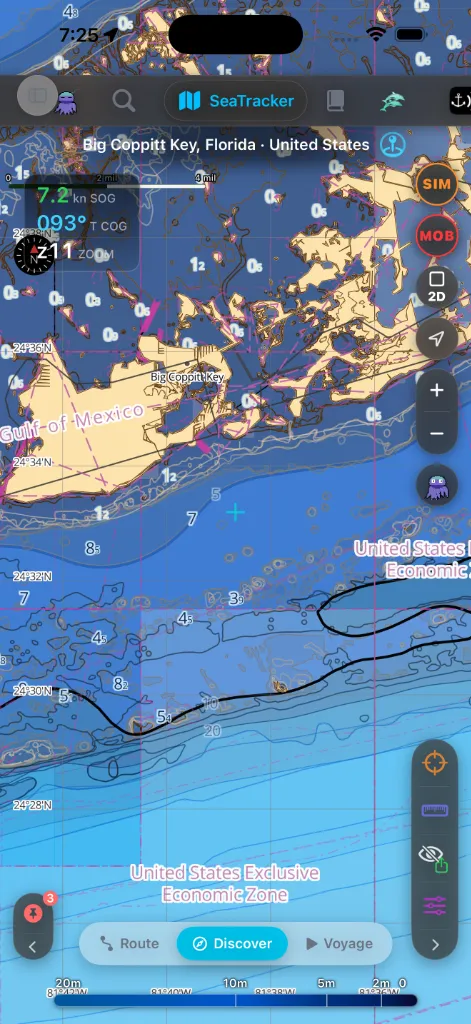
Die Tab-Leiste
Neun Tabs lassen Sie zwischen Oberflächen wechseln:
Spalte am vorderen Rand.
Jeder Tab ist an einem Symbol erkennbar — Anker für SafeAnchor, Delfin für
Merconi, Pixel-Krake für Jules, Zahnrad für Einstellungen und so weiter.
Tippen Sie einen Tab an, um zu wechseln.
Ein Seitenleisten-Umschalter (das Symbol sidebar.left) oben öffnet oder
verbirgt ein Menü, das alle Tabs mit ihren vollen Namen auflistet — nützlich, bevor
Sie die Symbole auswendig kennen. Eine Such-Funktion öffnet die
[Befehlspalette](#command-palette). Im Hochformat des iPhone sitzt der Suchknopf
direkt in der oberen Tab-Leiste, unmittelbar vor der SeaTracker-Pille —
sodass der Griff zur Suche und zur Seekarte eine Geste ist. Im Querformat ist
es eine Lupe oben am Seitenstreifen.
Ein kleines Abzeichen auf dem Tab Store zeigt, für wie viele Ihrer
installierten Regionen Updates anstehen.
Wo die App startet
Wenn Sie AnchorQueen zum allerersten Mal öffnen, landen Sie auf dem
Kartentab AnchorQueen. Danach merkt sich die App, wo Sie waren:
Schließen Sie sie auf Meteo, Jules oder im Store, öffnet sie sich das
nächste Mal genau dort — einschließlich des Untermodus, in dem Sie die Karte
verlassen haben (Route / Entdecken / Fahrt), und des Bildschirms, auf dem Sie
SafeAnchor verlassen haben (Ankerwache / Radar).
Zwei Dinge überstimmen den gemerkten Tab:
scharf, öffnet sie sich immer auf SafeAnchor — diese Oberfläche geht
allem anderen vor.
Safe Anchor → Start, siehe #navigation), führt
jeder Start stattdessen zum
Radar-Bildschirm von SafeAnchor.
Menü im Seitenpanel (Querformat & iPad)
Im Querformat (und auf dem iPad) öffnet die Seekarte ein größenveränderbares
Seitenpanel am rechten Rand. Dort lebt das Menü innerhalb dieses Panels als
dessen Startbildschirm — die separate linke Schublade und ihr Umschalter werden
nicht angezeigt, weil das Panel dem Menü bereits einen festen Platz mit weit mehr
Raum gibt. Wenn Sie eine Funktion auf der Seekarte antippen (einen Hafen, ein Schiff,
eine Legende), schiebt sich ihr Detail über das Menü; Zurück bringt Sie zum Menü.
Klappen Sie das Panel mit dem Pfeil zu, um die volle Karte zurückzugewinnen; die
dünne Leiste, die bleibt, öffnet es erneut.
Im Hochformat auf dem iPhone und auf dem iPad im Hochformat gibt es kein
Seitenpanel, daher bleibt das Menü in der vertrauten linken Schublade, die durch den
oben beschriebenen sidebar.left-Umschalter geöffnet wird.
Routenplanung & Simulator docken hier ebenfalls an
Im Querformat wandern Panels, die sonst den unteren Teil der Seekarte verdecken
würden, in dasselbe rechte Seitenpanel, damit die Karte frei bleibt:
die Tiefen-/Wind-/Wellen-/Geschwindigkeitsdiagramme und die Routenaktionen) füllt
das Seitenpanel statt eines unteren Blattes. Das Menü ist verborgen, während Sie
planen, und kehrt zurück, wenn Sie den Routenmodus verlassen oder das Panel minimieren.
der Simulator läuft.
Im Hochformat erscheinen beide weiterhin als ziehbare untere Blätter über der Seekarte.
Der Seitenleisten-Kopf
Oben in der Seitenleiste finden sich einige Schnellzugriffe über der Tab-Liste:
Kapitänsprofil zu öffnen.
den Abonnements im Store springt.
geantwortet hat (und der Untertitel spiegelt offene Unterhaltungen wider) und
springt direkt in den Verlauf. Öffnet den App-internen Feedback-Ablauf, in dem Sie
einen Fehler melden oder eine Funktion anfragen, einen Screenshot anhängen und den
Status all dessen verfolgen können, was Sie eingereicht haben (Offen / In
Bearbeitung / Gelöst / Geschlossen) — mit den Antworten des Teams und Ihren eigenen
Rückfragen in einem Verlauf. Derselbe Bildschirm ist über das Menü
SafeAnchor → Radar erreichbar — siehe
Live Discover — was Sie gesammelt haben
Auf den Karten-Tabs öffnet die Seitenleiste mit einem Bereich LIVE DISCOVER.
Während Sie die Seekarte schwenken, holt AnchorQueen nautische Objekte aus
Online-Diensten — Leuchtfeuer, Tonnen, Baken, Häfen & Marinas, Ankerplätze,
Gefahren, Landmarken und Wracks — und behält sie, während Sie weiterfahren.
Jede Zeile zeigt zwei Zahlen, z. B. Leuchtfeuer · 400 · +45:
gesammelt haben (seit dem App-Start; Objekte, die bereits aus einem früheren
Lauf zwischengespeichert sind, werden nicht gezählt).
Ein +N-Chip neben dem pulsierenden Kopf LIVE DISCOVER summiert den
Sitzungsgesamtwert über alle Kategorien — Ihre „bisher gesammelt“-Bilanz.
Tippen Sie auf das +N-Abzeichen einer Zeile, um die Liste nur dieser neu
gesammelten Objekte zu öffnen, nach Entfernung sortiert. Tippen Sie einen Eintrag
an, um sein vollständiges Detail zu sehen, oder wischen Sie, um ihn als Wegpunkt zu
speichern. (Die Zeile AIS-Schiffe zeigt nur einen Live-Zähler — Schiffe kommen und
gehen, also gibt es keine Sitzungsbilanz.)
Die Tabs neu anordnen
Sie können die Tabs in jede beliebige Reihenfolge bringen:
seine neue Position.
Tippen Sie jederzeit oben rechts auf Zurücksetzen, um die ursprüngliche
Reihenfolge wiederherzustellen. Ihre Anordnung wird automatisch gespeichert und
überdauert das Schließen der App.
Der obere Kopfbereich (Karten-Tabs)
Auf den drei Karten-Tabs (SeaTracker, Capt's Notebook, Merconi) reitet
ein schmaler Kopfbereich über der Seekarte mit dem Namen des Tabs, einer
Brotkrumenspur Ihres aktuellen Standorts und Schnellaktionen für Kartenstil und Layer.
Die Befehlsleiste der Karte
Auf jedem Karten-Tab wohnt jeder Kartenbefehl auf einer Glasplatte, die an
einem senkrechten Rand verankert ist — der Befehlsleiste. Sie besitzt
standardmäßig den hinteren Rand; die [Inhaltsleiste](#legends) den
vorderen. Nichts schwebt mehr lose über der Seekarte: Im Querformat bekommt
die Karte ihre volle Höhe zurück, und die Bedienelemente liegen genau dort,
wo Ihre Daumen ohnehin schon sind, wenn Sie das Telefon quer halten.
Am Kopf der Platte sitzt der Griff (⋮⋮). Darunter sind die Zellen danach
gruppiert, wie dringend Sie sie brauchen, mit einer Haarlinie zwischen den
Gruppen.
Kritisch — nie verborgen, nie verschoben.
(Routenauswahl → Start) oder, während eine Route befolgt wird, sie stoppen.
Beim Tippen auf STOP werden Sie zuerst um Bestätigung gebeten, damit ein
versehentlicher Tipp am Ruder die Führung nicht abbrechen kann. Während ein
Törn tatsächlich läuft, bleibt STOP in jedem Untermodus auf dem
Bildschirm — Sie können die Führung immer beenden, gleich wohin Sie
navigiert sind.
[Der MOB-Knopf](#mob).
abschalten; die Zelle brennt durchgehend rot, während eine Fahrt
aufgezeichnet wird.
Diese halten feste Plätze. Ein Wechsel des Untermodus, der Start einer
Route oder das Drehen des Geräts schiebt sie nie unter Ihrem Daumen weg.
Kamera — ebenfalls nie verborgen.
die Kamera auf Ihr Boot fixiert ist.
Kontextabhängig — was die aktuelle Arbeit gerade braucht.
Kapitänsmarke setzen.
Zoom merken.
DEPTH zu diesem Punkt anzeigt.
Werkzeuge.
Bereich, den Sie betrachten. Öffnet ein kleines Panel mit der Kartenregion,
die den aktuellen Ausschnitt abdeckt, jener über Ihrer GPS-Position, wenn
sie abweicht, der kostenlosen weltweiten Basiskarte, solange noch nichts
installiert ist — dazu Hinweise auf abgelaufene ("erneuern") oder
aktualisierbare Karten. Die Zelle leuchtet in der Akzentfarbe, solange
etwas auf Sie wartet, und beruhigt sich, sobald Sie das Panel geöffnet
haben; jeder Eintrag führt in den Store.
ohne die Karte zu verlassen.
Steuerkurslineal aus- und einblenden, wenn Sie die Karte unter Ihrem Boot
unverstellt sehen wollen.
Zellen erscheinen nur dort, wo sie zutreffen (Foto hinzufügen in Capt's
Notebook; REC, MOB und NAV in Fahrt; das Trio ADD / UNDO / DEL, während Sie
Wegpunkte setzen), sodass die Leiste nie Bedienelemente zeigt, die Sie nicht
nutzen können.
••• — die Tasche. Die Leiste misst sich am Bildschirm, auf dem sie liegt.
Was nicht passt, wandert in die •••-Tasche an ihrem Fuß, die die übrigen
Zellen als zweispaltiges Raster öffnet — im Querformat neben der Leiste,
im Hochformat als Blatt. Kritische und Kamerazellen wandern nie in die
Tasche, und die Leiste rollt nie: Auf einem kurzen Querformat-Bildschirm
gehen die Werkzeuge in die Tasche, nie Zoom oder STOP. Im Querformat werden
die Zellen außerdem etwas kleiner gezeichnet, sodass mehr davon auf der
Platte bleiben.
Die Leisten mit dem Griff bewegen.
oberen, mittleren oder unteren Ende ihres Randes auszurichten —
praktisch, wenn Ihre Hand tief am Gehäuse liegt.
Beide Leisten wechseln in einer Bewegung den Rand, sodass die Befehle unter
der Hand landen, die am Ruder gerade frei ist.
Layout zurücksetzen (beide Leisten zurück auf Standardseite und
Beide Entscheidungen werden gemerkt, und eine Audio-Stummschaltung gibt es
auf der Seekarte nicht.
> Der Zusammenklapp-Pfeil und der Dock-Tausch sind weg. Die Leiste misst
> sich jetzt selbst, es gibt also nichts zusammenzuklappen, und die beiden
> Leisten tauschen als Paar den Rand, statt auf einem Rand oben/unten die
> Plätze zu tauschen. Eine in einer früheren Version gesetzte Anordnung wird
beim ersten Öffnen der Karte übernommen.
Der MOB-Knopf
Der MOB-Knopf ist das wichtigste Bedienelement auf der Seekarte — ein
schwarz-gläserner Kreis mit roter Umrandung und einer roten MOB-Beschriftung, in
der Mitte des Bündels sitzend, sodass er stets im gleichen Daumen-Reichweitenband
wie Zoom und Neuzentrieren liegt. Ein Tipp:
Nutzen Sie ihn in dem Augenblick, in dem eine Person oder ein Gegenstand über Bord
geht. Er wohnt im Untermodus Fahrt — dem Modus, in dem Sie unterwegs sind, und
genau dann ereignet sich ein Mann-über-Bord-Notfall. Der Knopf wird ausgegraut,
während ein Mann-über-Bord-Vorfall bereits aktiv ist, sodass Sie nicht
versehentlich einen zweiten auslösen können.
Der vollständige Rückführungs-Ablauf — das MOB-Rückführungs-HUD, das
Unterkühlungs-Banner und die Ergebnisse Echter Übungsfall / Abgebrochen — ist
unter SafeAnchor dokumentiert.
Das GPS-HUD
Die dunkel-gläserne HUD-Karte oben links auf der Seekarte zeigt Ihre
Live-Positionswerte. Eingeklappt stapelt sie drei Anzeigen:
sich mit der Geschwindigkeit (vor Anker → vertreibend → marschierend → schnell) und
dient als früher Hinweis auf Ankervertreiben: ein anhaltendes langsames Kriechen
färbt sie gelb, bevor der eigentliche Alarm genug Differenz zum Auslösen hat.
z).Tippen Sie auf die Karte, um sie aufzuklappen. Das aufgeklappte HUD ergänzt:
Halten Sie einen der Koordinaten-Chips lange gedrückt, um ihn zu kopieren — das
Menü bietet die maritimen Formate (DD / DDM / DMS), eine geo:-URI, eine
Apple-Karten-URL, einen AnchorQueen-Link und Teilen… an. Wenn Sie eine
Koordinate einfügen, erscheint über der Karte eine Pille mit den Aktionen Hinfliegen
und WP hinzufügen.
Auf dem Tab SafeAnchor, wo FüG und KüG für ein ankerndes Boot nur Rauschen sind,
klappt die Karte auf nur die Zoom-Anzeige zusammen.
Die Befehlspalette
Die Such-Funktion (siehe [die Tab-Leiste](#tab-bar)) öffnet eine bildschirmfüllende
Befehlspalette mit zwei Tabs, zwischen denen Sie oben wechseln:
und Ihre gespeicherten Wegpunkte hinweg. Sie führt einen VERLAUF, der offline
funktioniert, eine Aktion Verlauf löschen und einen Jules-Filter-Chip, der
nur die Suchen zeigt, die Jules für Sie ausgeführt hat.
Namen, sodass Sie direkt zu einer Einstellung springen können, ohne sich zu merken,
in welchem Tab sie wohnt.
Bei leerem Feld zeigt der Tab Funktionen die Onboarding-Hinweisfunktionen als
eine eingebaute Tour dessen, was die App kann.
Die Inhaltsleiste der Karte
Der vordere Rand trägt die zweite Platte — die Inhaltsleiste. Dasselbe
Glas, derselbe Griff, aber sie beantwortet Was sehe ich? statt *Was tue
ich?*
Sie trägt eine Zelle pro aktiver Kategorie, jede mit einem lebenden
Zähler-Badge für die aktuell sichtbaren Objekte:
Die Kategoriezellen gehören zum Untermodus
Entdecken der Seekarte. Jede Kategorie, deren Anzahl
im sichtbaren Ausschnitt null ist, verbirgt sich selbst, sodass leeres Wasser
den Rand nicht überlädt; schwenken Sie zurück zu bevölkertem Wasser, und die
Zelle kehrt zurück.
Tippen Sie eine Zelle an, um ihr Panel zu öffnen. Das Panel öffnet sich
im Querformat neben der Leiste und im Hochformat als Blatt von unten —
und es ist immer nur eines offen: Das Antippen einer anderen Kategorie
ersetzt es. Der Stapel überlappender schwebender Karten — und das Problem,
welche davon obenauf liegt — ist verschwunden.
Die Tiefenlegende wohnt jetzt hier. Die Tiefen-Farbrampe verlief früher
quer über den unteren Kartenrand. Sie ist stattdessen eine Zelle auf dieser
Leiste — tippen Sie sie an für die Rampe, den Namen der aktiven Palette und
den Hinweis, dass Paletten in den Karten-Ebenen gewechselt werden. Das
untere Band, das sie belegte, ist wieder Seekarte.
Sind mehr Kategorien aktiv, als der Rand fassen kann, wandern die übrigen
genau wie auf der [Befehlsleiste](#camera) in die •••-Tasche — und der
Griff verhält sich identisch: hoch oder runter ziehen zum Ausrichten, quer
über die Karte ziehen, um die Seiten der beiden Leisten zu tauschen, lange
drücken für Leisten-Optionen.
Untermodus-Leisten (unten)
Mehrere Tabs haben unten eine Pillenleiste aus Milchglas, die die Untermodi des Tabs
zeigt:
Der gewählte Untermodus ist hervorgehoben. Tippen Sie eine Pille an, um sofort zu wechseln.
Sauber-Export
Die Datenwerkzeuge — Fadenkreuz, Lineal, eigenes Schiff,
Sauber und Layer — sind jetzt Zellen auf der
[Befehlsleiste](#camera). Das separate QuickActions-Panel unten rechts, in
dem sie früher wohnten, gibt es nicht mehr; es gibt also keine zweite
schwebende Gruppe zu suchen.
Manche Kartenaufnahmen müssen ohne darüberliegende App-Bedienelemente
gespeichert werden. Ein Tipp auf Sauber entfernt die Tab-Leiste, die
Seitenleiste, die Inhaltsleiste, jedes Panel und den Rest der Überlagerungen.
Übrig bleibt die Befehlsleiste selbst, reduziert auf vier Zellen: den
Griff, ein leuchtendes Auge, das die Bedienelemente zurückholt,
PDF und Bild.
Der Titelblock und die Datenquellennennung werden in das exportierte PDF
oder PNG gerendert — sie sind Teil der gespeicherten Datei, nicht eine
ständig sichtbare Überlagerung auf dem Bildschirm. Tippen Sie erneut auf das
Auge, um die Bedienelemente zurückzuholen.
Falls etwas schiefgeht
nach; auf kurzen Bildschirmen wandern zuerst die Werkzeuge dorthin. Das
Gerät zu drehen gibt der Leiste mehr Raum. Die [Tab-Leiste](#tab-bar)
wandert im Querformat zur Seite.
wechseln Sie zu SeaTracker und tippen Sie auf Fahrt, um ihn zu nutzen.
Die Ankerzone, wo immer sich die Seekarte befindet
Im GPS-HUD wird der Status des Schwojkreises und der verbleibende Raum angezeigt.