
 Ankeralarm
Innstillinger – oppslag
Innstillinger-fanen samler hver preferanse pluss dine installerte regioner og
datakildesiden.
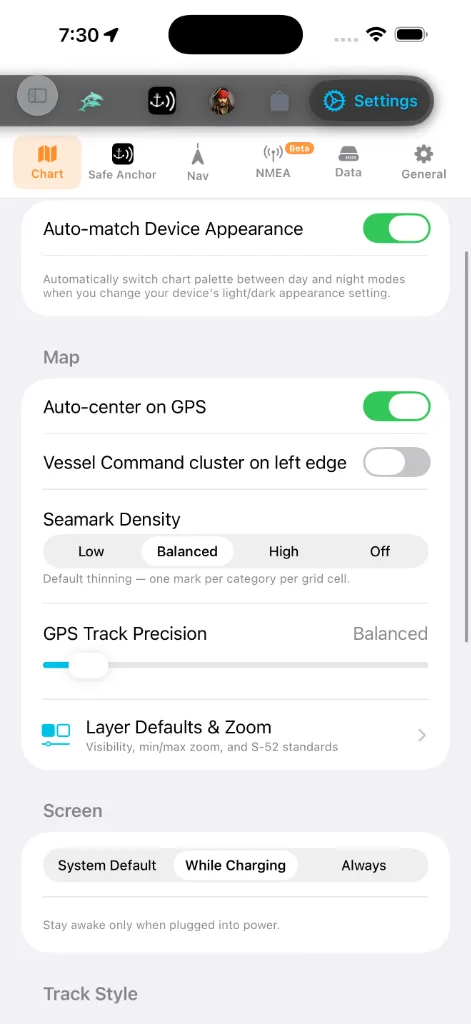
En segmentert linje på tvers av toppen deler skjermen i seks faner så du kan
hoppe rett til den familien av preferanser du vil ha i stedet for å bla:
kommandoklynge-kant, sjømerketetthet, GPS-spornøyaktighet, Lag-standarder &
Zoom), skjermvåkne-policy, sporstil, flishenting-motor.
alarmlyd + test, GPS-sporingsmodus, strømforbruk, Sikkerhetskopi & Synk,
personvern, Hjelp & Håndbøker, og Om-kortet med ditt live byggenummer).
ruteparametere, veipunktalternativer, seilas-/TSS-alarmer,
grunt-vanns-alarmen, live GPS-status, og Simulatormodus.
Wi-Fi-gateway, eller en Bluetooth-pod, pluss live diagnostikk.
fjerntjenester du kan velge inn (f.eks. NHC tropiske sykloner med en
Test-tilkobling-knapp). Sikkerhetskopi & Synk er ikke her – den bor under
Safe Anchor-fanen.
+ overstyringer per kvantitet), appspråk, og Om-kortet.
Seksjoner innenfor hver fane, i rekkefølgen du ser dem:
Kartutseende
Kart-fanens eneste utseendekontroll er én bryter:
sine dag- og natt-varianter automatisk etter hvert som enhetens
lys/mørk-utseendeinnstilling endres. Slå den av for å beholde hvilken palett
du valgte uavhengig av systemtemaet.
Grunnkartstilen og dybdefargepaletten settes ikke her. De bor i det
kart-interne Kartlag → Kart-panelet – åpne kartet, trykk på lag-kontrollen,
og velg fra dag/natt-kart- og palett-rutenettene. Se
Enheter & måling
Bor under Generelt-fanen. To lag:
hver kvantitet på en gang til et sammenhengende system. Maritim konvensjon
bevares i hver forhåndsinnstilling: avstand er som standard nautiske mil og
fart knop.
når du trenger å overstyre forhåndsinnstillingen: Dybde, Avstand,
Kort avstand, Fart, Bølgehøyde, Lufttemperatur,
Vanntemperatur, Trykk, Fartøydimensjoner, Ankerkjetting /
Hver annen fane og hvert overlegg følger disse innstillingene.
Appspråk
skrevet på. Appen leveres med 13 språk: English, Türkçe, Deutsch,
Français, Italiano, Español, Ελληνικά, Hrvatski, Português, Svenska,
Norsk bokmål, Dansk, og Suomi. Hver er listet i sin egen skrift så du kan
finne språket ditt selv når det nåværende er ukjent.
språk for å overstyre det bare inne i AnchorQueen.
noen skjermer bytter bare til det nye språket ved neste oppstart. Tall-, dato-
og enhetsformatering oppdateres umiddelbart.
Navigasjon
du foretrekker. Trykk på raden for å åpne Fanerekkefølge-redigereren, hold
så håndtaket til høyre for en hvilken som helst fane og dra det opp eller ned.
Fanelinjen oppdateres i det øyeblikket du løfter fingeren. Trykk
Tilbakestill øverst i høyre hjørne for å gjenopprette fabrikkrekkefølgen.
Oppsettet ditt lagres automatisk og overlever appomstarter. Se
et punkt. Kortere er mer detaljert; lengre er mindre filer.
Sikkerhetsalarmer
Under Nav-fanen, ved siden av seilasalarmene:
strømmen, eller ankrer inne i et
trafikkseparasjonssystem (COLREGS regel 10). På som
standard; rådgivende tilfeller reiser et gult banner, brudd et rødt.
for lite vann under kjølen din. Bruker båtens dypgående fra
fartøyprofilen. *(Flyttet hit fra Safe
Anchor-fanen.)*
utløses. Når alarmen lyder, kan du Demp (30 m) den, så Gjenoppta før
det vinduet tar slutt.
Skjerm
AnchorQueen er åpen. En navigasjonsapp er ubrukelig hvis kartet blir mørkt
midt på overfart, så AnchorQueen lar deg velge bort den vanlige auto-låsingen
uten å endre din enhetsdekkende innstilling.
strøm. Dette er standarden: ideelt for en telefon eller iPad i en holder på
et 12 V-uttak ved roret, mens en håndholdt i lommen din fortsatt sover.
lange etapper der enheten er permanent strømforsynt; forvent tyngre
batteridrenering ellers.
Å sende appen i bakgrunnen gjenoppretter alltid normal søvnatferd, så enheten
kan hvile mellom økter uavhengig av hvilken modus du velger.
Sporstil
Under Kart-fanen, under Skjermvåkne. En live forhåndsvisning øverst i
seksjonen tegner på nytt etter hvert som du endrer en hvilken som helst kontroll,
så du kan se resultatet før du forlater Innstillinger.
skyggelegges fra langsom til rask langs sporet).
tvers av hver overfarts egen min–maks-fart; Fast bruker en konstant
0–12 kn-skala så farger betyr samme fart på hvert spor.
kjøringen skiller seg ut.
Ta opp passasjer automatisk til sjøs *(også på Kart-fanen, i
Kart-seksjonen)* – én bryter for all automatisk opptak. På som standard:
AnchorQueen tar opp automatisk når du er underveis – på en planlagt reise
eller i fri seilas – og lagrer passasjen når du ankrer eller går i land. Slå
den av, så er opptaket helt ditt eget, på REC-knappen.
Den avløser den separate bryteren Auto-record voyages fra tidligere
versjoner; de to ba deg skille en «reise» fra en «passasje», et skille appen
ikke gjør noe annet sted. Hadde du bevisst slått den gamle av, starter også den
sammenslåtte av. Se
Flismotor
Under Kart-fanen, nederst. Velger hvordan kartfliser hentes:
nettverksbuffer, ved å bruke forhåndsnedlastede frakoblede fliser når de er
tilgjengelige. Det rette valget for frakoblet bruk.
HTTP-motor, uten frakoblet bufferstøtte.
En bildetekst under velgeren staver ut avveiningen for hvilken motor som er
valgt.
Veipunktnavngivning
lagrede merkene dine leser som «Turtle Cove» i stedet for koordinater.
Klyngeatferd
for tommelvennlig enhåndsbruk.
Installerte regioner
En liste over hver kartregion du har installert, gruppert
etter farvann — Middelhavet, Nord-Europa, USA, Mexico, Karibia, Stillehavet,
Øst-Asia, Verdensomspennende. Gruppene, rekkefølgen deres og landflaggene i hver
rad er de samme som i katalogen Butikk → Kart, slik at en
pakke står under den samme overskriften uansett hvor du ser på den. Hver rad
viser:
Hent flere regioner nederst hopper til
Bla i regiondata (også nederst i region-området) åpner en lavnivå-inspektør
for de installerte dataene – regionmanifester, NavGrid-filer og
MBTiles-metadata. Dobbelttrykk på en hvilken som helst fil for å inspisere den.
Det er en diagnostisk flate; du trenger den ikke for hverdagsbruk.
Safe Anchor (Ankervakt-innstillinger)
Safe Anchor-fanen er nå vert for de fulle Ankervakt-innstillingene i linje –
ikke lenger et eget ark. Fra topp til bunn: Tillatelser-status,
alarmlyden + alarmtest, GPS-sporingsmodusen (Sanntid vs. Glidende
gjennomsnitt) og Strømforbruk (Balansert vs. Høyest), Sikkerhetskopi &
Synk (se [#backup](#backup)), krasjrapporterings-personvern, Hjelp &
Håndbøker, og Om-kortet. Se SafeAnchor for hva hver
gjør.
Fix-knapp som åpner iOS-Innstillinger. Kortet avsluttes med en fast
påminnelse om at vedvarende bruk av GPS i bakgrunnen kan redusere batteritiden
dramatisk: AnchorQueen holder GPS-en våken bare mens en ankervakt, et
seilasopptak eller aktiv navigasjon pågår.
Radar-skjerm – den klassiske ankeralarmen – hver
gang den starter. Praktisk hvis du hovedsakelig bruker AnchorQueen som
ankeralarm. Det går foran fanen du sist var på: med innstillingen av
fortsetter appen der du slapp (se [hvor appen
åpner](basic-ui.html#launch-tab)); med den på er hver oppstart Radar. (Var
en ankervakt aktivert i forrige økt, går appen tilbake til SafeAnchor
uavhengig av denne innstillingen.)
brukerhåndbok-lenke, begge åpner i nettleseren din.
installerte versjonen og byggenummeret – siter disse til support), og, der
annonsesamtykke er nødvendig (hovedsakelig EØS/UK), en Administrer
annonsesamtykke-knapp som åpner samtykkedialogen på nytt så du kan endre
valget ditt.
Grunt-vanns-alarmen bor nå under [Nav](#navigation)-fanen (se
[Sikkerhetsalarmer](#safety-alarms)), og Instrumenter-datakilden flyttet til
sin egen [NMEA](#instruments)-underfane.
Simulatormodus
Overstyr din ekte GPS med en posisjon du slipper på kartet – nyttig for
demoer, planlegge en overfart fra bryggen, eller teste ankervakten uten å
forlate marinaen.
dokker nederst på kartet.
kontrollene på høyre kant). Den slipper det simulerte fartøyet i kartsenteret
umiddelbart når det punktet er over vann; over land ber den deg sentrere på
vann først. Trykk SIM igjen (den gløder oransje mens den er aktiv) for å
avslutte simuleringen.
der du forlot den etter en hvilken som helst bevegelse) neste gang du
aktiverer Simulatormodus. Når av, starter hver økt friskt i kartsenteret.
På kartet dokker en rorkonsoll nederst. Båten din vises med sitt navn og
symbol, tegnet til sin ekte lengde på samme måte som AIS-trafikk – så et
stort fartøy leser større enn et lite og skalerer med zoom (dimensjoner kommer
fra fartøyprofilen din). Konsollen lar deg:
å plassere fartøyet der.
skyvebryteren. Båten letter opp til fart som et ekte skrog i stedet for å
hoppe.
rundt i en realistisk takt), Stødig holder den nåværende baugretningen,
Revers vender om, Til kompass styrer den veien enheten peker, Full
stopp bringer den til stillstand.
utfolde seg. Slå den av for å panorere fritt.
eller slå Simulatormodus av i Innstillinger → Nav.
Trykk på konsolltoppteksten for å fold den sammen til en kompakt
autopilotstripe – en stor kurs-å-styre med −10 / −1 / +1 / +10 babord
(rød) og styrbord (grønn) taster for enhånds-kursjusteringer mens du seiler.
Trykk på den igjen for å åpne hele roret på nytt.
> Simulatormodus erstatter posisjonen din overalt – kartet, GPS-HUD-en,
> sporopptaket og ankervakten følger alle den simulerte båten. Din
> kompassbaugretning forblir ekte – bare posisjonen er falsk. Slå den av for
å gå tilbake til live GPS.
NMEA – Instrumenter
NMEA-underfanen (merket Beta i den segmenterte linjen) er
instrumentdatakilden. Som standard leser AnchorQueen posisjonen din fra enhetens
Innebygde GPS. Hvis båten din har NMEA-instrumenter, pek appen mot dem her
for å få mastetoppvind, en dybdemåler og en fastmontert GPS.
nødvendig; det rette valget for de fleste telefoner og nettbrett.
som kringkaster NMEA-setninger.
192.168.4.1) og Port (standard 10110).
poden din i listen for å velge den. Bluetooth-instrumenter deler ingen
felles standard, så bare velg enheten din og Bruk.
bortfall. Vist bare for NMEA-kildene.
Vind, og den siste NMEA-setningen så du kan bekrefte at data flyter.
> NMEA-data trenger en Wi-Fi-gateway eller Bluetooth-pod på båten din. Uten en
gateway, hold Innebygd GPS.
Sikkerhetskopi & Synk
> Hvor du finner den: Sikkerhetskopi & Synk er en rad under Safe
> Anchor-fanen (i dens Data-seksjon), ikke under Innstillinger
> Data-fanen. Åpne Safe Anchor → Sikkerhetskopi & Synk for å nå
kontrollene nedenfor.
Hold kapteinsmerkene, rutene og båtprofilen din trygge og konsistente på tvers
av enheter.
på tvers av hver enhet logget inn på samme konto. Viser
synkroniseringsstatusen (Synkronisert · tid, Synkroniserer …, eller en feil)
med en Synk nå-knapp for en umiddelbar push.
AES-krypteres den eksporterte sikkerhetskopifilen og samme passfrase er
nødvendig for å gjenopprette den. La den stå tom for en ukryptert
sikkerhetskopi.
dele eller lagre utenfor enheten.
dine nåværende data: merker og ruter legges til eller oppdateres, slettes
aldri.
Datakilder & partnere
Et skrivebeskyttet ark som lister hver leverandør hvis data mater appen –
OpenStreetMap og MapLibre, ESRI og Mapbox, NOAA og nasjonale meteorologiske
tjenester, Wikipedia, Global Fishing Watch, og andre – med lenker til hver
leverandørs nettsted.
Tjenester
Avansert diagnostikk. Den mest nyttige er NHC-tilkoblingstesten som sjekker
om syklon-matingen fra National Hurricane Center er nåbar.
Om-kort
AnchorQueen viser versjonsinformasjon på to steder:
versjonen og byggenummeret. Siter dette når du kontakter support.
etikett), Kartdata (OpenStreetMap), Modus (Kun GPS · Frakoblet), og
Kartmotor (MapLibre GL). Det sporer ikke byggenummeret ditt; bruk Safe
Anchor-kortet for det.
Din Bufrede fliser-størrelse vises separat, under Data-fanens
Lagring-seksjon; den beregnes i bakgrunnen og leser «Beregner …» kort ved
første lasting.
Hvis noe går galt
oppdaterer etiketter ved neste opptegning.
undermodus én gang) og prøv igjen.
Båtprofil
Angi dypgående, bredde, total lengde (LOA) og sikkerhetsmargin.
AIS-trafikk
Viser mottaksmodus for skipstrafikk (Delt eller direkte tilkobling).
Hjelp — håndbok og utgivelsesnotater
Åpner brukermanualen og versjonsnotatene.
Tryggere synkronisering og sikkerhetskopier
Enhetens lokale bibliotek forblir knyttet til den første kontoen som logger inn etter oppdateringen. En annen konto setter biblioteksynkroniseringen på pause; logg inn med eierkontoen for å fortsette. Frakoblede opptak blir på enheten. Nye krypterte sikkerhetskopier har sterkere passordbeskyttelse og kan leses i 2.4.4 eller nyere; eldre kopier kan fortsatt gjenopprettes. Behandlingen skjer i bakgrunnen med en filgrense på 128 MiB. Sletting av passasjer mellom enheter og bevaring av tur-retur-spor er også rettet.