
 Ankkurihälytin
SeaTracker-kartta — Reitti, Löydä, Matka
SeaTracker-välilehti on merikartta AnchorQueenin sydämessä. Kartta ei koskaan
katoa — kun vaihdat välilehtiä ja palaat takaisin, lähennyksesi ja sijaintisi ovat
täsmälleen siellä, mihin ne jätit.
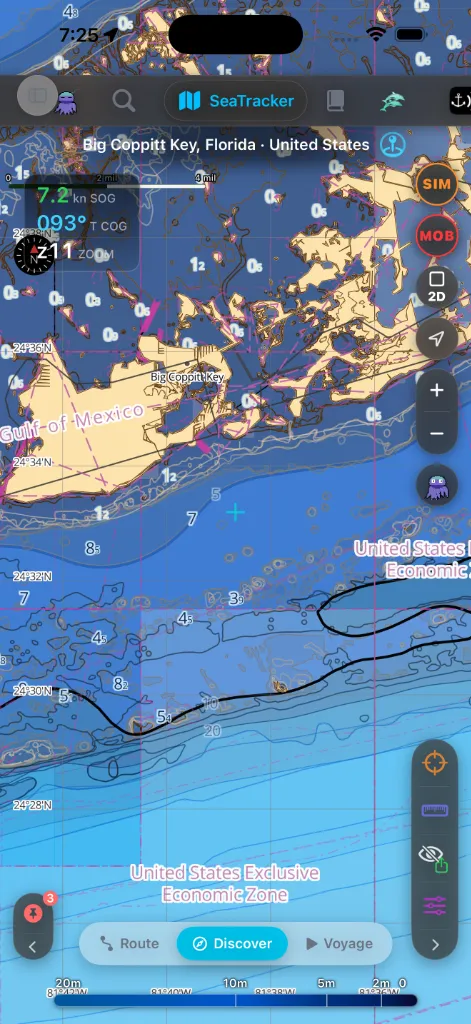
Kartan alaosassa on pilleripalkki kolmella alitilalla:
Reitti — Löydä — Matka.
Löydä
Oletustila. Kartta on sinun vaeltaa.
lukumäärämerkillä varustetun solun tasoa kohden — poijut, merimerkit,
satamat, ankkuripaikat, vaarat, hylyt, valosektorit, AIS-alukset, kalalajit,
sukelluskohteet, kalastusvahti, valtameridata, Wikipedia-artikkelit ja omat
kapteenin merkkisi — sekä syvyysselitteen, joka muutti sinne kartan
alalaidasta.
kyseisen luokan paneelin vaaka-asennossa sisältöpalkin viereen tai
pystyasennossa alalehtenä; toisen luokan napauttaminen korvaa sen. Kortit
eivät enää kellu irrallaan kartan päällä eivätkä mene päällekkäin. Luokat,
joilla ei ole mitään näkyvissä, piilottavat solunsa, ja se mikä ei mahdu
reunaan, siirtyy palkin •••-taskuun.
näyttää syvyyden tähtäimen alla, kun panoroit.
eteenpäin katkoviivana — kätevää risteävälle liikenteelle. Se on taso, jonka
voit kytkeä (oletuksena päällä) kohdassa Karttatasot → Navigointi, jossa voit
myös asettaa sen värin ja viivatyylin.
Käytä Löydä-tilaa oppiaksesi alueen, tiedustellaksesi ankkuripaikan tai
selataksesi kiinnostavia kohteita.
Elävä mittarilukema
Jos olet yhdistänyt NMEA-mittarilähteen (Wi-Fi-yhdyskäytävän tai
Bluetooth-yksikön — katso [Asetukset → Ankkurivahti →
Mittarit](settings.html#anchor-watch)), GPS-HUD:iin kasvaa elävä mittariosio. Se
ilmestyy vain lähteen ollessa yhdistettynä; sisäänrakennetun GPS:n laitteessa HUD
on muuttumaton.
(keltainen) tai EI SIGNAALIA (punainen) — siirtotien (TCP / UDP / BLE) ja
kuinka kauan sitten viimeisin data saapui. Ikä jatkaa laskemista ylöspäin, jos
syöte hiljenee, joten jäätynyt "12 s sitten" on vihjeesi, että yhdyskäytävä
lakkasi lähettämästä.
veden mataloituessa), tuulen (näennäinen tai tosinopeus kulmineen) ja — kun
napautat korttia laajentaaksesi sen — keulasuunnan, vauhdin veden suhteen
ja meriveden lämpötilan. Vain ne arvot, joita mittarisi todella lähettävät,
ilmestyvät.
tuulelle, jotka vierittyvät uusien lukemien saapuessa, joten näet merenpohjan
mataloituvan tai tuulen voimistuvan yhdellä silmäyksellä.
Satelliitti- & hybridiperuskartta
Voit peittää korkearesoluutioista satelliittikuvastoa suoraan vektorimerikarttatasojesi
alle saadaksesi täydellisen valokuvallisen ja metrisen näkymän rannikkovesistä.
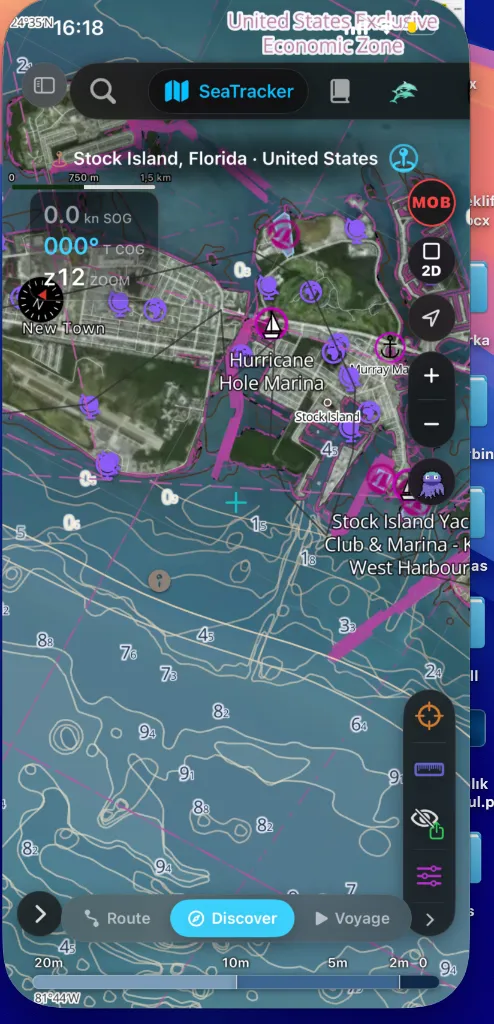
Ottaaksesi tämän käyttöön:
Tämä peittää korkean tarkkuuden syvyysluvut ja syvyysvaaralinjat suoraan
todellisten rannikkorakenteiden päälle, mikä tekee erittäin helpoksi suunnitella
tuloväyliä tuntemattomiin merisatamiin (kuten Hurricane Hole Marina Stock
Islandilla, Floridassa).
Reitti
Reittitila korvaa HUD:in Reittipaneelilla alhaalla.
Kun siirryt Reittitilaan ilman aktiivista suunnitelmaa, päädyt Tallennetut
reitit -näkymään — luettelon yläpuolella oleva suodatin
Kaikki / Reitit / Väylät pitää suunnitellut reitit ja tallennetut
purjehdukset erillään (näkymän lukumäärä seuraa suodatinta), ja tallennetuissa
purjehduksissa on ▶ Toista-painike suoraan rivillä.
Reittirivit näyttävät luontipäivän etäisyyden ja pistemäärän vieressä.
Paikanna-painike lentää kartan aina reitin tai purjehduksen
lähtöpisteeseen — ensimmäisen kiintopisteen kohdalla oleva nimikilpi
näyttää nimen ja päivämäärät. Suunnitellut reitit saavat oranssin
SIM-painikkeen: yksi napautus käynnistää simulaattoritilan reitti
valmiiksi valittuna — simuloitu alus lasketaan lähtöpisteeseen, ja autopilotti
purjehtii reitin suunnitellulla nopeudella. Reitin valitseminen
kohdistaa kartan siihen: jos se oli piilotettu, se tulee näkyviin, ja kaikki
muut reitit väistyvät, kunnes poistat valinnan — vain reitti, jota aktiivisesti
navigoit, pysyy aina kartalla. Aloita tutusta purjehduksesta tai aloita uusi
suoraan otsikkoriviltä: Suunnittele uusi reitti pudottaa ensimmäisen
reittipisteen kartan keskelle ja Hae etsii määränpään nimellä (tulokset
järjestetään vesi edellä). Suunnittelupaneelissa lähtöpaikan (A)
sijainti-painike täyttää sen elävällä GPS-sijainnillasi — koordinaatit
ilmestyvät paikkaan, lyhyt vahvistus välähtää, ja paneeli siirtyy hetken
kuluttua itsestään määränpään (B) vaiheeseen.
Komentokisko on Reittitilassa vasemmassa reunassa. Napauta Aseta
LÄH, ja kartta jää odottamaan sinua — banneri lukee *"Napauta karttaa
asettaaksesi lähtöpisteen…"*. Napauta (tai paina pohjassa) siihen mihin haluat
sen, ja lähtö laskeutuu siihen väreillen. Napauta syttynyttä komentoa
uudelleen, tai bannerin ✕:ää, peruaksesi asettamatta mitään.
kisko sytyttää Aseta SAAP ja banneri vaihtuu muotoon *"Napauta karttaa
asettaaksesi saapumispisteen…"* — yksi komennon painallus per piste, ei
koskaan kahta. Seuraava napautuksesi asettaa saapumisen, ja matka
suunnittelee itsensä.
kuvakesarake; vedä sitä sivuun (tartu siihen mistä tahansa — pieni kapseli
sen oikeassa reunassa näyttää mistä), ja se levenee näyttääkseen jokaisen
komennon nimen. Se muistaa, miten sen jätit.
kiskossa on kolme komentoa — Aseta LÄH, Aseta SAAP, Reitit. Käännä,
Tyhjennä, Tallenna reitti ja Lisää reittipiste ilmestyvät sitä mukaa kuin
suunnitelmasi ne ansaitsee, ja väistyvät taas kun ei. Mikään ei seiso siinä
harmaana.
ARR — täyttyvät sitä mukaa kuin pisteet laskeutuvat, ja renkaalla merkitty
on se vaihe, jota kisko odottaa.
olemassa, Lisää reittipiste lisää välipisteen niiden väliin, ja matka
suunnitellaan uudelleen sen kautta. Komento pysyy viritettynä, joten
neljän osuuden matka on neljä napautusta — ei uudelleenviritystä välissä.
keltaisella ilmoituksella sen sijaan, että hiljaa tehtäisiin reitti, jota et
voi purjehtia.
saapuminen punaisena ARR-kapselina ja jokainen välipiste numeroituna
syaaninvärisenä ympyränä — numero on se osuus, jonka se sulkee. Päätepisteen
uudelleen pudottaminen liu'uttaa sen uuteen paikkaansa hyppäämisen
sijaan, joten näet mikä siirtyi.
säilyttää jokaisen osuuden), Tyhjennä, Tallenna reitti ja Reitit
(avaa tallennettujen reittien luettelon uudelleen).
"luo"- tai "OK"-vaihetta. Heti kun alku (A) ja loppu (B) ovat olemassa, sovellus
suunnittelee purjehduksesi automaattisesti matalikkojen ja maaesteiden ympäri
käyttäen suorituskykyistä Hybrid A*-APF (keinotekoinen potentiaalikenttä)
napauttamalla karttaa, pitämällä pohjassa tai käyttämällä ADD-painiketta.
napsahtaa kolmen korkeuden välillä — ohut kurkistus, puoliarkki ja
täysi — ja yksi yhtäjaksoinen veto vie kokonaan täyteen; sinun ei enää
tarvitse vetää kahdesti.
vedä sitä tarkastaaksesi minkä tahansa osuuden.
reunan säädinsarakkeeseen (lähennyspainikkeiden alle): ADD pudottaa
reittipisteen tähtäimeen (toinen ADD suunnittelee reitin automaattisesti),
UNDO poistaa viimeisen, DEL poistaa lähimmän. Vedä reittipistettä suoraan
kartalla siirtääksesi sen. Kapseli on vain vapaamuotoinen — se on piilossa
Telakasta telakkaan -tilassa, jossa rakennat reitin kahdesta telakkapaikasta
sen sijaan.
asetit — se ei napsahda veneesi nykyiseen sijaintiin. Käytä seuraa-painiketta,
jos haluat kameran seuraavan alustasi.
Hybrid A*-APF & relaksaatiokaskadi
Reitityskone toimii pääsäikeen ulkopuolella varmistaakseen ehdottoman liittymän
reagoivuuden ja ratkaisee polut kolmessa loogisessa vaiheessa:
polun, joka kunnioittaa aluksesi syväysrajoituksia ja turvamarginaaleja.
lukitut koordinaatit käyttäen esteiden hylkimisvektoreita. Maamassat ja
matalikot kohdistavat positiivisen potentiaalin (työntäen reitin pois), kun
taas määränpää kohdistaa negatiivisen potentiaalin (vetäen reitin sisään),
tuloksena puhtaita, luonnollisesti kaartuvia purjehduksia.
sataman lukko" -pulman (jossa reittiä ei voida suunnitella, koska aloitustelakka
tai määränpääpaikka on ohuessa vedessä), kone ajaa 3-tasoisen kaskadin:
* Tiukka tila: Pakottaa täyden syväyksen + turvavälin koko reitin
varrella.
* Matala tila: Jos Tiukka epäonnistuu, suunnittelija relaksoi
turvavälisäännöt päätepisteiden lähellä varoittaen samalla mahdollisesta
syväysaltistuksesta.
* Paras yritys -tila: Relaksoi turvavälirajat kokonaan telakoiden
lähellä taatakseen, että yhtäjaksoinen reitti syntyy, sen sijaan että se
keskeyttäisi reititysvirheellä.
Reittipisteen tiedot — napauta näyttääksesi
Näytettävän reitin reittipisteet piirtyvät numeroituina magentanvärisinä
ympyröinä, jotka pitävät kartan luettavana joka zoomaustasolla; valittu saa
hehkuvan renkaan roolinsa värissä. Napauta reittipistettä avataksesi sen
tietokortin, jonka ohut yhdysviiva kiinnittää nastaan. Kortti puhuu
komentosillan kieltä — WPT, BRG, LEG, DTG, TTG, ETA — ja näyttää sen, mikä
käsillä olevalla osuudella merkitsee: tulosuuntima ja osuuden pituus, jäljellä
oleva matka suhteessa kokonaismatkaan, jäljellä oleva aika suunnitellulla
nopeudella, kellonajan mukainen ETA kun lähtöaika on asetettu, aalto ja
puuska reittipisteen ETA-hetkellä kun reittisää on ladattu, sekä käännettävä
koordinaattipaneeli.
se pysyy yhdysviivan välityksellä kiinni reittipisteessään — panoroi tai
zoomaa, ja se liikkuu nastansa mukana pitäen antamasi paikan. Toisen
reittipisteen valinta palauttaa sen automaattiseen sijoitteluun.
todellisesta nopeudestasi pohjan suhteen ja sijainnistasi, ja nykyinen
kohdereittipiste kantaa NEXT-merkkiä. Paikallaan ollessa kortti palaa
suunnitellun nopeuden lukuihin, himmennettyinä ja sellaisiksi merkittyinä.
kiintopistettä tallennetulla jäljellä, ja kortti näyttää FIX n/N —
kellonajan, jolloin ohitit sen, siinä tallennetun SOG-lukemasi ja suuntasi,
kuljetun matkan ja kuluneen ajan — ei koskaan suunnitellun nopeuden
laskelmia. Kortin rivi ▶ Toista tästä käynnistää
[purjehduksen toiston](#passage-replay) juuri siitä kiintopisteestä.
Kerrallaan on auki täsmälleen yksi kortti: toisen reittipisteen napautus
siirtää sen, ja napautus avoveteen — tai mihin tahansa muuhun karttakohteeseen
— sulkee sen. Reittipisteiden selaaminen navigointi-HUDin ‹ ›-nuolilla
siirtää korttia mukana.
Telakasta telakkaan
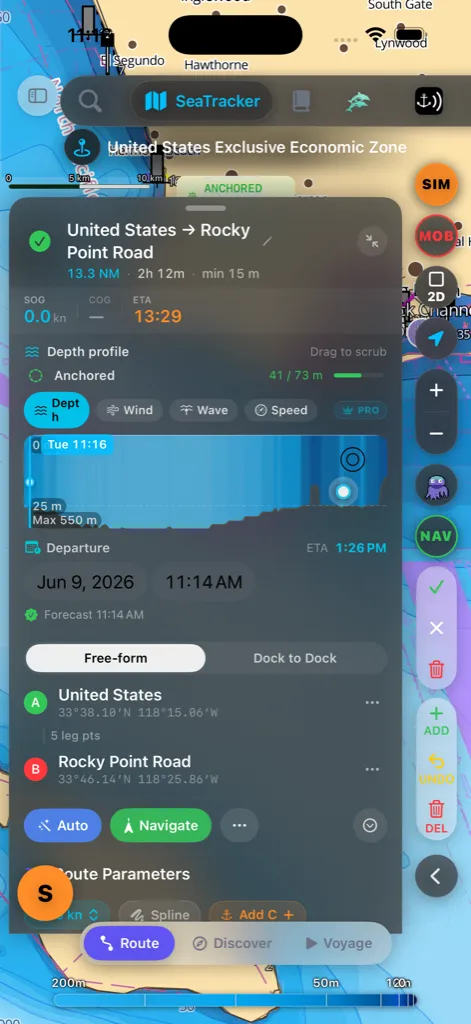
Reittipaneelin yläosassa kaksisuuntainen kytkin valitsee, miten rakennat reitin:
pudottaaksesi niin monta ankkuria kuin haluat; sovellus reitittää kunkin parin
välillä.
tuohon satamaan" -purjehdukselle.
Telakasta telakkaan -tilassa paneeli näyttää kaksi paikkaa:
Voit myös napauttaa sijaintikuvaketta käyttääksesi nykyistä sijaintiasi tai
lauttakuvaketta pudottaaksesi lähimpään satamaan.
asetettu. Heti kun valitset lähdön, määränpäävalitsin avautuu automaattisesti,
jotta voit hakea suoraan, minne olet menossa.
Valitsin luettelee merisatamat & satamat ensin, muut paikat alla, ja näyttää
etäisyyden nykyisestä näkymästäsi. Kun molemmat telakat on asetettu, sovellus
reitittää automaattisesti niiden välillä matalikkojen ympäri, aivan kuten
Vapaamuotoinen.
voit vahvistaa valinnan — lähtö (A) keskittää näkymän uudelleen aivan kuten
määränpää (B).
määränpään päinvastoin — reitti suunnitellaan uudelleen välittömästi.
Veneen vuokraaminen etapille
Jos telakkapaikka osuu satamaan tai venesatamaan, jossa charter-kumppanillamme
on veneitä, kyseisen paikan koordinaattien alle ilmestyy pieni Vuokraa
kohteesta (satama) ▸ -pilleri:
lähtöpäivänäsi (seuraava lauantai, jos et ole asettanut sitä) ja palautus
joko seitsemän yötä myöhemmin tai arvioidulla saapumisellasi, kumpi on
kauempana — kahden viikon purjehdus pyytää kahden viikon charterin.
seuraavalle etapille ▸ ja aukeaa ensimmäisenä lauantaina saapumisesi
jälkeen. Charterit noudetaan ja palautetaan samaan tukikohtaan, joten B on
tarjous aloittaa seuraava matkasi sieltä, ei koskaan jättää venettä.
charter-kortti. Napauta sen ✕-merkkiä, eikä se palaa kyseiselle
reitille.
paikka todella on charter-tukikohta, ne eivät koskaan ilmesty
ankkurihälytyksen soidessa, laahausvaroituksen ollessa päällä tai kun kuljet
yli 2 solmun vauhtia, ja ne katoavat itsestään, jos vahti laukeaa paneelin
ollessa auki. Mitä napautuksen jälkeen tapahtuu, kuvataan kohdassa
[Veneen vuokraaminen täältä](#charter-rentals).
Kapteenin kirjasto
Capt's Routes -kohta sivuvalikossa avaa Kapteenin kirjaston — yksi haettava
paikka hallita kaikkea, mitä olet tallentanut tai kerännyt:
yksityiskohtaeditorin; pyyhkäise poistaaksesi. Pidä pohjassa täyttä
toimintovalikkoa varten: Näytä kartalla, Aloita navigointi, Monista,
Käännä suunta, Vie GPX ja Purjehdussuunnitelma (PDF) — tulostettava
A4-purjehdussuunnitelma suoraan luettelosta, ilman yksityiskohta-arkkia.
nimeä, symbolia ja ankkuripaikan oleskeluaikaa; tähtäyspainike lentää kartan
siihen.
poistaaksesi.
kesto, jälkipisteet). Napauta yhtä täyttä purjehduslokia varten tilastoineen ja
ETA-laskimineen. Purjehdusrivin ▶ Toista-painike toistaa purjehduksen
kartalla — katso [Purjehduksen toistaminen](#passage-replay).
Hakulaatikko, lajitteluvalikko ja elävä tuloslukumäärä istuvat luettelon
yläpuolella. ⋯ Lisäasetukset -valikko lisää Tuo GPX ja Hallitse
kansioita.
Vaaka-asennossa kirjasto avautuu oikeassa yksityiskohtapaneelissa, jotta voit
hallita reittejä kartan pysyessä näkyvissä; pysty-asennossa se avautuu arkkina.
Reittien ja purjehdusten erottaminen. Kaikkialla, missä luettelo voi
sisältää sekä suunniteltuja reittejä että tallennettuja purjehduksia —
perusreitin valitsin purjehdussuunnitelmaa luotaessa ja kartan käytettävissä
olevien reittien paneeli — luettelon yläpuolella on pieni suodatin
Kaikki / Reitit / Väylät, ja se muistaa valintasi. Komentopaletin
hakutulokset merkitsevät jokaisen kohteen Reitti tai Väylä, joten nämä
kaksi eivät koskaan sekoitu keskenään.
Purjehduksen toistaminen
Tallennettu purjehdus ei ole vain viiva kartalla — se kantaa kaiken, mitä vene
todella teki: sijainnin, nopeuden pohjan suhteen ja suunnan, kiintopiste
kiintopisteeltä, oikealla kellolla. Toista soittaa tuon purjehduksen
takaisin kartalle omalla alussymbolillasi.
tahansa purjehdusrivin ▶ Toista-painikkeesta
[Kapteenin kirjastossa](#captains-library), purjehduksen omalta
tietosivulta, kartan tallennettujen reittien luettelosta, [haun](#search)
kautta löytyneestä purjehduksesta tai kapteenin lokin päiväraportista —
päivät, joilla on tallennettu purjehdus, tarjoavat sen toistoa. Aloititpa
miten tahansa, kartta lentää purjehduksen alkuun ja lataa matkan
pysäytettynä ensimmäiseen kiintopisteeseen — paina toistoa, kun olet
valmis.
venesymbolinasi (ei läpikuultavana suunnitteluhaamuna) ja kääntyy sillä
suunnalla, jota todella ohjasit. Haipuva jälki seuraa sitä ja näyttää
parin viime minuutin toistetun jäljen. Veneen edessä purjehduksen vielä
toistamaton osa näkyy valkoisena katkoviivana, jonka viivat vaeltavat kohti
määränpäätä — sama ”ei vielä” -kieli, jota reittisuunnittelija käyttää.
HDG-lukeman, sen tuulen, joka sinulla todella oli — arvon, puuskan ja
suuntaneulan — syvyyden kohdistimen alla siellä missä karttatiedot sen
sallivat, kellonajan nykyisessä kohdassa sekä purjehduksen kuluneen ja
jäljellä olevan ajan. Tuuli tallentuu hiljaa purjehduksen tallennuksen aikana
(mittalaitteidesi todellisesta tuulesta, kun ne on yhdistetty, muuten
reaaliaikaisesta ennusteesta), joten ennen tätä versiota tallennetut
purjehdukset näyttävät siinä viivan.
(1×–256×) skaalaavat tallennettua kelloa — toisto hidastuu siellä missä
todella hidastit ja kiitää siellä missä todella kiidit, joten tyven
ankkuripaikalla lukee juuri niin kuin se tapahtui.
[Matka](#voyage)-tilassa — vedä mihin tahansa purjehduksen kohtaan ja
paina toistoa siitä.
veneeseen, suunta ylöspäin. Panoroi karttaa, ja kamera on taas sinun — aivan
kuten elävässä navigoinnissa.
Matka
Matka on aktiivista navigointia. Yksi painallus-ja-pito muuttaa kartalla
olevan kohdan suunnitelluksi purjehdukseksi, jonka sitten valitset aloittaa.
Kunnes olet purjehtinut muutaman matkan, kartalla oleva vihje muistuttaa sinua
eleestä.
ympärille; pidä, kunnes se täydentyy.
reitittää nykyisestä sijainnistasi (A) kyseiseen pisteeseen (B)
matalikkojen ja maan ympäri. Napauta pillerin ✕ hylätäksesi suunnitelman.
Jos jokin estää reitin — ei GPS-paikannusta, määränpää maalla, piste liian
lähellä venettä — pilleri kertoo sen siinä paikassa.
arvioituine aikoineen, ja suunniteltu polku piirtyy kartalle
katkoviivaesikatseluna — panoroi ja lähennä vapaasti tarkastaaksesi sen.
tallennus (jälkesi, reittipisteiden saapumiset ja tilastot) alkavat, syvyys-
ja sääkaaviot täyttyvät, ja lähellä olevat karttakohteet putoavat molempiin
päihin. Napauta Hylkää hylätäksesi suunnitellun reitin; mitään ei aloiteta
eikä tallenneta.
Koska vahvistat Aloita-painikkeella, harhautunut pohjassapito ei koskaan
käynnistä purjehdusta itsekseen. Molemmat päätepisteet nimetään lähimmän paikkansa
mukaan. Jos vene on liikkunut merkittävästi kortin odottaessa, Aloita-painikkeen
napauttaminen suunnittelee hiljaa uudelleen siitä, missä todella olet, ennen kuin
navigointi alkaa, jotta reitti alkaa aina keulasta — ei siitä, missä se oli
muutama minuutti sitten.
Jo navigoimassa? Pohjassapito purjehduksen ollessa käynnissä ei aloita
uutta — se ehdottaa reittipisteen lisäämistä kyseiseen kohtaan ja reitittää
uudelleen nykyisestä sijainnistasi sen kautta, vahvistustasi odottaen.
Aktiivisen navigoinnin HUD
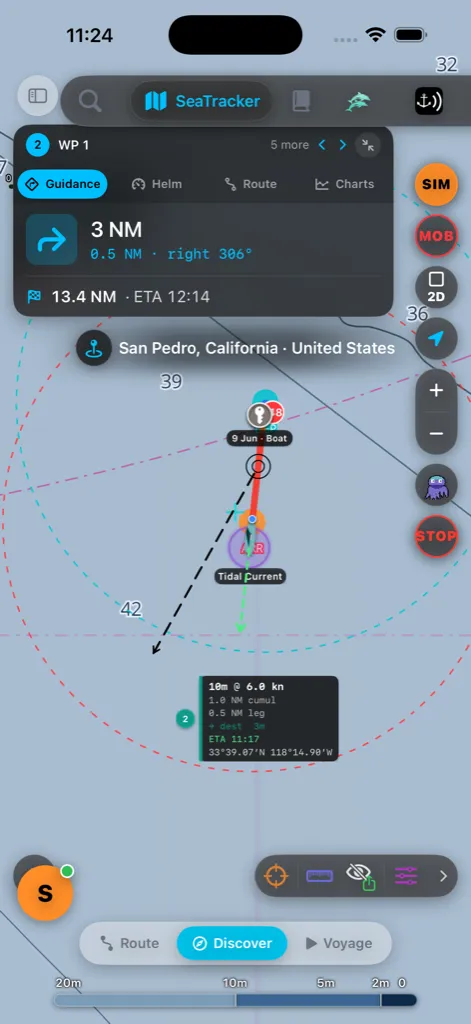
Navigoidessasi yksi kortti istuu kartan yläosassa neljällä napautuksella
vaihdettavalla osiolla:
poikkeamapalkilla reittiviivasta.
jäljellä oleva etäisyys ja sijaintisi reitillä.
tyyppipainikkeita vaihtaaksesi, mikä kaavio näytetään. Syvyys on aina
ilmainen; Tuuli-, Aalto- ja Vuorovesiennustekaaviot ovat
Pro-ominaisuus — ilmaistilillä nuo nauhat näyttävät lukitun "Pro-ominaisuus"
Tuuli piirtää puuskan haaleampana katkoviivana tuuliviivan päälle
tuulensuuntanuolineen. Jokainen kaavio näyttää elävän ennustedatan reitin
varrella, reittipistemerkit ja etäisyysasteikon. Valkoinen piste seuraa
nykyistä sijaintiasi; vedä kaaviota raapiaksesi valkoista pistettä reitin
varrella kartalla — se napsahtaa takaisin elävään sijaintiisi hetken kuluttua.
Vuorovesi näyttää ennustetun sataman vuorovesikorkeuden reittisi varrella,
piirrettynä keskimerenpinnan linjan ympärille (käyrä painuu linjan alle
matalalla vedellä); siellä missä vuorovesiennusteet eivät ole saatavilla
alueelle, kaavio näyttää aukon arvauksen sijaan.
Käytä HUD-otsikon ‹ › -nuolia astuaksesi edelliseen tai seuraavaan
reittipisteeseen; lyhyt palkki vahvistaa uuden kohteen. Pienennä-painike (⤡)
HUD-otsikossa tiivistää koko kortin pieneksi NAV · WP -pilleriksi; napauta
pilleriä tuodaksesi sen takaisin. Paikan nimen merkki sujahtaa suoraan HUD:in
alapuolelle, jotta loput kartasta pysyy selkeänä.
Komentoikkuna alhaalla (syvyysraapija + toistosäätimet) on kolmessa koossa —
napauta sen vaihepainiketta selataksesi täysi → tiivis → pienennetty ja
takaisin, vapauttaen karttatilaa, kun et tarvitse sitä.
Vaaka-asennossa HUD on leveysrajattu johtavalle puolelle, jotta se ei koskaan
syö karttaa, ja siitä avaamasi paneelit (reitin tiedot, purjehdussuunnitelma)
telakoituvat oikeaan yksityiskohtasarakkeeseen kartan peittämisen sijaan — sama
jakautumiskäyttäytyminen kuin [Kapteenin kirjastolla](#captains-library).
Pysäyttäminen & uudelleenreititys
lukee STOP navigoidessasi. Sen napauttaminen pyytää sinua vahvistamaan
ennen opastuksen lopettamista, jotta harhautunut napautus ei voi pudottaa
reittiäsi.
palkki liukuu esiin näyttäen ajan ja etäisyyden, jonka säästäisit. Napauta
Hyväksy uudelleenreititys vaihtaaksesi tai Pidä nykyinen — se myös
hylkää itsensä muutaman sekunnin kuluttua, jos et tee mitään.
Automaattinen väylän tallennus
Sinun ei tarvitse enää muistaa painaa REC. Kun Tallenna väylät merellä
automaattisesti on päällä — ja se on oletuksena — AnchorQueen seuraa, miten
vene todella liikkuu, ja käynnistää väylän tallennuksen itse.
Milloin se alkaa. Joka 30. sekunti sovellus lukee sijaintisi yhdessä
puhelimen liikeantureiden kanssa ja päättelee, mitä teet: purjehdit, ajat
moottorilla vai kuljet yksinkertaisesti yli 2 solmun vauhtia. Kaksi tällaista
peräkkäistä sykliä kulussa — noin minuutti — kiintopiste vedellä eikä maalla,
ja tallennus alkaa. Se on sama tallennus, jonka REC-painike käynnistää:
sama jälki, samat tilastot, sama paikka kirjastossa jälkeenpäin.
ja purjehdit ulos kääntösäteestä, se riittää lähdöksi — toista sykliä ei
tarvitse odottaa. Tämä pätee, vaikka AnchorQueen olisi suljettu väkisin
poijulla: iOS herättää sovelluksen, kun ylität ympyrän, ja lähtö otetaan
huomioon heti sen palattua.
oikeita kiintopisteitä on kerätty ja yhdistetty, joten tallennus ei koskaan
ilmoita itsestään tyhjän jäljen päällä.
kosketa, eikä mitään käynnisty automaattisesti, kun jo navigoit reittiä — se
matka tuo oman tallennuksensa. Kun itse lopetat tallennuksen, automatiikka
vetäytyy hetkeksi, jottei seuraava kiintopiste heti käynnistä uudelleen
väylää, jonka juuri päätit lopettaa.
Palkki. Heti kun väylä on todella käynnissä, kortti nousee kartan
alareunasta — Väylän tallennus aloitettu, mukanaan aloitusaika — ja tarjoaa
kaksi vaihtoehtoa:
paina-ja-pidä-vihjeen. Paina ja pidä vettä, jota kohti olet menossa; reitti
suunnittelee itsensä, ja Aloita kortilla Reitti valmis ajaa elävän
opastuksen jo käynnissä olevan tallennuksen päälle — jälki jatkuu alla
katkeamatta.
Kun jo navigoit, palkki pysyy kokonaan poissa tieltä.
Määränpään voi asettaa myöhemmin. Sinun ei tarvitse päättää palkin
kohdalla. Kun tallennus on käynnissä eikä opastusta ole aktiivisena,
[Löydä](#discover)-tilan pitkän painalluksen valikko kantaa samaa komentoa
Aseta määränpää, joten voit valita määränpään tunnin päästä matkan alusta
pysäyttämättä tai käynnistämättä mitään uudelleen.
Saapuminen tallentaa sen puolestasi. Kun vene on ollut ankkurissa tai
maissa noin kolme minuuttia, väylä on ohi: tallennus pysähtyy ja tallentuu
itse. Se laskeutuu [Kapteenin kirjastoon](#captains-library) suodattimen
Väylät alle matkoineen, kestoineen ja koko jälkineen — ▶ Toista mukaan
lukien, katso [Purjehduksen toistaminen](#passage-replay) — ja laivapäiväkirjan
matka sulkeutuu saapumismerkintäänsä, aivan kuin olisit pysäyttänyt tallennuksen
käsin.
Kytke koko toiminta pois kohdasta Asetukset → Kartta →
Tallenna väylät merellä automaattisesti.
Paikan etsiminen
Napauta hakukuvaketta yläpalkissa avataksesi hakupaneelin. Siinä on kaksi
välilehteä:
Mitä Karttahaku käy läpi
Yksi hakulaatikko hakee kaikkea kerralla ja ryhmittelee tulokset sen mukaan,
mistä ne tulivat, oma datasi ensin:
| Ryhmä | Mitä se löytää | Mistä se tulee |
|---|---|---|
| Kapteenin merkit | Tallennetut nastasi, sukelluskohteet ja tallennetut artikkelit | Laitteellasi |
| Reitit | Tallennetut reittisi (nimeltä) | Laitteellasi |
| Reittipisteet | Nimetyt reittipisteesi | Laitteellasi |
| AIS-alukset | Elävät lähellä olevat laivat nimeltä, MMSI:llä, kutsumerkillä, tyypillä tai määränpäällä | Elävä AIS-syöte |
| Satamat | Merisatamat ja satamat sisäänrakennetusta tietokannasta | Laitteellasi |
| Merimerkit | Kartoitetut poijut, viitat ja majakat | Laitteellasi |
| Paikat | Lahdet, saaret, kaupungit, maamerkit, osoitteet | OpenStreetMap (verkossa) |
| Paikat (Google) | Merisatamat, yritykset ja kiinnostavat kohteet nimeltä, missä saatavilla | Google Places (verkossa) |
| Satamat (verkossa) | Maailmanlaajuinen merisatama-/satamatietokanta — tuhansia merisatamia palveluineen, suojineen ja tulosyvyyksineen | OpenSeaMap (verkossa) |
| Tutkimukset | Wikipedia-artikkelit lähellä olevista paikoista | Wikipedia (verkossa) |
Oma datasi ja elävä AIS ilmestyvät välittömästi kirjoittaessasi.
Verkkoryhmät liittyvät hetkeä myöhemmin — ne alkavat, kun olet kirjoittanut kolme
kirjainta, ja sovellus odottaa lyhyttä taukoa kirjoituksessasi ennen yhteyden
ottamista, joten se ei laukaise pyyntöä jokaisella näppäinpainalluksella.
Verkkotulokset ovat välimuistissa, joten tuoreen haun toistaminen palauttaa
tulokset välittömästi ja toimii edelleen, kun myöhemmin siirryt verkottomaksi.
Tuloksen lukeminen
Jokainen rivi näyttää nimen, lyhyen alaotsikon (aluksen tiedot, reitin pituuden,
sataman palvelut ja niin edelleen) ja — kun sovellus tietää sijaintisi —
etäisyyden meripeninkulmissa. Pieni katkoviivaneliökuvake tarkoittaa, että
paikalla on tunnettu raja, joten siihen lentäminen rajaa koko alueen yksittäisen
pisteen sijaan.
Napauta tulosta (tai sen → -painiketta) lentääksesi kartan sinne ja
pudottaaksesi nastan kohtaan, merkittynä nimellään, jotta sijainti pysyy
merkittynä kameran asetuttua. Napauta nastaa poistaaksesi sen. Reittituloksen
napauttaminen paljastaa kyseisen reitin ja rajaa sen päästä päähän;
Wikipedia-tuloksen napauttaminen avaa myös sen artikkelipaneelin.
Tuoreet haut
Laatikon ollessa tyhjä paneeli näyttää Tuoreet-hakusi. Jokainen rivi kantaa
pientä merkkiä, joka näyttää, kuka sen ajoi:
etsimään jonnekin, hän hakee aivan samoja lähteitä kuin yllä luetellut, joten
merisatama, jonka hän löytää, päätyy tänne valmiina napautettavaksi.
Napauta ✦ Jules -pilleriä luettelon yläpuolella näyttääksesi vain Julesin
löytämät paikat. Tyhjennä historia pyyhkii tuoreiden luettelon ja
verkottomuusvälimuistin.
> Kaikki verkkolähteet eivät ole navigointiin ja saattavat olla
> käyttämättömissä ilman yhteyttä — karttasi, merkkisi, reittisi sekä
sisäänrakennettu satama- ja merimerkkidata toimivat aina verkottomana.
Karttatyylin valitseminen
Peruskarttatyyli ja syvyyspaletti sijaitsevat kartassa itsessään — avaa
Karttatasot-arkki oikeasta alakulmasta ja valitse ne Kartat-välilehdeltä
(katso [Karttatasot](#layers)). Valinta on yleinen ja säilyy käynnistysten yli;
uuden asennuksen oletukset (Nautica Day -peruskartta + käänteinen NOAA-paletti) on
viritetty päivänvalon selkeyteen ankkurissa. Ainoa karttaulkoasun säädin
kohdassa Asetukset on Sovita automaattisesti
laitteen ulkoasuun -kytkin, joka kääntää paletin päivä- ja yösisarustensa
välillä, kun iOS vaihtaa vaalean/tumman tilan — se ei valitse peruskarttaa.
Karttatasot-paneeli
Karttatasot-arkki on paikka, jossa jokainen peite kytketään päälle tai pois.
Se on järjestetty viiteen välilehteen yläosan poikki, jotta hyppäät suoraan
haluamaasi sen sijaan, että vierittäisit yhtä pitkää luetteloa:
tarjoajat), syvyyspalettiteema, Syvyys & batymetria -ryhmä (Syvyyskäyrät
ja Syvyyspolygonit ovat oletuksena päällä, jotta uusi asennus avautuu
luettavaan batymetriakarttaan; raskaampi Vesisyvyydet / EMODnet-täyttö pysyy
poissa, kunnes kytket sen päälle, ja karttateeman vaihtaminen näyttää käyrät ja
polygonit uudelleen, jos olit piilottanut ne) ja
vektoriperuskartan alitasot (tiet, rakennukset, nimet, POI:t, rajat). Aloita
tästä asettaaksesi, miltä kartta näyttää.
(merimerkit, rajat, merivyöhykkeet, [liikenteenjakojärjestelmät](#tss), tulli,
rasterikartat) ja verkoton S-57 ENC -pino, jonka avaat asentamalla alueen
(syvyysluvut, väylät, vaarat, merenpohja).
merimerkit, satamatietokanta, sää ja tutkimustasot (meren eliöt,
sukelluskohteet, kalastustoiminta, valtameridata).
AIS-API-syöte (aisstream.io / VesselAPI) tarjoaja- ja yhteystiloineen ja
Laivasto (etäsynkronointi) -ryhmä — kapteenit, jotka jakavat elävää sijaintia
SafeAnchor-etäkanavan kautta, lyhyellä yhteenvedolla, joka näyttää kanavan nimen
ja kuinka monta alusta on synkronoitu. Syöte alkaa joka käynnistyksellä
oletustarjoajalla aisstream.io; VesselAPI:a käytetään vain automaattisena
varajärjestelmänä (jos aisstream.io pysyy tavoittamattomissa) tai kun valitset
sen itse, ja kyseinen valinta kestää vain istunnon ajan — seuraava käynnistys
palaa aisstream.io:hon. Kun panoroit tai lähennät, jo näytöllä olevat laivat
pysyvät paikoillaan syötteen tilatessa uudelleen uudelle alueelle taustalla —
ne päivittyvät paikallaan vilkkumatta pois ja takaisin.
Oma AIS-avaimesi — tarjoajarivin alla oleva valinnainen kenttä antaa
sinun yhdistää omalla aisstream.io-tililläsi yhteisen sisäänrakennetun
sijaan; katso [Oman AIS-avaimen käyttö](#ais-own-key).
alaosaa muiden AnchorQueen-kapteenien eläville sijainneille, jotka lähettävät
julkisella majakkalähetyksellä lähellä katselemaasi paikkaa. Ne näkyvät
kartalla keltaisella renkaalla (jotta erotat heidät omasta laivueestasi,
joka on turkoosi, ja raa'asta AIS:stä, jolla ei ole rengasta) ja päivittyvät
elävästi lähennettynä. Lyhyt yhteenveto näyttää, kuinka monta on näkyvissä. Se
alkaa poissa, koska elävän syötteen auki pitäminen käyttää dataa — kytke se
päälle, kun haluat nähdä, kuka on ankkuroituneena vilkkaan lahden ympärille.
jäljet, napsautusviiva, ankkurihistoria) sekä ankkurivahtirenkaiden,
oman aluksen viivojen ja tilakohtaisten tähtäinvärien ulkoasu.
Salama-valikossa vasemmassa yläkulmassa on Näytä kaikki tasot ja
Piilota kaikki merimerkit -pikatoiminnot, tavoitettavissa miltä tahansa
välilehdeltä.
Oman AIS-avaimen käyttö
Elävä alusliikenne tulee aisstream.io-palvelusta, joka on maksuton julkinen
AIS-palvelu. AnchorQueen yhdistää siihen yhdellä sovellukseen sisäänrakennetulla
avaimella — samalla avaimella jokaisessa merellä olevassa AnchorQueenissa. Avain
on maksuton, ja useimmilla kapteeneilla se toimii ilman muuta. Sen kapasiteetti
on kuitenkin yhteinen: aisstream.io rajoittaa, montako venettä voi olla yhtä
aikaa yhteydessä samalla avaimella, ja rajan täyttyessä palvelu torjuu uudet
yhteydet, kunnes paikka vapautuu. Veneessä se näyttää siltä, etteivät
AIS-alukset ilmesty lainkaan tai että syöte luovuttaa hitaammalle 30 sekunnin
varasyötteelle.
Oman aisstream.io-tilin luominen — maksutonta, minuutin näpyttely, ei
maksutietoja — antaa sinulle kapasiteettia, jota kukaan muu ei jaa. Tämä on
täysin vapaaehtoista. Jätä se rauhaan, niin AIS toimii sisäänrakennetulla
avaimella täsmälleen kuten ennenkin.
Näin otat oman avaimesi käyttöön
yhteinen avain, kunnes lisäät oman — tai Yhteinen avain täynnä*
meripihkanvärisenä, kun sisäänrakennettu avain on syy liikenteen
pysähtymiseen.
ja kopioi API-avain, jonka sivusto antaa.
uudelleen — jos syöte oli siirtynyt hitaammalle tarjoajalle, se palaa itse
elävään virtaan.
Rivillä lukee sen jälkeen Omasi ···· ja avaimesi neljä viimeistä merkkiä,
joten näet yhdellä silmäyksellä, mikä avain on käytössä. Poista avain ja käytä
yhteistä palauttaa kaiken ennalleen.
Missä avainta säilytetään. Tämän iPhonen avainnipussa eikä missään muualla.
Se ei poistu laitteesta koskaan, sitä ei lähetetä AnchorQueenille eikä
kenellekään muulle, se ei kulje iCloud-varmuuskopiossa eikä seuraa sinua toiseen
iPhoneen — aseta se siellä uudelleen, jos haluat sen molempiin. Sovelluksen
poistaminen poistaa myös avaimen.
Veneen vuokraaminen täältä
Napauta venesatamaa, satamaa tai ankkuripaikkaa, ja kortti voi kantaa
tietojen alla osion Veneiden vuokraus. Se ilmestyy vain sinne, missä
charter-kumppanillamme Boataroundilla oikeasti on veneitä, ja se on
sovelluksen ainoa paikka, joka avaa charter-valikoiman — mitään ei tyrkytetä
sinulle purjehduksen aikana.
Ei vain satamia. Cannesin Port de Moure Rouge on kartoitettu
loistoksi, eikä sellainen kortti tarjonnut lainkaan charter-sisältöä. Nyt
jokainen rannikkomerkki voi vastata charter-kysymykseen — mihin kysymykseen,
riippuu merkistä:
kotisatamaansa pitävät veneet, ja osio näkyy silloinkin, kun vastaus on *ei
yhtään*.
… Limanı, Hafen …, Luka … — käsitellään kyseisenä satamana.
tullitoimipaikka, hylky — vastaa sen sijaan paikan puolesta: *mitä voin
vuokrata täältä läheltä. Kumppanirivi lukee tällöin Vuokraveneitä lähellä
kohdetta Cannes · Boataround, tukikohtalistan otsikko on Charter-satamat
lähellä kohdetta Cannes*, ja ulospääsy on Hae Boataroundista: Cannes ▸.
Veneet-välilehti lukee Veneet (6) · lähellä kohdetta Cannes.
Viikkopainikkeet ovat myös mukana, joten päivät voi vaihtaa korttia
sulkematta.
Tällainen osio ilmestyy vain, kun näytettävää todella on — vähintään yksi
vene tai yksi charter-tukikohta lähellä. Yksinäinen poiju tyhjässä lahdessa ei
näytä mitään, eikä sen ympärille piirretä veneitä kartalle: laivasto kuuluu
tukikohdalleen, ei koskaan merkkiin, jota satuit painamaan.
Mitä osio näyttää
lyhyen huomautuksen: kuka Boataround on, että varaus tehdään heidän
sivuillaan ja että voimme saada komission. Lue se kerran; se on sama tieto,
johon tämä sivu päättyy.
Varaa-painike. Napauta painiketta tai banneria, niin siirryt
Boataroundin hakuun tälle paikalle ja valitsemillesi päiville. Kun kampanja
päättyy, alennus yksinkertaisesti katoaa ja banneri toimii edelleen.
kukin valokuvan, mallin ja alkaen-hinnan kanssa. Napauta yhtä avataksesi
sen. Hinnat ovat kumppanin todelliset listahinnat juuri sille veneelle, joten
niiden vieressä ei ole alennusmerkkiä — kampanja kuuluu yllä olevalle
bannerille, ei yksittäiselle veneelle.
täällä ei ole yhtään venettä, osio tarjoaa Hae Boataroundista ▸.
Mitä arkki näyttää
Guletti, Moottorikatamaraani. Pillerin vaihtaminen kysyy kyseisen
kategorian uudelleen; edellinen vastaus jää välimuistiin, joten takaisin
vaihtaminen on välitöntä.
seitsemään yöhön, koska charter-viikot kulkevat lauantaista lauantaihin.
Muuta kumpaa tahansa, ja lista — sekä linkki, jolla poistut — seuraavat uutta
ikkunaa.
vuodepaikat sekä alkaen-hinnan yöltä. Napauta riviä nähdäksesi venekortin:
sama tieto suurempana sekä Vuokraa Boataroundissa ▸.
venesataman mukaan, jossa niiden tukikohta on, lähin ensin — *"3 venettä
kohteessa Marina Kornati, 12 km"* — koska charter-veneet ovat venesatamissa,
eivät lahdissa.
▸, joka avaa kumppanin oman haun tälle alueelle ja päivämäärillesi.
Veneet-välilehti. Kun täällä on veneitä, kortin näkymäalue saa
Veneet (N) -välilehden Kuvat-välilehden viereen. Se on sama
kuvakaruselli, mutta Boataroundin omilla venekuvilla Googlen rannikkokuvien
sijaan: yksi täysleveä kuva, laskuri 1 / N, pieni sininen B lähteestä
ja veneen malli sekä Kuva: sen vuokraavalta charter-yhtiöltä. Pyyhkäise tai
napauta pyöreää › selataksesi laivastoa; napauta kuvaa avataksesi kyseisen
veneen kortin. Yläpuolella on pikasuodatinrivi — Kaikki · Katamaraani ·
Purje · Moottori · Gulet — ja se rajaa sekä karusellin että kartan veneet
kerralla, heti, kysymättä kumppanilta uudelleen. Suodatin nollautuu, kun
suljet kortin.
Veneet kartalla. Heti kun venesataman tai ankkuripaikan kortti avautuu,
sovellus hakee laivaston taustalla, ja jopa kuusi sen venettä ilmestyy
kartalle — ilman ylimääräistä napautusta — vierekkäin kiinnitysriviin
merkin viereen: tasavälein, kaikki keulat laituriin päin, piirrettyinä
täsmälleen samoilla rungoilla, joita sovellus käyttää omalle veneellesi, kukin
ankkurivarusteineen kuin kiinnitetty alus ja pienellä sinisellä B:llä
kumppanin merkiksi. Lähennä noin z11:tä pidemmälle nähdäksesi ne; mallinimet
ja alkaen-hinnat liittyvät mukaan hieman lähempänä. Kuusi valitaan kategoria
kerrallaan, joten tukikohta, jossa on katamaraaneja, purjeveneitä ja guletti,
näyttää kaikki kolme eikä kuutta lähintä samaa. Rivi on piirretty, ei mitattu
— jokainen näistä veneistä on kiinni itse satamassa, joten ne asetellaan
riviin sen viereen luettavuuden vuoksi. Napauta yhtä saadaksesi saman
venekortin kuin listasta.
Nastat jäävät paikoilleen. Ne piirretään kaikilla tilauksilla, koska ne
kuuluvat napauttamaasi paikkaan eivätkä ole mainos — yhden sataman veneet
kerrallaan. Ne pysyvät kartalla kortin sulkemisen jälkeenkin, kunnes avaat
toisen sataman tai tyhjennät ne itse; sovellus ei enää poista niitä
ajastimella. Ainoa asia, joka yhä poistaa ne itsestään, on turvallisuus: ne
katoavat sillä hetkellä, kun vahti laukeaa. Neutraali tila piilottaa ne
kokonaan.
Mitä se ei ole. Charter-veneen sijainti on sen charter-tukikohta —
venesatama, josta se vuokrataan — ei koskaan live-sijainti. Nämä veneet eivät
ole AIS-liikennettä: ne eivät koskaan näy tutkassa, eivät koskaan päädy
CPA/TCPA-laskentaan eivätkä koskaan ole AIS-alusluettelossa. Yhden
napauttaminen kartalla avaa charter-kortin, ei koskaan aluskorttia.
Reittisuunnittelijasta. Telakasta telakkaan -paikat kantavat saman
tarjouksen suunnitellulle matkalle — katso
[Veneen vuokraaminen etapille](#dock-to-dock-charter).
Turvallisuus ensin. Kapseli ja arkki vaimennetaan aina, kun
ankkurihälytys soi, laahausvaroitus on päällä tai kuljet yli 2 solmun vauhtia.
Jos vahti laukeaa arkin ollessa auki, arkki sulkeutuu itsestään.
Jokainen Vuokraa-napautus poistuu sovelluksesta Boataroundiin Safarissa;
varaus, maksu ja charter-sopimus ovat kokonaan sinun ja heidän välisiään.
AnchorQueen ansaitsee komission toteutuneesta varauksesta, ja juuri se pitää
ilmaistason ilmaisena.
Valaistut rungot ja hintalaput. Vuokraveneet hohtavat nyt: jokainen runko lepää pehmeän, hitaasti hengittävän sinisen kehän päällä, jotta rivi luetaan tarjouksina eikä lisäliikenteenä, ja jokainen hinnoiteltu vene kantaa sinistä hintalappua keulansa yllä — yöhinta kumppanin valuutassa, piirrettynä niin että jokainen valuuttamerkki näkyy oikein. Mallin nimi on rungon alla. Avaa vene napauttamalla lappua tai runkoa; Vähennä liikettä -asetuksella kehä pysyy paikallaan.
Katselualue ja sen alla oleva
Vedä kuva korkeammaksi. Veneet- ja Kuvat-karusellien alla on lyhyt
kahva. Vedä sitä alas, ja kuva kasvaa — noin seitsemään kymmenesosaan kortista —
ja ylös vetämällä se pienenee. Korkeus jää siihen, mihin sen jätit, loppusession
ajaksi molemmilla välilehdillä, joten uudelleen avattu kortti piirtyy
valitsemassasi koossa. VoiceOver voi säätää sitä askelittain.
Alla oleva seuraa välilehteä. Kortti ei enää näytä samaa pinoa jokaisen
välilehden alla:
viikkosirut, jokainen vene rivinä hintoineen ja saatavuuksineen, muut
lähistön vuokrausvenesatamat ja tie ulos Boataroundiin.
kansio.
ennen, vuokrausosio niiden alla.
Kumppanin banneri näkyy kerran, ei koskaan kahdesti: se kuuluu sille kahdesta
vuokrausnäkymästä, joka on ruudulla.
Viikon valinta
Veneiden yläpuolella — sekä venesatamakortin charter-osiossa että Veneet-
välilehdellä ja koko arkissa — on viikkorivi: Tänä viikonloppuna, +1 vk,
+2 vk, +3 vk ja Mukautettu. Charter-viikot kulkevat lauantaista
lauantaihin, joten jokainen siru on yksi niistä. Sovellus pyytää kaikkien
neljän viikon hinnat yhdellä kyselyllä, joten sirujen välillä liikkuminen on
välitöntä eikä maksa mitään.
Mukautettu avaa kaksi päivävalitsinta — Nouto ja Palautus — ja ne
yltävät kokonaisen vuoden eteenpäin, sillä kesän charter varataan yleensä
talvella. Alla on Lauantaista lauantaihin -kytkin: pidä se pois päältä
vapaille päiville, tai kytke päälle, jolloin nouto napsahtaa lauantaihinsa ja
palautus viikkoa myöhemmäksi — näin suurin osa kumppanin veneistä on hinnoiteltu.
Toisin kuin viikkosirut, mukautettu jakso on uusi kysymys, joten sovellus kysyy
kumppanilta uudelleen juuri noille päiville.
Jokainen siru kantaa sen viikon vapaiden veneiden määrää — "+2 vk · 7". Viikko,
jona tämä tukikohta on täynnä, näyttää · 0 ja himmenee sen sijaan että
katoaisi, joten näet aukon yhdellä silmäyksellä. Luvut seuraavat luokkasiruja:
kysy katamaraaneja, ja viikot kertovat katamaraaneista.
Viikon valinta kaventaa luetteloa. Sillä viikolla varatut veneet poistuvat
luettelosta ja kartalta, ja jäljelle jäävät järjestyvät valitun viikon halvimman
mukaan. Jos kumppani ei ole hinnoitellut tätä laivastoa lainkaan, sirut eivät
kanna lukuja eikä mitään piiloteta — vaikenemme mieluummin kuin arvaamme. Kun
kaikki veneet ovat varattuja valitsemallasi viikolla, luettelo sanoo Ei
vapaita veneitä sillä viikolla, ja yllä olevat sirut ovat tiesi ulos.
Listan järjestys. Viikkosirujen perässä on pieni ⇅ Järjestä: se järjestää veneet Paras osuma (oletus), hinta halvimmasta tai kalleimmasta, parhaiten arvioidut tai pituus — valinta seuraa rahtausosioon, Veneet-välilehdelle ja koko arkkiin, ja se muistetaan. Kartan nastat säilyttävät laituripaikkajärjestyksensä.
Veneiden löytäminen, kun venesatamalla ei ole laivastoa
Kaikki kartan satamat eivät ole vuokraustukikohtia, eikä pieni poukama juuri
koskaan ole. Kun napautetun merkin nimi ei vastaa mitään kumppanin
luettelossa, sovellus laajentaa kysymystä sen sijaan että luovuttaisi: se etsii
tukikohtia merkin ympäriltä ja kaupungista, jossa se sijaitsee, ja tuo mitä
löytää noin 25 km:n säteeltä.
Se tapahtuu itsestään. Sinun ei tarvitse kysyä kahdesti. Kun merkin tarkka
haku palaa ilman veneitä — oikea satama, joka ei vain ole charter-tukikohta —
sovellus hakee heti uudelleen paikan oman osoitteen ympäriltä: kortin
Osoite-rivin kaupungin. Se kertoo siitä työn aikana (*Haetaan alueelta Key
Largo…*) ja otsikoi löytämänsä Veneitä lähellä kohdetta Key Largo, joten
tiedät veneiden kuuluvan seudulle eikä koskettamaasi nastaan. Jos toinenkaan
haku ei löydä mitään, osion alalaidan painike muuttuu muotoon Etsi kohdetta
Key Largo Boataroundista ▸ ja vie kumppanin omiin tuloksiin tästä paikasta
etusivun sijaan.
Huomaat sen siitä, että osioon ilmestyy rivi Muita vuokrausvenesatamia
lähellä — jokainen tukikohta etäisyyksineen ja venemäärineen. Napauta yhtä:
kartta keskittyy siihen ja arkki näyttää sen tukikohdan veneet. Kartalla veneet
piirretään sinne, missä ne todella ovat: laituririvi jokaisessa tukikohdassa,
enintään neljä tukikohtaa kerrallaan, eikä kaikkia kasattuna napautetun merkin
viereen.
Vuokraveneiden haku merkin ympäriltä
Sinun ei tarvitse odottaa, että kortti tarjoaa veneitä. Avaa ⊕-rengas minkä
tahansa venesataman, sataman tai ankkuripaikan kortin alareunasta ja valitse
Vuokraus: sovellus etsii kyseisen merkin ympäriltä ja asettaa löytämänsä
kartalle.
Nämä veneet ovat kiinnitettyinä kolme päivää. Ne kestävät kortin sulkemisen
ja sovelluksen lopettamisen, ja ne ovat taas kartalla, kun avaat sen seuraavan
kerran — voit siis valita poukaman maanantaina ja nähdä laivaston yhä
keskiviikkona. Toisen venesataman avaaminen tai laivaston tyhjentäminen poistaa
ne; niin tekee myös lauennut vahti. Turvallisuus poistaa ne heti, kiinnitettyinä
tai ei.
Kohteen haku
Vuokrausarkin otsikossa on hakukenttä — Kohde, venesatama, kaupunki….
Kirjoita vähintään kaksi kirjainta, niin kumppanin omat paikat ilmestyvät,
merkittyinä Venesatama, Kohde, Kaupunki, Maa tai Alue, sekä
etäisyys sinusta. Valitse yksi: arkki kysyy veneitä sieltä ja kartta seuraa
perässä. Venesataman valinta kysyy suoraan kyseiseltä venesatamalta; laajemman
valinta hakee sen ympäriltä, aivan kuten rengaskin.
Viimeisin luokkasi muistetaan sovelluksen ollessa käynnissä, joten
venesatamasta toiseen siirtyessäsi säilytät tekemäsi haun. Viikko menee
pidemmälle: viimeksi hakemasi päivät säilyvät käynnistysten välillä ja jokainen
charter-näkymä avautuu niihin — niin kauan kuin ne ovat vielä edessäsi. Kun
valitsemasi jakso on mennyt, sovellus palaa hiljaa Tänä viikonloppuna
Mitä se maksaa, omassa valuutassasi. Sinisen B:n alla jokainen venekuva
näyttää nyt hinnan yöltä ja koko viikolta täsmälleen kumppanin
ilmoittamana — viikko ei ole koskaan seitsemän kertaa yö, sillä
charterviikoilla on omat alennuksensa. Vaihda valuutta napauttamalla hintojen
alla olevaa valuuttakoodia: sovellus pyytää kumppania hinnoittelemaan laivaston
uudelleen, ja jokainen summa näkyy siinä valuutassa, jota kumppani todella
käytti, joten valuutta jota se ei tue jää yksinkertaisesti euroiksi. Valintasi
muistetaan ja alkaa omasta valuutastasi, jos Boataround tukee sitä.
Liikenteenjakojärjestelmät (TSS)
Vilkkailla vesillä laivaliikenne ohjataan liikenteenjakojärjestelmien läpi —
yksisuuntaiset väylät vastakkaisille liikennevirroille, erotettuna
erotusvyöhykkeellä, jonka ulkopuolella sinun on pysyttävä. AnchorQueen kantaa
IMO/IHO-järjestelmädataa verkottomana ja piirtää sen kartalle; taso sijaitsee
kohdassa Karttatasot → Kartat (nav) ja on oletuksena päällä, koska
meriteiden säännöt (COLREGS sääntö 10) edellyttävät sinua
kohtelemaan näitä vyöhykkeitä huolellisesti.
Kartalla väylät näyttävät, mihin suuntaan liikenne kulkee; erotusvyöhyke
on nauha vastakkaisten väylien välissä.
Matkalla ollessasi AnchorQueen tarkkailee jälkeäsi minkä tahansa lähellä olevan
järjestelmän suhteen ja nostaa palkin:
mihin suuntaan väylä kulkee, ennen kuin sitoudut.
sanoo, että ylitä mahdollisimman lähellä suoraa kulmaa — oikaise kohti 90°.
kulkusuuntaa, sääntö 10:n rikkomus. Muuta suuntaa.
Palkki näytetään aina näytöllä hälytyksen ollessa elävä; käyttöjärjestelmän
ilmoitus lähetetään myös, kun sovellus on taustalla. Ankkurointi on
erikoistapaus — sääntö 10(g) kieltää sen erotusvyöhykkeen sisällä — ja sen
hoitaa ankkurivahti, katso
SafeAnchor → Ankkuroituneena erotusvyöhykkeellä.
Kytke hälytykset pois (taso jää) kohdassa
Asetukset → Nav → Turvahälytykset.
S-52-karttapiirto & paikalliset vektorikartat
Ytimessään AnchorQueen käyttää muunneltua MapLibre GL -vektorikäännöskonetta,
joka on suunniteltu tarjoamaan erittäin vuorovaikutteinen, 60 fps:n karttakokemus
täysin verkottomana.
* S-52 päivä- & yökartat: IHO:n (International Hydrographic Organization)
esityskirjastostandardeja noudattaen sovellus kääntää S-57 ENC -piirteiden
ominaisuudet (syvyyskäyrät, valosektorit, poijut, rajoitusalueet) dynaamisesti
käyttäen mukautettuja tyylittelytyylisivuja (Nautica Day ja Nautica
Night).
* Verkottomat vektori-MBTilet: Raaka batymetria, maan ääriviivat ja
meriraja-alueet käännetään optimoiduilla matemaattisilla yksinkertaistuksilla
(tippecanoe) erittäin tiivistetyiksi, paikallisiksi MBTile-paketeiksi
(adminland.mbtiles, maritimezones.mbtiles, admin_places.mbtiles). Tämä
vähentää pysyvän tallennustilan gigatavuista raakaa GeoJSONia muutamaan sataan
megatavuun, estäen muistinpuutekaatumiset mobiililaitteilla.
* Sisäänrakennetut SDF-glyfit: Täysin verkoton Signed Distance Field
(SDF) -fonttipaketti kattaa latinalaiset, kyrilliset, kreikkalaiset ja
turkkilaiset merkistöt, mahdollistaen reaaliaikaisen fonttipiirron millä
tahansa kallistus- ja lähennyskulmalla.
* Kölisyvyyshaut: Tähtäimen napauttaminen laukaisee paikallisen
tila-Kd-puuhaun kysyäkseen syvyyslukuja ja fyysisiä vaaroja kohdistimen alta.
Tämä toiminto suoritetaan pääsäikeen ulkopuolella estämään kartan nykiminen
nopeiden panorointien aikana.
Jäljen tallentaminen
Avaa Tallennusarkki kartan toimintovalikosta aloittaaksesi jäljen tallennuksen.
Jäljet tallennetaan GPX-tiedostoina, jotka voit pitää, jakaa tai toistaa
myöhemmin uudelleen kohdasta Capt's Notebook.
Kun mikään merikartta-alue ei kata näitä vesiä
Reitinsuunnittelu lukee syvyysruudukkoa, joka kulkee merikartta-alueen
mukana. Vesillä, joita mikään asennettu alue ei kata — tuore asennus tai matka
merelle, jota et ole vielä ostanut — sovellus ei voi suunnitella reittiä
lainkaan, ja nyt se sanoo sen sen sijaan, ettei tekisi mitään:
*"Tälle alueelle ei ole syvyyskarttoja — lataa merikartta-alue reittien
suunnittelua varten."* Ilmoituksessa on Hanki merikartat -painike, joka
avaa Kaupan karttaosion.
pillerinä kartan alareunassa, myös Hanki merikartat -painikkeella. Se
odottaa sinua — toisin kuin tavalliset varoitukset se ei häviä muutamassa
sekunnissa, koska juuri sitä on tarkoitus napauttaa.
huomautuksena ja nostaa saman ilmoituksen paneeliin.
alueelle — lataa napauttamalla"* niin kauan kuin syvyysruudukkoa ei ole
ladattu.
Kaikki, mikä ei tarvitse reittimoottoria, toimii edelleen kattamattomilla
vesillä: pohjakartta, sijaintisi, ankkurivahti, nastat, jäljet ja matkan
tallennus.
Kaksi sukulaisviestiä osoittaa samaan korjaukseen:
mutta sen syvyyspaketti on vaillinainen. Asenna se uudelleen kaupasta.
vaurioitunut, yleensä keskeytyneen latauksen jäljiltä. Asenna uudelleen.
Molemmat näkyvät alueen rivin alla kohdassa
Verkottomat ruudut
Avaa Välimuistiarkki kartan toimintovalikosta ladataksesi ruutupaketin
purjehtimallesi alueelle. Kaupasta asennetulla alueella alueesta
tulee täysin verkottomuuskykyinen.
Jos jokin menee pieleen
olevia ruutuja tai asennettu vastaava alue. Katso Kauppa.
liian matalaa syväyksellesi; siirrä pistettä syvempään veteen ja yritä uudelleen.
uudelleen syvempään veteen.