
 Ankeralarm
SafeAnchor — ankervagt og radar
SafeAnchor er ankeralarmen. Den holder øje med din båd, mens du sover, og kalder
på dig, når noget ændrer sig.
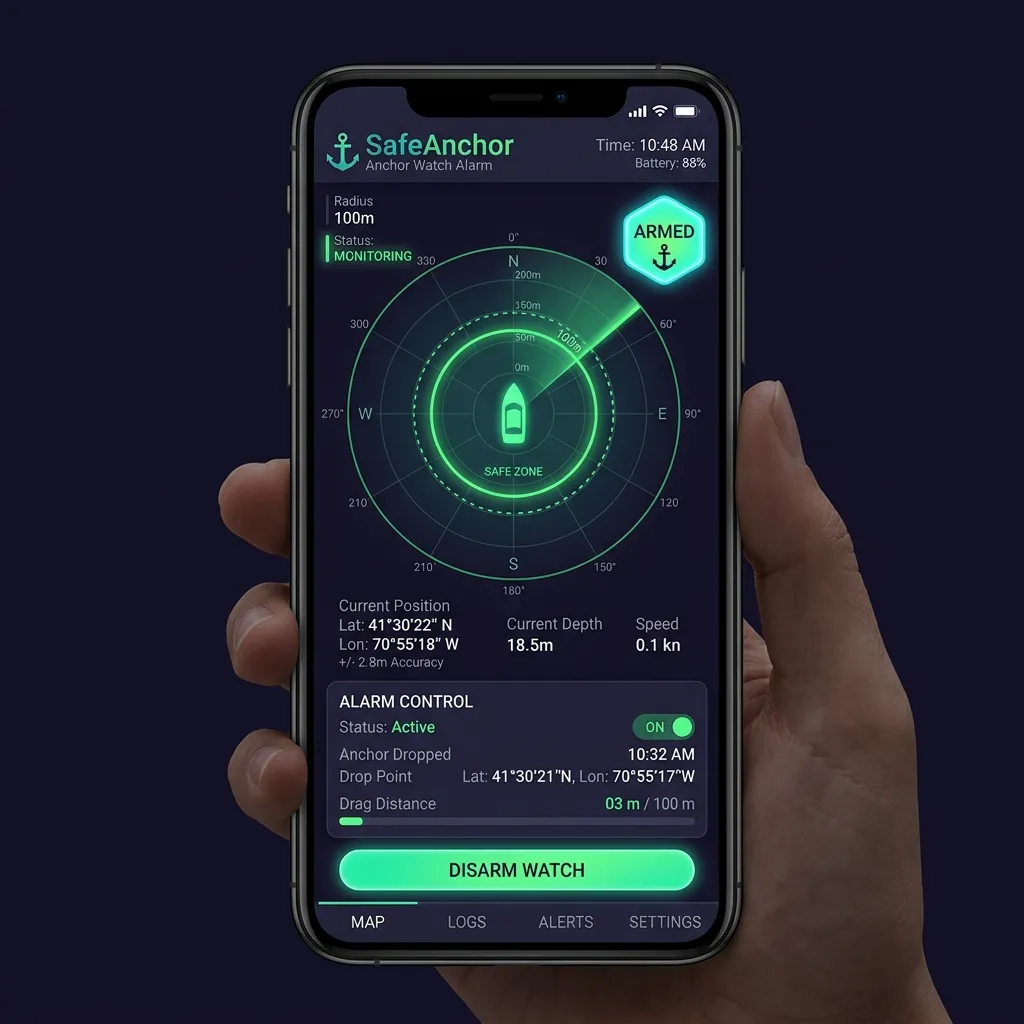
Fanen har en nederste pillelinje med tre undertilstande:
Ankervagt — Radar — Fjern.
Ankervagt
Den fokuserede overvågning:
Alarm fra.
Alarm til / Alarm fra-chippen, Sæt vagt på pause / Genoptag-skifteren og
Dirigér det. (Der er ingen "Test alarm"-knap i dette panel — lydtesten bor i
Sådan sætter du ankret:
GPS-fix stadig er støjende, ændrer knappen sig til Låser GPS…, og vagten
venter — motoren gennemsnitter flere nøjagtige fix og lægger først derefter
ankret fast ved deres tyngdepunkt. Denne præaktiveringsport er bevidst: at ankre
på et enkelt groft fix ville placere nålen titusinder af meter ved siden af og
give falsk alarm, efterhånden som GPS'en konvergerer. Knappen vender tilbage til
normal, når ankret er låst. (Tryk på Sæt anker på et allerede nøjagtigt fix,
og det lægger fast med det samme, intet "Låser GPS…".)
margin for GPS-nøjagtighed) og viser en kort notits. Finjustér den når som helst
ved at trykke på sigtechippen for at afsløre radius-skyderen.
Første gang du sætter ankret, spørger iOS, om AnchorQueen må bruge din placering
Altid. Det er det eneste sted, appen beder om placering i baggrunden, og den
spørger her, fordi en vagt, der stopper ved låseskærmen, ikke er nogen vagt.
Tillad det én gang, så vender spørgsmålet aldrig tilbage.
> Batteri. Vagten kører GPS'en i baggrunden, så den kan se dig drive med
> skærmen slukket. Fortsat brug af GPS i baggrunden kan reducere batteritiden
> dramatisk — kommandopanelet siger det, før du sætter anker, og den samme
> påmindelse står under Tilladelser i [Indstillinger → Safe
> Anchor](settings.html#anchor-watch). Til en nat for anker: lad telefonen
blive i opladeren.
Vagten aktiverer sig selv i det øjeblik, ankret lægges fast — der er ikke noget
separat "Aktivér"-trin. Sigtechippen læser Alarm til. Hvis du krydser radius,
lyder en vedvarende sirene, skærmen blinker, og du modtager en notifikation. Mens
appen er åben, afspiller sirenen ved fuld medielydstyrke — den ignorerer
ringe-/lydløs-afbryderen og ringelydstyrken — og bliver ved med at gentage, indtil
du gør lydløs, udvider eller deaktiverer.
Når appen er i baggrunden, eller skærmen er låst, afspiller sirenen ikke — det
er ved design. I stedet når alarmen dig gennem en tidsfølsom notifikation, der
gennembryder Fokus- og Søvntilstande; hvis du lader den ligge uanerkendt, sendes
den igen hvert 30. sekund i 5 minutter, så et overset første banner ikke er det
sidste. At åbne appen fra notifikationen genoptager sirenen ved fuld lydstyrke og
kontrollerne på skærmen. For det højest mulige varsel med skærmen slukket skal du
holde Tidsfølsomme notifikationer aktiveret for AnchorQueen (se Fejlfinding →
Min alarm lød ikke).
At sætte på pause kontra at lette
To kontroller ændrer en aktiv vagt uden at slippe ankret på ny:
beholder ankernålen, svajeringene og det optagede spor på søkortet. Tryk på
den til Alarm fra, når du vil stoppe alarmen, men forblive sat — for eksempel
mens du finjusterer radius. Tryk den tilbage til Alarm til for at genoptage
vagten. (Samme virkning som Sæt vagt på pause / Genoptag-skifteren.)
At sætte på pause og at lette beder dig begge bekræfte, fordi hver stopper
beskyttelsen. Genoptagelse og det allerførste slip sker med det samme — de tilføjer
kun beskyttelse.
Når drivalarmen udløser
Et fuldskærmsvarsel om Ankret driver overtager skærmen. Det viser din aktuelle
afstand fra ankret, sikkerhedszonens radius, og hvor længe alarmen har været aktiv.
To handlinger:
på den viser først en bekræftelse, der forhåndsviser ændringen: hvor langt du nu
er forbi den nuværende zone, og den nye radius, vagten vil genoptage ved (din
aktuelle afstand plus en margin på 25 %). Bekræft for at udvide zonen og aktivere
igen; vagten bliver aldrig blind.
bliver på søkortet, men ingen yderligere drivalarmer udløser, før du aktiverer
igen. Brug dette, når du har besluttet, at positionen er fin, eller du er ved at
sætte ankret på ny.
> To Udvid-knapper, to størrelser. Fuldskærmsvarslet ovenfor udvider zonen til
> din aktuelle afstand + 25 %. Udvid-handlingen på låseskærmsnotifikationen
> er i stedet en fast +10 m — et hurtigt skub med ét tryk, du kan foretage uden
> at åbne appen. Så et tryk på Udvid på låseskærmen udvider radius med 10 m, ikke med
> 25 %; åbn appen, og brug fuldskærms-Udvid sikkerhedszone, hvis du har brug for
et større spring.
Grundstødningsalarm
Adskilt fra drivalarmen holder AnchorQueen øje med vandet under din køl. Ved
hvert positions-fix estimerer den din frihøjde under kølen og advarer, når den
falder under din sikkerhedsmargin (standard 0,5 m, justérbar i
Indstillinger). Frihøjden udledes af den bedste
tilgængelige kilde — en live NMEA-dybdemåler først, derefter søkortsatte dybder, så
den offline NavGrid-batymetri — så den stadig virker uden signal. Alarmbeskeden
navngiver den kilde, den brugte (fx "navGrid").
Når den udløser, får du en GRUNDSTØDNINGSALARM-notifikation plus et rødt banner
henover toppen af søkortet. Banneret har to handlinger:
ved, du er i en plads med tyndt vand, og advarslen er forventet. Genoptag tidligt
fra Indstillinger → Ankervagt.
vandet bliver lavere, eller du bevæger dig ind i en frisk lavvandsplet, dukker
alarmen op igen.
Varslet lyder én gang pr. grundstødningshændelse — det udløser ikke en
alarmstorm, mens du ligger samme sted. Det aktiveres automatisk igen, når frihøjden
genoprettes til sikker dybde.
For anker i en separationszone
Hvis du slipper ankret inde i en søkortsat trafiksepareringssystem-zone,
advarer et rødt banner:
⚠️ For anker i TSS-zone — ulovligt under COLREGS regel 10(g)
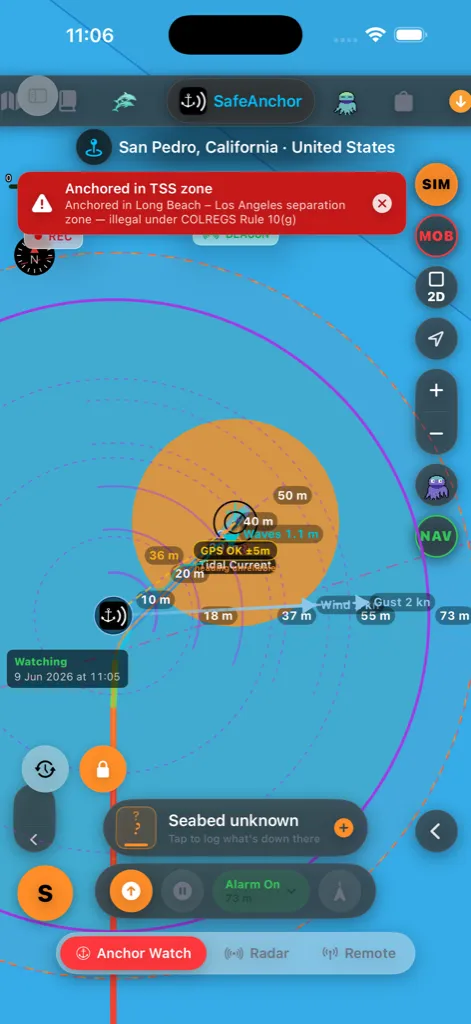
Søvejsreglerne (regel 10(g)) forbyder ankring i eller nær en
trafiksepareringszone — du ville ligge i det mellemrum, der holder modgående
skibstrafik adskilt. Let anker, og flyt klar af zonen. Søkortets lag
Trafiksepareringssystemer viser, hvor zonerne er, så du kan ankre
på ny uden for en. Slå advarslen fra (hvis du har en ægte grund til at ignorere
den) under Indstillinger → Nav → Sikkerhedsalarmer.
Sikkerhedsnet mod tvungen lukning
AnchorQueen holder øje med din båd med to uafhængige mekanismer, der arbejder
sammen. Den første er den indbyggede driftmotor — den, du kan se i radaren og
Ankervagt-panelet — som kører, mens iOS er villig til at holde appen i live i
baggrunden. Den anden er et geofence på OS-niveau: i det øjeblik du aktiverer
vagten, beder AnchorQueen iOS om at registrere en cirkulær sikkerhedszone ved dit
anker plus en lille margin ud over din alarmradius. Den zone lever inde i
operativsystemet, ikke inde i appen.
Hvad det betyder i praksis:
videre, geofencet ligger i dvale som backup. Normalt tilfælde.
indbyggede motor er væk, men iOS holder stadig øje med geofencet. I det øjeblik
båden krydser det, genstarter iOS AnchorQueen i baggrunden, rejser alarmen og
sender notifikationen.
lukning") — samme historie. Geofencet overlever, AnchorQueen genstartes ved en
krydsning, alarmen udløser.
genstart. AnchorQueen holder stadig vagt.
De to lag kører sammen, fordi hver fanger, hvad den anden går glip af: den
indbyggede motor reagerer på sekunder med submetersnøjagtighed, mens appen er i
live, og geofencet garanterer, at alarmen stadig når dig, når appen ikke er.
Et grønt BEACON-mærke dukker op under stednavnet øverst på søkortet, når det
baggrunds-geofence er aktivt — en hurtig visuel bekræftelse på, at vagten holder
ved med at beskytte, selv med appen lukket.
At lukke og genåbne appen bevarer vagten. Hvis du afslutter AnchorQueen (eller
iOS aflæsser den), mens du ligger for anker, gendanner en genåbning hele vagten
— den aktiverede alarm, svajeringene, det optagede svajespor og kortzoomet kommer
alle tilbage præcis, som du forlod dem. Alarmen falsk-udløser ikke ved genåbning;
den genoptager blot overvågningen.
For at dette virker, har AnchorQueen brug for Altid-placeringstilladelse og
systemets notifikationstilladelse — begge spørges der om første gang, du aktiverer
en vagt. Se Indstillinger → Ankervagtindstillinger og
fejlfinding, hvis en af forespørgslerne
blev gået glip af.
> Den ærlige grænse: iOS kan kun garantere genstarten, mens enheden har strøm, et
> GPS- eller mobilnetsfix, og du ikke har deaktiveret placeringstjenester for
> AnchorQueen. Flytilstand, et fladt batteri eller en inddraget tilladelse slår
> begge lag — der er ingen vej uden om fysikken. Vi viser en vedvarende "Ankervagt
> aktiveret"-notifikation, mens vagten er aktiv, så et hurtigt blik på låseskærmen
bekræfter, at sikkerhedsnettet er på plads.
Lås ankret
Når det er sat, er ankernålen låst som standard (orange hængelåsknap, nederst
til venstre på søkortet), så panorering eller zoom af søkortet aldrig kan trække den
ved et uheld. For at omplacere ankret manuelt skal du trykke på hængelåsen for at
låse op, trække i nålen og derefter trykke på den igen for at låse igen.
Bekræftelser
Fordi disse handlinger ændrer en aktiv vagt, beder AnchorQueen dig bekræfte før:
ringene bliver liggende).
aktiv.
Genaktivering (genoptag) og det allerførste slip sker med det samme — de tilføjer
kun beskyttelse.
Driftprognose
Tryk på ur-knappen (nederst til venstre) for at åbne prognoseskrubberen. Træk i
skyderen — eller tryk på afspil — for at føre et ghost-billede af din båd gennem
fortid → nu → prognose. Fortiden kommer fra dit optagede svajespor; prognosen
fremskriver, hvor båden vil ligge under den timevise vind og strøm.
Skrubberen er lagt ud i rækker, så den aldrig løber af en smal skærm: statusmærket
(NU / FORTID / PROGNOSE) og tidspunktet sidder øverst, skyderen får en hel række
for sig selv, niveaustigen følger, og transportknapperne — afspil, honningkage,
ⓘ og afvis — sidder på rækken nedenunder.
Skyderen er delt i to: venstre halvdel er din optagede fortid, højre halvdel
er prognosen, og det grønne flueben i midten er nu. Det holder selv en kort
ankerplads' historik nem at skrubbe i stedet for at presse den ud i yderkanten. For
at springe direkte tilbage til live skal du trykke på det grønne flueben, slippe
knappen nær det eller trykke på statusmærket (NU / FORTID / PROGNOSE).
Prognosehalvdelen giver fin kontrol over de næste få timer og komprimerer de
fjerne udsigter, så en lang prognose forbliver nem at skrubbe; tidsmærket viser
forspringet (fx +14h, +2d3h), efterhånden som du går.
Hvor langt frem du kan kigge, afhænger af din plan:
Skyderen spænder præcis over din plans rækkevidde, og en niveaustige med tre chips
under den (Free · 1h / Pro · 12h / Max · 3d) viser de længere vinduer, de højere
planer låser op for. Din nuværende plans chip er omringet; tryk på en låst chip for
at åbne Butikken og opgradere.
ved den skrubbede time — grøn = mindre sandsynligt, rød = mest sandsynligt — og
udvides længere ud i fremtiden, efterhånden som usikkerheden vokser. Slå
honningkagen til og fra med sekskantknappen uden at forlade prognosen.
Tryk på ⓘ-knappen i skrubberen for den fulde farvenøgle og vejrets
opdateringstidspunkt.
Prognosen kræver, at maritimt vejr er indlæst — åbn fanen Meteo én gang, hvis
pilene eller honningkagen ikke dukker op.
Mand over bord (MOB)
Den røde MOB-knap på søkortet (kamerasøjle ved højre kant, i
Sejlads-undertilstanden) er nødkontrollen. Se også
Grundlæggende brugerflade → MOB-knappen.
Ét tryk gør alt på én gang:
den første handling i en redning er at markere, hvor personen gik i.
op med at følge båden, så slippunktet forbliver centreret.
Hvis du allerede optog en sejlads, gemmes den først, hvorefter det karminrøde spor
begynder — farveskiftet gør redningsdrejet umiskendeligt på søkortet.
forløbet tid tilbage til et driftkompenseret datum (estimatet af, hvor
personen er nu, fremskrevet for enhver overfladestrøm, ikke kun hvor de gik i).
Det opdateres live, mens du damper.
HUD'en bærer også:
radiokald, eller giv dem til et andet fartøj.
KØLIG / KOLD / FARE / DØDELIG), der giver overlevelsesestimater i vandet, så roret
ved, hvor meget tid redningen har. Havtemp kommer fra en tilsluttet NMEA-måler
først, derefter det maritime vejrs vandtemperatur.
At afblæse
Når hændelsen er ovre, lukker du den med et af tre udfald:
til gennemgang efter hændelsen.
øvelse, så de filtreres ud af lister over rigtige hændelser.
helt, som om knappen aldrig blev trykket.
> Redningen starter aldrig en anden MOB, mens en er aktiv — knappen bliver grå,
indtil du afblæser den nuværende hændelse.
Radar
En live cirkulær radar af dit svaj:
Radaren opdateres løbende med GPS. Det er den skærm, de fleste kaptajner lader være
tændt natten over — skal et blik på den, se båden inde i ringen, sov.
Feedback og support
Menu-knappen på radarskærmen åbner et handlingsark med radarens hurtige links:
Anker (Dirigér det), Fjern, Butik, Planer, Indstillinger og
Feedback og support. Vælg Feedback og support (kan også nås fra sidepanelet)
— alt bor på én rolig skærm, så du aldrig mister din plads:
forudadresseret besked til support@anchorqueen.com med dine app- og
enhedsdetaljer allerede udfyldt. Hvis din enhed ikke har e-mail opsat, overdrager
den i stedet til din standard-e-mailhåndtering.
kort titel og din besked, og vedhæft eventuelt et skærmbillede. Hvis et
skærmbillede ikke kan uploades, fortæller appen dig det og beholder din tekst, så
du kan prøve igen eller fjerne det — det kasseres aldrig i stilhed.
gang, Løst eller Lukket). Din seneste tråd er åben som standard, så
svarene og svarfeltet er der lige med det samme — bare skriv og send, intet tryk
for at folde ud. Svar og statusændringer dukker op live, og du får en
notifikation (og et sidepanelsmærke), når teamet svarer.
Du skal være logget ind for at starte en samtale, så vi kan svare og holde din
historik samlet; du kan altid sende os en e-mail i stedet. Log ind fra din
Fjern
Live Beacon — gratis for alle
Når din båd er på vandet — for anker eller undervejs — sender AnchorQueen et
live beacon med din position, så andre i nærheden kan se dig i realtid. Dette er
gratis på enhver plan og slås til automatisk; kortet Live Beacon på
Fjern-skærmen viser, om det er aktivt.
Din privatlivsindstilling styrer, hvad der deles:
live på deres søkort ved at slå Offentlige fyr til i deres
Søkortslag (du vises med en ravgul ring).
bådoplysninger er skjult, og du dukker ikke op på det offentlige søkortslag.
Skift dette når som helst i din kaptajnsprofil. Anonymiserede
beacon-data hjælper også AnchorQueen med at lære, hvilke ankerpladser der bliver
overfyldte.
Når din ankervagt er aktiveret, skifter beaconet automatisk til
auto-overvågning — din båd sender som en live "server", så den kan overvåges på
afstand, på enhver plan, selv hvis du er nær kysten, hvor automatisk
på-vand-detektion er usikker. Fjern-skærmen viser "Ankervagt — Sender", mens dette
er aktivt. Del en [kanal](#remote-watch) for at lade en bestemt person overvåge.
Kanaler — overvåg en båd eller en flåde
Sektionen Kanaler lader dig dele et privat live-spor eller drive en flåde:
personer kan overvåge. Du får en invitationskode at dele; tryk på
delingsknappen for at sende den. Tilføj en valgfri adgangskode for at låse den.
Max op til 100. Alle, der slutter sig til, ser hver båd på ét kort.
adgangskoden, hvis kanalen har en), for at begynde at overvåge. Tilslutning kræver
aldrig et abonnement — kun det at oprette en kanal gør.
Når du er i en kanal, viser sektionen hvert tilsluttet fartøj med dets navn, kaptajn
og en live / forældet-indikator. Kanalens aktuelle invitationskode vises der
også — tryk på rotér-knappen (⟳) for at generere en frisk kode, hvilket
øjeblikkeligt stopper den gamle fra at virke (nyttigt, hvis du har overdelt den);
personer, der allerede er i kanalen, forbliver tilsluttet. Tryk på Forlad kanal
for at stoppe.
At overvåge fra din egen anden enhed. For at lade én enhed blive på båden (sig
en iPad) og følge den fra en anden (din iPhone) skal du slå Kun overvågning
(watch-only) til på den overvågende enheds Fjern-skærm. En overvåger sender aldrig
— den overvåger blot — så de to enheder støder ikke sammen, selv på samme konto.
Sæt den på iPhonen, og tilslut dig derefter bådens kanal (eller, hvis båden er en
Social Captain, slå blot Søkortslag → Offentlige fyr til). Lad
skifteren stå fra på bådens enhed. Du kan også blot logge den anden enhed ind på
en anden konto — det virker uden skifteren.
> Den gratis [Live Beacon](#beacon) ovenfor er separat — den er altid slået til og
kræver hverken kanal eller abonnement.
På søkortet — flådestriben
Mens en kanal er aktiv, vises hver tilsluttet båd også på dit søkort, og en række
runde enhedsknapper svæver henover toppen af søkortet — én for hvert tilsluttet
fartøj eller hver overvåger:
statusring: blågrøn = for anker, indigo = undervejs, rød = driver, grå =
offline. Et lille hjørnemærke skelner ⚓ både for anker fra personer, der kun
overvåger (et telefon- eller computerikon).
hurtigste måde at finde et fartøj, der er uden for skærmen.
Vis, hvem der er tilsluttet. Tryk på din egen båd (den omringede prik ved
din aktuelle position) for at tegne stiplede linjer fra dig til hver båd i kanalen —
et hurtigt billede af hele den flåde, du er forbundet til. Tryk på den igen for at
skjule linjerne.
Flotille — spor en hel flåde
En flotille er en delt kanal for en gruppe, der sejler sammen — et rally, en
charterflåde, et klubtogt eller en regatta. Pro sporer op til 10 fartøjer, Max op
til 100.
Tilslutter med kode (gratis) — fra appen eller et link.
dens fartøjskort: kaptajn og hjemhavn, live status (undervejs / for anker /
driver), fart, kurs, retning, afstand fra dig, batteri, signalalder, fartøjsspecs
(type, længde, bygger, år) og nøjagtig position (tryk for at kopiere). Kortet
opdateres live, efterhånden som nye positioner ankommer.
Arrangører kan også administrere flåden og bygge dag-for-dag-rejseplanen fra
webportalen på anchorqueen.com → Flotillas. (Opslag af flådeopdateringer til
sociale medier kommer i en senere udgivelse.)
At sætte den rigtige radius
Et almindeligt udgangspunkt er din udlagte kædelængde plus 15–20 m for GPS-afdrift.
Finjustér efter én fuld tidevandscyklus.
Havbundstype og fællesskabsrapportering af bund
Under positionsaflæsningen på GPS-fanen integrerer AnchorQueen et live,
offline-dueligt Havbundsaflæsningskort, der viser bundsammensætningen og
ankerholdekvaliteten ved din aktuelle position (eller ved ankrets slipkoordinater,
når det er sat).
På søkortet spejler ankermærke-skiltet dette. Når du slipper ankret, tilføjer
det svævende infokort ved siden af ankersymbolet to linjer: havbundstypen og
holdebunden ved slippunktet og en digital dybdeaflæsning. Begge udledes i samme
rækkefølge som aflæsningskortet:
* Havbund: din egen rapport for stedet først, derefter de søkortsatte
SBDARE-data, så intet, hvis stedet er ukortlagt.
* Dybde: den målte dybde, du loggede med din rapport først; ellers live
vanddybde fra EMODnet Bathymetry (i dine enheder). Linjen udelades, mens du
er offline, eller hvor tjenesten ikke har nogen værdi.
Kortet placerer sig selv automatisk på den side af ankret, der vender væk fra din
båd, så det aldrig ligger oven på ankersymbolet, forbindelseslinjen eller fartøjet
— det glider over til den modsatte side, efterhånden som båden svajer, og holder det
travle område omkring slippunktet læsbart. Opslagene kører uden for skærmen og
opdateres kun, når ankret flytter sig — eller i det øjeblik du indsender en rapport —
så søkortet aldrig stammer.
Hvis skiltet ikke viser nogen havbund, eller den søkortsatte type er forkert:
skift det nederste kommandopanel til dets GPS-side (tryk på GPS-indikatoren
øverst i det panel — det viser automatisk ALARM-siden, mens vagten er
aktiveret), tryk på Havbundsaflæsningskortet under positionsaflæsningen, og sæt
typen / holdebunden (og eventuelt den målte dybde) i vælgeren. Din rapport tilsidesætter
søkortet overalt, hvor det vises, inklusive dette skilt — det opdateres, så snart du
indsender, uden at slippe ankret på ny.
Rumlige forespørgsler uden for hovedtråden
For at forhindre layout-overbelastning af UI-tråden og billedfald under
kortpanorering kører bundmotoren helt i et baggrundsisolat:
* Isolat-parsing: Havbunds-forespørgselstjenesten udfører
baggrundsisolat-drevet parsing af hazards.geojson (indlæser S-57 SBDARE
havbundsareal-polygoner og forudberegner afgrænsningsrammer) uden for hovedtråden.
* Ray-casting-opslag: Punkt-i-polygon-forespørgsler beregnes asynkront via
ray-casting.
* Kvantiseret debouncing: Synsfeltkoordinatopslag kvantiseres til et ~100 m-gitter
og debounces med 150 ms for at undgå forespørgselsstorme under panorering.
At læse sammensætningen og holdekvaliteten
Aflæsningskortet viser et bølgeikon, den officielle IHO S-57-forkortelse, navnet i
almindeligt sprog og en farvekodet holdekvalitetschip:
* 🟢 God holdebund: Sand (S), Mudder (M), Ler (Cy), Silt (Si). Perfekt
til standardankre (Delta, Rocna).
* 🟡 Rimelig holdebund: Grus (G), Småsten (P), Rullesten (Cb). Kræver
ekstra kædelængde på grund af dårlig indtrængning.
* 🟠 Dårlig holdebund: Sten (St), Klippe (R), Kampesten (Bl). Høj risiko
for at glide eller sætte sig fast.
* 🔴 Ankre ikke: Koral (Co), Tang (Wd), Skaller (Sh), Ukendt (Unk).
Alvorlig driftrisiko eller økologisk beskyttede zoner.
At indsende en fællesskabsobservation
Hvis du ankrer på et ukortlagt sted, eller hvis dit anker bringer en bund op, der
afviger fra søkortet (fx tang i stedet for sand), kan du indsende en
fællesskabsrapport:
kvalitet.
noter (fx "tyndt sand over kalksten, gled to gange, før det satte sig").
Cachelagring og skysynkronisering
Din observation håndteres af Havbundsrapport-administratoren:
* Lokal cachelagring: Gemmes øjeblikkeligt i din lokale enhedsdatabase, så den
vises næste gang, du besøger koordinaterne (matchende radius på 120 m).
* Firestore-synkronisering: Hvis online uploades rapporten sikkert til den
globale fællesskabsdatabase via en Firebase HTTPS Callable Function
(submitSeabedReport).
* Offline-understøttelse: Rapporter oprettet, mens du er offline, sættes i kø
lokalt og synkroniseres automatisk, når dit mobilsignal vender tilbage, og du er
logget ind.
Prøv vagten uden at forlade kajen
For at øve ankervagten — aktivere den og derefter se den alarmere, mens båden
"driver" — slå Simulatortilstand til i
Indstillinger → Nav. Den fodrer ankervagten en position,
du styrer, så du kan slippe ankret og derefter skubbe gashåndtaget og roret på
kortkonsollen for at lade båden drive forbi radius og høre alarmen udløse. Slå
Simulatortilstand fra for at vende tilbage til rigtig GPS.
Konsollen folder sig sammen i etaper — fuldt ror → autopilotstribe → en slank
kommandoskinne — og den slanke skinne har nu sin egen minimer-knap (pil), der
gemmer den væk til kun hjørnets S-mærke og fuldt rydder søkortet. Tryk på S
for at hente kontrollerne tilbage.
Instrumentdatakilde
Som standard bruger ankervagten din enheds indbyggede GPS. Hvis din båd har en
NMEA-Wi-Fi-gateway eller en Bluetooth-instrument-pod, kan du drive vagten fra den i
stedet — en GPS i mastetoppen er mere stabil end en telefon under dæk. Vælg kilden i
undertfanen Indstillinger → NMEA (Beta): Indbygget
GPS, NMEA over TCP/UDP (indtast gatewayens vært og port — 10110 er standard),
eller NMEA over Bluetooth (scan og vælg din pod). Den samme skærm viser live
diagnostik, så du kan bekræfte, at position, dybde og vind ankommer, før du stoler på
dem.
Mens en instrumentkilde fodrer vagten, dukker et lille Instrumenter-mærke op
øverst på radarskærmen:
genetablerer forbindelsen.
Hvis feedet bliver stille i 30 sekunder, falder vagten automatisk tilbage til din
enheds GPS, så du aldrig efterlades ubeskyttet, og et rødt banner fortæller dig, at
den har skiftet. Mærket forsvinder, når vagten er tilbage på telefonens GPS. Din
konfigurerede kilde huskes og genforbinder automatisk, næste gang appen starter.
Tekniske detaljer: Omplacering og filtrering
Dirigér det-ankerplacering
Når du lader dit fysiske anker falde, driver båden som regel agterover under vind
eller strøm, før den falder til ro. At slippe nålen ved bådens *GPS-position efter
at den er faldet til ro* placerer den agten for, hvor ankret faktisk ligger.
Dirigér det fremskriver nålen fremad til den reelle ankerposition.
Det er en kun-afstand-kontrol — du skriver aldrig en pejling:
at indstille, hvor langt forude for fartøjet ankret skal placeres
(aflæsningen viser afstanden i dine enheder). En live forhåndsvisning viser, hvor
nålen vil lande, mens du trækker.
At flytte ankret, mens en vagt allerede er aktiv, beder dig bekræfte.
> Sådan virker det. Dirigér det fremskriver nålen langs din live enhedskurs —
> aflæst automatisk fra kompasset (sand kurs foretrækkes, magnetisk som fald-tilbage)
> — ved den afstand, du sætter på skyderen. Du peger stævnen mod ankret, og kursen
> tages for dig; der er ingen pejling at indtaste. Over de korte
> kædelængdeafstande, der er involveret, er en fladjord-forskydning fra fartøjets fix
nøjagtig til inden for nogle få meter.
GPS-filtrering og SMA(9)-udjævning
GPS-modtagere på mobile enheder er tilbøjelige til flerstirefleksioner og spidser i horisontal udtynding af præcision (HDOP), især i smalle vige eller ved siden af klipper. Dette kan forårsage "GPS-spring", der udløser falske alarmer.
I Indstillinger → Avanceret kan du vælge mellem:
lydhør, men tilbøjelig til falsk-positive drivalarmer på grund af pludselige
enkeltpunkts-unøjagtigheder.
seneste 9 gyldige GPS-aflæsninger og beregner deres tyngdepunkt:
$$\overline{X} = \frac{1}{9} \sum{i=1}^{9} Xi, \quad \overline{Y} = \frac{1}{9} \sum{i=1}^{9} Yi$$
Dette undertrykker enkeltbilledspidser på op til 25 meter og forhindrer falske
alarmer midt om natten, samtidig med at en aktiv responstid på under 30 sekunder
for faktisk bådafdrift opretholdes.
Hvis noget går galt
Test alarmlyd i Indstillinger → Safe Anchor for
at tjekke lyden; se Fejlfinding: alarm.
Genopret ankring på tidligere position
Genaktiver ankervagt med automatisk tilpasning af radius.
Tidligere ankringer bruger hele sømærkepanelet med scene, 3D-overflyvning, fotos, vejr, tidevand og handlinger. Det gemte ophold tilføjer tidspunkter, båd og ankerværdier samt genaktivering og bekræftet sletning. 3D viser den gemte båd og ankercirkler med spor og gemt vejr, når de findes. Andre vejrudsigter gælder aktuel planlægning.