
 Anchor Alarm
Kaptan — profiliniz
Kaptan Panosu hesap ana ekranınızdır. Oturum açıp açmadığınıza bağlı
olarak farklı görünür.
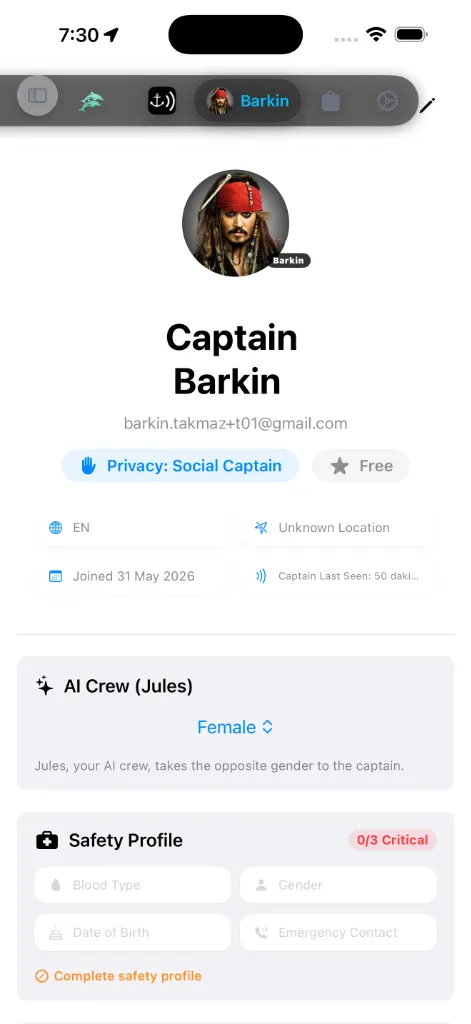
Oturum açık
Oturum açtığınızda pano şunları gösterir:
kapsülleriyle: tercih ettiğiniz yerel ayar, son bilinen konum, katıldığınız
tarih ve en son ne zaman görüldüğünüz.
görebileceğini değiştirmek için Gizlilik Ayarları'nı açmak üzere
dokunun.
yenilendiği. Premium Lisanslar Defteri'ni açmak için dokunun.
açığa çıkan tek tercih budur. Birimler ve tema, bu panoda değil,
Ayarlar'da yer alır.
Oturumu kapatmak için Profili Düzenle'yi açmak üzere kaleme
dokunun — Oturumu Kapat düğmesi o ekranın altındadır. Ana panoda oturum
kapatma denetimi yoktur.
Lisanslar Defteri (App Store Muhasebesi)
Profil kartınızdaki Abonelik Durumu kapsülüne dokunmak hemen Lisanslar Defteri'ni (SubscriptionLedgerSheet) başlatır. Bu, etkin App Store lisanslarınız, doğrudan bölge satın almalarınız ve ücretsiz harita paketi yuvası tahsisleriniz için resmî görsel muhasebe panosu işlevi görür.
Ücretsiz Harita Paketi Yuvaları
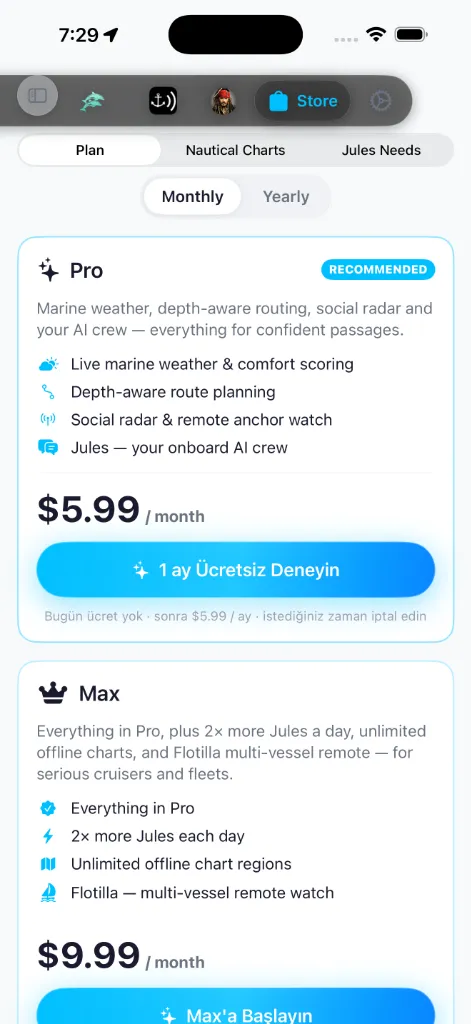
Üç abonelik katmanı vardır. Premium üyelikler, yüksek çözünürlüklü harita bölgeleri için ücretsiz, kalıcı yuva tahsisleri verir:
* AnchorQueen Free: 0 ücretsiz yuva.
* AnchorQueen Pro: 1 ücretsiz yuva.
* AnchorQueen Max: 3 ücretsiz yuva.
Hesabınız devredilmiş (erken bir ömür boyu hesap) ise, defter onu Devredilmiş Ömür Boyu Erişim ve bir taçla AnchorQueen Grandmaster olarak etiketler. Bu, satın alabileceğiniz dördüncü bir katman değildir — Max düzeyinde yeteneklerle, eski ömür boyu hesaplar için bir rozettir.
Yuva Lisanslama Durumları
Listedeki her yuva, bağlı lisansının durumunu dinamik olarak izler:
* 🟢 Etkin (Bitiş : Bölge, çevrimdışı yetenekler ve sefer planlamasıyla tamamen etkindir.
🟡 Süresi Doldu · Yönlendirme Devre Dışı: Bölgenin aboneliğinin süresi doldu. Vektör haritalarının çevrimdışı görüntülenmesi tamamen etkin kalır, ancak bölge içindeki gelişmiş Hibrit A-APF sefer yönlendirmesi kilitlidir.
* 🔴 Süresi Doldu · Kilitli: Bölgenin yuvasının süresi doldu ve çevrimdışı indirme kilitli.
Kaptanın Güvenli Veri Garantisi
Oturum kapalı
Oturum açmadığınızda sekme bir oturum açma ekranıdır:
Jules'u ve SafeAnchor'ın Uzaktan alt
modunu kullanmak için oturum açmış olmanız gerekir.
AI Crew (Jules)
Profil kartınızın altında, tek bir denetimli bir AI Crew (Jules) kartı
vardır:
zabitiniz Jules, kaptana zıt cinsiyeti aldığı için Jules'un
kişiliğini böyle seçersiniz. *(Bu ayar buraya Safe Anchor ayarlarından
taşındı.)*
Bu, aşağıdaki [Güvenlik Profili](#safety-profile)'ndeki Cinsiyet
alanından ayrıdır — o bir arama-kurtarma verisi, bu yalnızca Jules'u
şekillendirir.
Güvenlik Profili
Pano bir Güvenlik Profili kartı (SOLAS SAR / ISAF) gösterir — kurtarma
servislerinin önce sorduğu bilgiler. Kartın başlığı bir hazırlık rozeti
taşır: üç kritik alanın tümü doldurulduğunda SAR Hazır (yeşil), herhangi
biri eksikken N/3 Kritik (turuncu / kırmızı) okur. Üç kritik alan kan
grubu, acil durum kişisi adı ve doğum tarihinizdir. Rozet 3/3'ün
altındayken, bir Güvenlik profilini tamamla istemi geri kalanını
doldurmanız için sizi dürter.
Bu ayrıntıları Profili Düzenle'de düzenlemek için kaleme dokunun:
İstemiyorum. Bu SAR verisidir — [yukarıdaki](#ai-crew) üç seçenekli Jules
cinsiyetinden ayrıdır.
Jules acil durum kişinize bir uyarı gönderebilir. Bir kişi ayarlandığında
pano kartı bunu Jules bu kişiyi bilgilendirebilir olarak yansıtır.
Buradaki her şey cihazınızda ve senkronize hesabınızda kalır; yalnızca bir
tehlike uyarısı tetiklediğinizde paylaşılır.
Teknelerim
Teknelerim kartı filonuzu ve şu anda hangi teknenin etkin olduğunu
yönetir.
işaretine dokunun.
etkin yapmak için filo listesinden bir tekneyi onun üzerine
sürükleyin. Üzerine sürüklerken kutu yeşil vurgulanır. Etkin tekne
açılışlar arasında hatırlanır.
listelenir. İlk teknenizi ekleyene kadar Henüz tekne kaydedilmedi
gösterilir.
geri alınamaz; etkin tekneyi silmek bırakma bölgesini temizler.
Belge Kasası
Gemi evraklarınız için özel bir depo — Kaptan sekmesinden ulaşılır. Klasörlere
ayrılmış olarak ICC, RYA, STCW sertifikalarını, sigorta poliçelerini,
tekne tescilini ve mürettebat listelerini yükleyin.
dönen bir kullanım çubuğu olarak gösterilir.
bir ilerleme yüzdesi gösterir.
mevcut belgeleri silin ya da daha küçük bir dosya seçin.
Uygulamayı Paylaş
Panonun altında bir Uygulamayı Paylaş düğmesi, AnchorQueen'i mürettebat
arkadaşlarınıza ve diğer kaptanlara aktarabilmeniz için sistem paylaşım
sayfasını açar.
Profili Düzenle'de
Profili Düzenle'ye ulaşmak için kaleme dokunun. Görünen ad, dil, Güvenlik
Profili ve Oturumu Kapat'ın ötesinde şunlara sahiptir:
ortaklarımız). Varsayılan olarak kapalı.
Oturum açmak ne yapar
Oturum açmak, cihazınızı AnchorQueen bulutuna bağlar; böylece:
Harita üzerindeki ve Capt's Notebook'taki seyir verileriniz, senkronize etmeyi
seçmediğiniz sürece cihazda kalır.
Bir şeyler ters giderse
kontrol edin.
Mağaza'da Satın Almaları Geri Yükle'ye
dokunun.
aynı satırı kontrol edin ve uyuştuklarından emin olun.