
 Çapa Alarmı
SafeAnchor — demir nöbeti ve radar
SafeAnchor demir alarmıdır. Siz uyurken teknenizi gözetler ve bir şey
değiştiğinde sizi uyandırır.
Sekmenin altında üç alt modlu bir kapsül çubuğu vardır:
Demir Nöbeti — Radar — Uzaktan.
Demir Nöbeti
Odaklı izleyici:
Kapalı olarak gösterilir.
Alarm Açık / Alarm Kapalı çipi, Nöbeti Duraklat / Sürdür anahtarı ve
Yönlendir. (Bu panelde "Alarmı Test Et" düğmesi yoktur — ses testi
Ayarlar → Safe Anchor altında yer alır.)
Demiri kurmak için:
sabitlemeniz hâlâ gürültülüyse düğme GPS Kilitleniyor… olarak değişir
ve nöbet bekler — motor birkaç doğru sabitlemenin ortalamasını alır ve
ancak o zaman demiri merkezlerinde sabitler. Bu kurma öncesi kapı
bilinçlidir: tek bir kaba sabitlemeyle demir atmak iğneyi onlarca metre
yanlış yere koyar ve GPS yakınsadıkça yanlış alarm verir. Demir
kilitlendiğinde düğme normale döner. (Zaten doğru bir sabitlemede Demir
At'a dokunun, "GPS Kilitleniyor…" olmadan hemen sabitler.)
doğruluğu için bir pay) otomatik ayarlar ve kısa bir bildirim gösterir.
Yarıçap kaydırıcısını ortaya çıkarmak için kapsam çipine dokunarak
istediğiniz zaman yeniden ayarlayın.
İlk demir atışınızda iOS, AnchorQueen'in konumunuzu Her Zaman kullanıp
kullanamayacağını sorar. Uygulama arka plan konumunu yalnızca burada ister ve
burada ister; çünkü kilit ekranında duran bir nöbet, nöbet değildir. Bir kez izin
verin, soru bir daha gelmez.
> Pil. Nöbet, ekran kapalıyken de taramanızı görebilmek için GPS'i arka
> planda çalıştırır. GPS'in arka planda sürekli çalışması pil ömrünü ciddi
> ölçüde kısaltabilir — komut paneli bunu demir atmadan önce söyler ve aynı
> hatırlatma Ayarlar → Safe Anchor altındaki
> İzinler bölümünde de yer alır. Demirde geçireceğiniz bir gece için telefonu
şarjda bırakın.
Demir sabitlendiği an nöbet kendini kurar — ayrı bir "Kur" adımı yoktur.
Kapsam çipi Alarm Açık der. Yarıçapı aşarsanız sürekli bir siren çalar,
ekran yanıp söner ve bir bildirim alırsınız. Uygulama açıkken siren tam medya
sesinde çalar — zil/sessiz anahtarını ve zil sesini yok sayarak — ve siz
susturana, genişletene ya da kapatana kadar döngüye devam eder.
Uygulama arka plandayken veya ekran kilitliyken siren çalmaz — bu
tasarımdır. Bunun yerine alarm size Odak ve Uyku modlarını delen bir Zaman
Duyarlı bildirimle ulaşır; onaylamadan bırakırsanız 5 dakika boyunca her
30 saniyede bir yeniden gönderilir, böylece kaçırılan ilk afiş sonuncusu
olmaz. Bildirimden uygulamayı açmak tam sesli sireni ve ekrandaki denetimleri
sürdürür. Ekran kapalıyken mümkün olan en yüksek sesli uyarı için
AnchorQueen'de Zaman Duyarlı Bildirimleri etkin tutun (bkz. Sorun giderme →
Alarmım çalışmadı).
Duraklatma ve demir alma
İki denetim, kancayı yeniden atmadan canlı bir nöbeti değiştirir:
halkalarını ve harita üzerindeki kaydedilmiş izi koruyarak tarama alarmını
susturur. Alarmı durdurmak ama kurulu kalmak istediğinizde — örneğin
yarıçapı yeniden ayarlarken — Alarm Kapalı'ya dokunun. Gözetlemeyi
sürdürmek için tekrar Alarm Açık'a dokunun. (Nöbeti Duraklat / Sürdür
anahtarıyla aynı etki.)
Duraklatma ve demir alma her ikisi de onay ister; çünkü her biri korumayı
durdurur. Sürdürme ve ilk atış hemen gerçekleşir — yalnızca koruma ekler.
Tarama alarmı çaldığında
Tam ekran bir Demir Tarıyor uyarısı ekranı ele geçirir. Demirden mevcut
mesafenizi, güvenli bölge yarıçapını ve alarmın ne kadar süredir etkin
olduğunu gösterir. İki eylem:
eder. Buna dokunmak önce değişikliği önizleyen bir onay gösterir: şu anda
mevcut bölgeyi ne kadar aştığınız ve nöbetin yeniden başlayacağı yeni yarıçap
(mevcut mesafeniz artı %25 pay). Bölgeyi büyütmek ve yeniden kurmak için
onaylayın; nöbet asla kör kalmaz.
halkaları harita üzerinde kalır, ancak siz yeniden kurana kadar başka tarama
alarmı çalmaz. Konumun iyi olduğuna karar verdiğinizde ya da kancayı yeniden
kurmak üzereyken bunu kullanın.
> İki Genişlet düğmesi, iki miktar. Yukarıdaki tam ekran uyarı, bölgeyi
> mevcut mesafeniz + %25'e büyütür. Kilit ekranı bildirimindeki
> Genişlet eylemi ise sabit bir +10 m'dir — uygulamayı açmadan
> yapabileceğiniz hızlı, tek dokunuşlu bir itme. Yani kilit ekranında
> Genişlet'e dokunmak yarıçapı %25 değil, 10 m genişletir; daha büyük bir
> sıçramaya ihtiyacınız varsa uygulamayı açın ve tam ekran Güvenli Bölgeyi
Genişlet'i kullanın.
Karaya oturma alarmı
Tarama alarmından ayrı olarak AnchorQueen, omurganızın altındaki suyu
gözetler. Her konum sabitlemesinde omurga altı açıklığınızı tahmin eder ve
güvenlik payınızın altına düştüğünde uyarır (varsayılan 0,5 m,
Ayarlar'da ayarlanabilir). Açıklık, mevcut en
iyi kaynaktan çözülür — önce canlı bir NMEA derinlik iskandili, sonra haritalı
iskandiller, sonra çevrimdışı NavGrid batimetrisi — böylece sinyal olmadan da
çalışır. Alarm mesajı kullandığı kaynağı adlandırır (örneğin "navGrid").
Çaldığında bir KARAYA OTURMA ALARMI bildirimi artı haritanın üstünde
kırmızı bir afiş alırsınız. Afişin iki eylemi vardır:
yanaşma yerinde olduğunuzu ve uyarının beklenir olduğunu bildiğinizde
kullanın. Ayarlar → Demir Nöbeti'nden erken
sürdürün.
ya da yeni bir sığ alana girerseniz alarm yeniden belirir.
Uyarı, her karaya oturma olayında bir kez çalar — aynı noktada
otururken alarm bombardımanı yapmaz. Açıklık güvenli derinliğe döndüğünde
kendini otomatik olarak yeniden kurar.
Bir ayırım bölgesinde demirlemek
Kancayı haritalı bir Trafik Ayırım Düzeni bölgesi içinde bırakırsanız,
kırmızı bir afiş uyarır:
⚠️ TSS bölgesinde demirlendi — COLREGS Kural 10(g) uyarınca yasa dışı
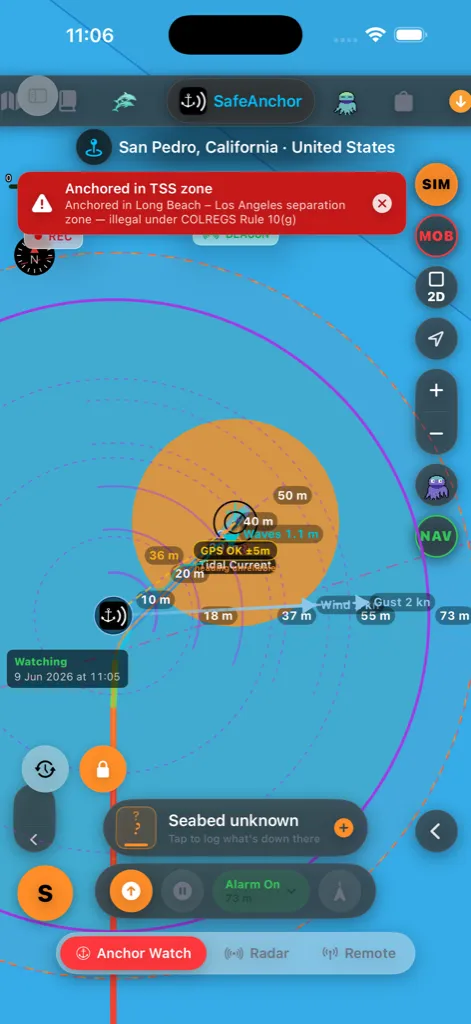
Denizin kuralları (Kural 10(g)) bir trafik ayırım bölgesi içinde ya da
yakınında demir atmayı yasaklar — zıt gemi trafiğini ayrı tutan boşlukta
oturuyor olurdunuz. Demir alın ve bölgeden uzaklaşın. Haritanın
Trafik Ayırım Düzenleri katmanı bölgelerin nerede olduğunu
gösterir; böylece bir tanesinin dışında yeniden demirleyebilirsiniz. Uyarıyı
(görmezden gelmek için gerçek bir nedeniniz varsa) [Ayarlar → Seyir → Güvenlik
Alarmları](settings.html#safety-alarms) altından kapatın.
Zorla kapatma güvenlik ağı
AnchorQueen teknenizi birlikte çalışan iki bağımsız mekanizmayla gözetler.
İlki, uygulama içi tarama motorudur — radarda ve Demir Nöbeti panelinde
görebileceğiniz — ki iOS uygulamayı arka planda canlı tutmaya razı olduğu
sürece çalışır. İkincisi bir işletim sistemi düzeyinde coğrafi sınırdır:
nöbeti kurduğunuz an AnchorQueen, iOS'tan demirinizde, alarm yarıçapınızın
biraz ötesinde dairesel bir güvenlik bölgesi kaydetmesini ister. O bölge,
uygulamanın değil, işletim sisteminin içinde yaşar.
Bunun pratikte anlamı:
motor çalışmaya devam eder, coğrafi sınır bir yedek olarak uykuda bekler.
Normal durum.
uygulama içi motor gider, ama iOS coğrafi sınırı hâlâ gözetler. Tekne onu
geçtiği an iOS AnchorQueen'i arka planda yeniden başlatır, alarmı kaldırır ve
bildirimi gönderir.
çıkarırsınız ("zorla kapatma") — aynı hikâye. Coğrafi sınır hayatta kalır,
bir geçişte AnchorQueen yeniden başlatılır, alarm çalar.
boyunca korunur. AnchorQueen hâlâ nöbettedir.
İki katman birlikte çalışır; çünkü her biri diğerinin kaçırdığını yakalar:
uygulama içi motor, uygulama canlıyken metre-altı doğrulukla saniyeler içinde
tepki verir; coğrafi sınır ise uygulama açık olmadığında alarmın size yine de
ulaşmasını garanti eder.
O arka plan coğrafi sınırı her canlı olduğunda haritanın üstünde, yer adının
altında yeşil bir BEACON rozeti belirir — uygulama kapalıyken bile nöbetin
gözetlemeye devam ettiğinin hızlı bir görsel onayı.
Uygulamayı kapatıp yeniden açmak nöbeti korur. Demirdeyken AnchorQueen'den
çıkarsanız (ya da iOS onu kaldırırsa), yeniden açmak tüm nöbeti geri
yükler — kurulu alarm, salınım halkaları, kaydedilmiş salınım izi ve harita
yakınlaştırması, tam olarak bıraktığınız gibi geri gelir. Alarm yeniden açışta
yanlış çalmaz; sadece gözetlemeyi sürdürür.
Bunun çalışması için AnchorQueen'in Her Zaman konum izni ve sistem bildirim
iznine ihtiyacı vardır — her ikisi de bir nöbeti ilk kurduğunuzda istenir.
Herhangi bir istemi kaçırdıysanız [Ayarlar → Demir Nöbeti
Ayarları](settings.html#anchor-watch) ve
sorun giderme bölümlerine bakın.
> Dürüst sınır: iOS yeniden başlatmayı yalnızca cihazın gücü, bir GPS ya da
> hücresel sabitlemesi olduğu ve AnchorQueen için konum servislerini devre dışı
> bırakmadığınız sürece garanti edebilir. Uçak modu, biten bir pil ya da
> iptal edilen izin her iki katmanı da etkisiz kılar — fiziği aşmanın yolu
> yok. Nöbet canlıyken kalıcı bir "Demir Nöbeti kurulu" bildirimini öne
> çıkarırız; böylece kilit ekranına hızlı bir bakış, güvenlik ağının yerinde
olduğunu doğrular.
Demiri kilitleme
Kurulduktan sonra demir iğnesi varsayılan olarak kilitlidir (turuncu asma
kilit düğmesi, haritanın sol altında); böylece haritayı kaydırmak ya da
yakınlaştırmak onu asla yanlışlıkla sürükleyemez. Demiri elle yeniden
konumlandırmak için kilidini açmak üzere asma kilide dokunun, iğneyi
sürükleyin, sonra yeniden kilitlemek için tekrar dokunun.
Onaylar
Bu eylemler canlı bir nöbeti değiştirdiği için AnchorQueen şunlardan önce
onay ister:
demir ve halkalar kalır).
Yeniden kurma (sürdürme) ve ilk atış hemen gerçekleşir — yalnızca koruma
ekler.
Tarama tahmini
Tahmin tarayıcısını açmak için saat düğmesine (sol alt) dokunun.
Kaydırıcıyı sürükleyin — ya da oynat'a basın — ve teknenizin bir hayaletini
geçmiş → şimdi → tahmin boyunca süpürün. Geçmiş, kaydedilmiş salınım
izinizden gelir; tahmin ise teknenin saatlik rüzgâr ve akıntı altında nerede
yatacağını öngörür.
Tarayıcı, dar bir ekrandan asla taşmaması için satırlar halinde düzenlenir:
durum etiketi (ŞİMDİ / GEÇMİŞ / TAHMİN) ve zaman üstte oturur,
kaydırıcıya kendine ait tam bir satır verilir, katman merdiveni izler ve
taşıma düğmeleri — oynat, petek, ⓘ ve kapat — alttaki satırda oturur.
Kaydırıcı ikiye bölünmüştür: sol yarısı kaydedilmiş geçmişiniz, sağ
yarısı tahmin ve ortadaki yeşil işaret şimdidir. Bu, kısa bir
demirlemenin geçmişini bile uzak kenara sıkıştırmak yerine taranması kolay
tutar. Doğrudan canlıya geri atlamak için yeşil işarete dokunun, düğmeyi onun
yakınında bırakın ya da durum etiketine (ŞİMDİ / GEÇMİŞ / TAHMİN) dokunun.
Tahmin yarısı sonraki birkaç saat üzerinde ince denetim verir ve uzak
görünümü sıkıştırır; böylece uzun bir tahmin bile taranması kolay kalır;
zaman etiketi siz ilerledikçe öngörüyü gösterir (örneğin +14h, +2d3h).
Ne kadar ileriye bakabileceğiniz planınıza bağlıdır:
Kaydırıcı tam olarak planınızın erişimini kapsar ve altındaki üç çipli
katman merdiveni (Ücretsiz · 1s / Pro · 12s / Max · 3g) daha yüksek
planların açtığı daha uzun pencereleri gösterir. Mevcut planınızın çipi
çevrelenmiştir; Mağaza'yı açmak ve yükseltmek için kilitli bir çipe dokunun.
oturma olasılığının yüksek olduğunu gösterir — *yeşil = daha az olası,
kırmızı = en olası — belirsizlik arttıkça geleceğe doğru genişleyerek.
Tahminden ayrılmadan altıgen düğmeyle peteği açıp kapatın.
yeşil-mavi). Tam renk anahtarı ve hava durumunun güncelleme zamanı için
tarayıcıdaki ⓘ düğmesine dokunun.
Tahmin, yüklenmiş denizel hava durumu gerektirir — oklar ya da petek
görünmüyorsa bir kez Meteo sekmesini açın.
Denize Adam Düştü (MOB)
Haritadaki kırmızı MOB düğmesi (sağ kenar kamera sütunu, Sefer alt modunda)
acil durum denetimidir. Ayrıca bkz.
Tek dokunuş her şeyi aynı anda yapar:
kurtarmada ilk eylem, kişinin nereye düştüğünü işaretlemektir.
ve tekneyi izlemeyi durdurur; böylece atış merkezde kalır.
başlatır. Zaten bir sefer kaydediyorduysanız önce o kaydedilir, sonra
kıpkırmızı iz başlar — renk değişimi, kurtarma dönüşünü harita üzerinde
yanılmaz kılar.
yalnızca düştüğü yer değil, herhangi bir yüzey akıntısı için ilerletilmiş,
şu anda nerede olduğunun tahmini) geri kerteriz, mesafe ve geçen
süreyi gösteren kırmızı bir kart. Siz ilerledikçe canlı güncellenir.
HUD ayrıca şunları taşır:
bir telsiz çağrısına yapıştırın ya da başka bir tekneye verin.
(GÜVENLİ / SERİN / SOĞUK / TEHLİKE / ÖLÜMCÜL) bir deniz sıcaklığı
okuması; böylece dümen, kurtarmanın ne kadar zamanı olduğunu bilir. Deniz
sıcaklığı önce bağlı bir NMEA iskandilinden, sonra denizel hava durumu su
sıcaklığından gelir.
Olayı sonlandırma
Olay bittiğinde üç sonuçtan biriyle kapatın:
için kurtarma izini sonlandırır.
ikisini de bir tatbikat olarak etiketler; böylece gerçek olay listelerinden
filtrelenirler.
kurtarma izini tamamen atar, sanki düğmeye hiç dokunulmamış gibi.
> Kurtarma, biri canlıyken asla ikinci bir MOB başlatmaz — mevcut olayı
sonlandırana kadar düğme grileşir.
Radar
Salınımınızın canlı dairesel bir radarı:
yarıçapınızdır.
Radar GPS ile sürekli güncellenir. Çoğu kaptanın bütün gece açık bıraktığı
ekran budur — bir bakın, tekneyi halkanın içinde görün, uyuyun.
Geri Bildirim ve Destek
Radar ekranındaki menü düğmesi, radarın hızlı bağlantılarını içeren bir
eylem sayfası açar: Demir (Yönlendir), Uzaktan, Mağaza,
Planlar, Ayarlar ve Geri Bildirim ve Destek. Geri Bildirim ve
Destek'i seçin (kenar çubuğundan da ulaşılır) — her şey tek bir sakin ekranda
yer alır; böylece yerinizi asla kaybetmezsiniz:
doldurulmuş halde support@anchorqueen.com adresine önceden adreslenmiş bir
mesaj açmak için Ekibe e-posta gönder'e dokunun. Cihazınızda kurulu bir
posta yoksa, bunun yerine varsayılan posta uygulamanıza devreder.
kısa bir başlık ve mesajınızı ekleyin ve isteğe bağlı olarak bir ekran
görüntüsü ekleyin. Bir ekran görüntüsü yüklenemezse uygulama bunu size
söyler ve metninizi saklar; böylece yeniden deneyebilir ya da
kaldırabilirsiniz — asla sessizce atılmaz.
İşlemde, Çözüldü ya da Kapatıldı) gösterilir. En son konunuz
varsayılan olarak açıktır; böylece yanıtlar ve yanıt kutusu hemen
oradadır — sadece yazın ve gönderin, genişletmek için dokunmaya gerek yok.
Yanıtlar ve durum değişiklikleri canlı belirir ve ekip yanıt verdiğinde
bir bildirim (ve bir kenar çubuğu rozeti) alırsınız.
Bir konuşma başlatmak için oturum açmış olmalısınız; böylece yanıt
verebilir ve geçmişinizi bir arada tutabiliriz; her zaman bunun yerine bize
e-posta gönderebilirsiniz. Kaptan profilinizden oturum açın.
Uzaktan
Canlı Beacon — herkese ücretsiz
Tekneniz su üzerindeyken — demirde veya seyir halinde — AnchorQueen,
yakındaki başkalarının sizi gerçek zamanlı görebilmesi için konumunuzu içeren
bir canlı beacon yayınlar. Bu her planda ücretsizdir ve otomatik
açılır; Uzaktan ekranındaki Canlı Beacon kartı etkin olup olmadığını
gösterir.
Gizlilik ayarınız neyin paylaşıldığını denetler:
Harita Katmanlarında Genel Vericiler'i açarak sizi
haritalarında canlı görebilir (bir kehribar halkayla görünürsünüz).
tekne ayrıntılarınız gizlenir ve genel harita katmanında görünmezsiniz.
Bunu istediğiniz zaman kaptan profilinizde değiştirin.
Anonimleştirilmiş beacon verisi ayrıca AnchorQueen'in hangi demirleme
yerlerinin kalabalıklaştığını öğrenmesine yardımcı olur.
Demir nöbetiniz kurulduğunda beacon otomatik olarak otomatik izlemeye
geçer — teknenizin uzaktan izlenebilmesi için canlı bir "sunucu" olarak yayın
yapar, her planda, otomatik su-üzeri algılamanın belirsiz olduğu kıyıya
yakın yerlerde bile. Bu etkinken Uzaktan ekranı "Demir Nöbeti — Yayında" der.
Belirli bir kişinin izlemesine izin vermek için bir [kanal](#remote-watch)
paylaşın.
Kanallar — bir tekneyi ya da bir filoyu izleyin
Kanallar bölümü özel bir canlı izi paylaşmanızı ya da bir filo
yürütmenizi sağlar:
izleyebileceği bir kanal yapar. Paylaşmak için bir davet kodu alırsınız;
göndermek için paylaş düğmesine dokunun. Kilitlemek için isteğe bağlı bir
parola ekleyin.
10 tekne, Max en fazla 100. Katılan herkes her tekneyi tek bir haritada
görür.
kodunu (kanalın bir parolası varsa parola ile birlikte) girin. Katılmak asla
abonelik gerektirmez — yalnızca bir kanal oluşturmak gerektirir.
Bir kanaldayken bölüm, bağlı her tekneyi adı, kaptanı ve bir canlı /
eski göstergesiyle listeler. Kanalın mevcut davet kodu da orada
gösterilir — yeni bir kod oluşturmak için döndür düğmesine (⟳) dokunun;
bu, eskinin çalışmasını hemen durdurur (fazla paylaştıysanız kullanışlıdır);
kanalda zaten olanlar bağlı kalır. Durdurmak için Kanaldan Ayrıl'a
dokunun.
Kendi ikinci cihazınızdan izleme. Bir cihazı teknede (örneğin bir iPad)
bırakıp başka bir cihazdan (iPhone'unuz) izlemek için, izleyen cihazın Uzaktan
ekranında Yalnızca izle (sadece-izleme)'yi açın. Bir izleyici asla yayın
yapmaz — yalnızca izler — bu yüzden iki cihaz aynı hesapta bile çakışmaz.
Bunu iPhone'da ayarlayın, sonra teknenin kanalına katılın (ya da tekne bir
Sosyal Kaptansa, sadece [Harita Katmanları → Genel
Vericiler](chart.html#layers)'i açın). Tekne cihazında anahtarı kapalı
bırakın. İkinci cihazı farklı bir hesaba da basitçe imzalayabilirsiniz — bu,
anahtar olmadan çalışır.
> Yukarıdaki ücretsiz [Canlı Beacon](#beacon) ayrıdır — her zaman açıktır ve
kanal ya da abonelik gerektirmez.
Haritada — filo şeridi
Bir kanal canlıyken, bağlı her tekne seyir haritanızda da gösterilir ve
haritanın üstünde bir dizi yuvarlak cihaz düğmesi yüzer — her bağlı tekne
veya izleyici için bir tane:
durum halkası içinde gösterir: camgöbeği = demirde, çivit = seyirde,
kırmızı = tarıyor, gri = çevrimdışı. Köşedeki küçük bir rozet, ⚓
demirlemiş tekneleri yalnızca izleyen kişilerden (bir telefon veya
bilgisayar simgesi) ayırır.
ekran dışı bir tekneyi bulmanın en hızlı yolu.
Kimin bağlı olduğunu gösterin. Kanaldaki her tekneye sizden kesik çizgiler
çizmek için kendi teknenize (mevcut konumunuzdaki halkalı nokta) dokunun —
bağlı olduğunuz tüm filonun hızlı bir resmi. Çizgileri gizlemek için tekrar
dokunun.
Filo — bütün bir filoyu izleyin
Bir filo, birlikte seyreden bir grup için paylaşılan bir kanaldır — bir
ralli, kiralık filo, kulüp seyri ya da regata. Pro en fazla 10 tekneyi, Max
en fazla 100'ü izler.
Kodla Katıl (ücretsiz) — uygulamadan ya da bir bağlantıdan.
şunları verir:
uyarıları,
bir tekneye dokunun: kaptan ve ana liman, canlı durum (seyirde / demirde /
tarıyor), hız, rota, pruva yönü, sizden mesafe, pil, sinyal yaşı, tekne
özellikleri (tür, boy, yapımcı, yıl) ve tam konum (kopyalamak için dokunun).
Kart, yeni konumlar geldikçe canlı güncellenir.
Organizatörler ayrıca anchorqueen.com → Flotillas web portalından filoyu
yönetebilir ve gün gün güzergâhı oluşturabilir. (Filo güncellemelerini sosyal
medyaya yayınlamak sonraki bir sürümde geliyor.)
Doğru yarıçapı ayarlama
Yaygın bir başlangıç noktası, atılan kaloma boyunuza GPS sapması için 15–20 m
eklemektir. Bir tam gel-git döngüsünden sonra ayarlayın.
Deniz Tabanı Türü ve Topluluk Taban Bildirimi
GPS sekmesindeki konum okumasının altında AnchorQueen, mevcut konumunuzda
(ya da bir kez ayarlandıktan sonra demir atış koordinatlarında) taban
bileşimini ve demir tutma kalitesini gösteren canlı, çevrimdışı çalışabilen bir
Deniz Tabanı Okuma Kartı içerir.
Haritada, demir-işaret levhası bunu yansıtır. Kancayı bıraktığınızda,
demir sembolünün yanındaki yüzen bilgi kartı iki satır ekler: atış
noktasındaki deniz tabanı türü ve tutma ile bir dijital derinlik
okuması. Her ikisi de okuma kartıyla aynı sırada çözülür:
* Deniz tabanı: önce o nokta için kendi bildiriminiz, sonra haritalı
SBDARE verisi, sonra nokta haritalanmamışsa hiçbir şey.
* Derinlik: önce bildiriminizle kaydettiğiniz ölçülen derinlik;
aksi halde EMODnet Bathymetry'den canlı su derinliği (birimlerinizle).
Çevrimdışıyken ya da servisin değer bulamadığı yerde satır atlanır.
Kart kendini, demirin teknenizden uzak tarafına otomatik konumlandırır;
böylece asla demir sembolünün, bağlantının ya da teknenin üzerine oturmaz —
tekne salındıkça karşı tarafa kayar; atış noktası çevresindeki yoğun alanı
okunabilir tutar. Sorgular ekran dışında çalışır ve yalnızca demir
hareket ettiğinde — ya da bir bildirim dosyaladığınız an — yenilenir; böylece
harita asla takılmaz.
Levha hiçbir deniz tabanı göstermiyorsa ya da haritalı tür yanlışsa:
alttaki komut panelini GPS sayfasına çevirin (o panelin üstündeki GPS
göstergesine dokunun — nöbet kuruluyken otomatik olarak ALARM sayfasını
gösterir), konum okumasının altındaki Deniz Tabanı Okuma Kartı'na dokunun
ve türü / tutmayı (isteğe bağlı olarak ölçülen derinliği) seçicide ayarlayın.
Bildiriminiz, bu levha dahil gösterildiği her yerde haritayı geçersiz kılar —
demiri yeniden atmadan, gönderdiğiniz an güncellenir.
Ana İş Parçacığı Dışı Uzamsal Sorgular
Harita kaydırma sırasında arayüz iş parçacığı düzeni sarsıntısını ve kare düşüşlerini önlemek için taban motoru tamamen bir arka plan izolatında çalışır:
* İzolat Ayrıştırma: Deniz Tabanı Sorgu Servisi, ana iş parçacığının dışında hazards.geojson dosyasının arka-plan-izolat-güdümlü ayrıştırmasını (S-57 SBDARE deniz tabanı alan poligonlarını yükleyerek ve sınırlayıcı kutuları önceden hesaplayarak) gerçekleştirir.
* Işın-İzleme Sorgusu: Poligon-içi-nokta sorguları ışın izleme yoluyla eşzamansız hesaplanır.
* Nicelenmiş Debounce: Görüş alanı koordinat sorguları, kaydırma sırasında sorgu fırtınalarından kaçınmak için ~100 m'lik bir ızgaraya nicelenir ve 150 ms ile debounce edilir.
Bileşimi ve Tutma Kalitesini Okuma
Okuma kartı bir dalga simgesi, resmî IHO S-57 kısaltması, sade dildeki adı ve renk kodlu bir Tutma Kalitesi Çipi gösterir:
* 🟢 İyi Tutma: Kum (S), Çamur (M), Kil (Cy), Silt (Si). Standart demirler (Delta, Rocna) için mükemmel.
* 🟡 Orta Tutma: Çakıl (G), Mıcır (P), Kayağan taş (Cb). Zayıf nüfuz nedeniyle ek kaloma gerektirir.
* 🟠 Zayıf Tutma: Taş (St), Kaya (R), İri kaya (Bl). Yüksek kayma ya da takılma riski.
* 🔴 Demir Atma: Mercan (Co), Yosun (Wd), Kabuk (Sh), Bilinmeyen (Unk). Ciddi tarama riski ya da ekolojik olarak korunan bölgeler.
Bir Topluluk Gözlemi Gönderme
Haritalanmamış bir noktada demirlerseniz ya da demiriniz haritadan farklı bir taban getirirse (örneğin kum yerine yosun), bir topluluk bildirimi gönderebilirsiniz:
Önbellekleme ve Bulut Senkronizasyonu
Gözleminiz Deniz Tabanı Bildirim Yöneticisi tarafından yönetilir:
* Yerel Önbellekleme: Koordinatları bir dahaki ziyaretinizde görünmesi için yerel cihaz veritabanınıza anında kaydedilir (eşleşen yarıçap 120 m).
* Firestore Senkronizasyonu: Çevrimiçiyse, bildirim bir Firebase HTTPS Çağrılabilir İşlevi (submitSeabedReport) aracılığıyla küresel topluluk veritabanına güvenli biçimde yüklenir.
* Çevrimdışı Destek: Çevrimdışıyken oluşturulan bildirimler yerel olarak sıraya alınır ve hücresel sinyaliniz döndüğünde ve oturum açtığınızda otomatik senkronize edilir.
Nöbeti rıhtımdan ayrılmadan deneyin
Demir nöbetini prova etmek için — kurun, sonra tekne "tararken" alarm
verişini izleyin — Ayarlar → Seyir altında
Simülatör Modu'nu açın. Demir nöbetine denetlediğiniz bir konumu besler;
böylece demiri atabilir, sonra tekneyi yarıçapın ötesine sürüklemek ve alarmın
çalışını duymak için harita konsolundaki gaz ve dümeni itebilirsiniz.
Gerçek GPS'e dönmek için Simülatör Modu'nu kapatın.
Konsol aşamalar halinde daralır — tam dümen → otopilot şeridi → ince bir
komut rayı — ve ince ray artık onu yalnızca köşedeki S rozetine
sıkıştıran kendi küçült (ok işareti) düğmesine sahiptir; haritayı tamamen
temizler. Denetimleri geri getirmek için S'ye dokunun.
Cihaz veri kaynağı
Varsayılan olarak demir nöbeti cihazınızın dahili GPS'ini kullanır.
Teknenizde bir NMEA Wi-Fi ağ geçidi ya da bir Bluetooth cihaz modülü varsa,
nöbeti bunun yerine ondan sürebilirsiniz — direk başı bir GPS, güverte
altındaki bir telefondan daha kararlıdır. Kaynağı [Ayarlar →
NMEA](settings.html#instruments) alt sekmesinde (Beta) seçin: Dahili
GPS, TCP/UDP üzerinden NMEA (ağ geçidi ana bilgisayarı ve bağlantı
noktasını girin — 10110 standarttır) ya da Bluetooth üzerinden NMEA
(modülünüzü tarayıp seçin). Aynı ekran, onlara güvenmeden önce konum,
derinlik ve rüzgârın geldiğini doğrulayabilmeniz için canlı tanılama gösterir.
Nöbeti bir cihaz kaynağı beslerken, radar ekranının üstünde küçük bir
Cihazlar rozeti belirir:
kuruluyor ya da yeniden kuruluyor.
Akış 30 saniye boyunca susarsa, asla korumasız kalmayasınız diye nöbet otomatik
olarak cihazınızın GPS'ine geri döner ve kırmızı bir afiş bunu geçtiğini söyler.
Nöbet telefon GPS'ine döndüğünde rozet kaybolur. Yapılandırdığınız kaynak
hatırlanır ve uygulama bir sonraki açılışta otomatik olarak yeniden bağlanır.
Teknik Ayrıntılar: Yeniden Konumlandırma ve Filtreleme
Yönlendir ile demir yerleştirme
Fiziksel demirinizi attığınızda, tekne genellikle yerine oturmadan önce
rüzgâr ya da akıntı altında geri sürüklenir. İğneyi teknenin *yerleştikten
sonraki GPS konumuna* bırakmak, onu kancanın gerçekte yattığı yerin kıçına
koyar. Yönlendir, iğneyi gerçek demir konumuna ileri doğru izdüşürür.
Bu yalnızca-mesafe denetimidir — asla bir kerteriz yazmazsınız:
teknenin ne kadar önüne yerleştireceğinizi ayarlamak için sürükleyin
(okuma mesafeyi birimlerinizle gösterir). Canlı bir önizleme, siz
sürükledikçe iğnenin nereye düşeceğini gösterir.
İptal'e dokunun. Bir nöbet zaten etkinken demiri taşımak onay ister.
> Nasıl çalışır. Yönlendir, iğneyi canlı cihaz pruva yönünüz boyunca —
> pusuladan otomatik okunur (gerçek pruva yönü tercih edilir, manyetik yedek
> olarak) — kaydırıcıda ayarladığınız mesafede izdüşürür. Pruvayı kancaya
> doğru tutarsınız ve pruva yönü sizin için alınır; girilecek bir kerteriz
> yoktur. İlgili kısa kaloma mesafelerinde, teknenin sabitlemesinden düz-dünya
bir kayma birkaç metre içinde doğrudur.
GPS Filtreleme ve SMA(9) Yumuşatma
Mobil cihazlardaki GPS alıcıları, özellikle dar koylarda ya da uçurumların yanında çok yollu yansımalara ve yatay hassasiyet kaybı (HDOP) sıçramalarına yatkındır. Bu, yanlış alarmları tetikleyen "GPS sıçramalarına" yol açabilir.
Ayarlar → Gelişmiş içinde şunlar arasında seçim yapabilirsiniz:
$$\overline{X} = \frac{1}{9} \sum{i=1}^{9} Xi, \quad \overline{Y} = \frac{1}{9} \sum{i=1}^{9} Yi$$
Bu, 25 metreye kadar tek-kare sıçramalarını bastırır; gerçek tekne taraması için 30 saniyenin altında etkin bir tepki süresini korurken gece yarısı yanlış alarmlarını önler.
Bir şeyler ters giderse
Sorun giderme: yanlış alarmlar.
sesi kontrol etmek için [Ayarlar → Safe
Anchor](settings.html#anchor-watch) altında Alarm Sesini Test Et'i
çalıştırın; bkz. Sorun giderme: alarm.
Geçmiş bir noktada yeniden demirleme
Geçmiş demir yeri işaretçilerini kullanarak nöbeti mevcut konumunuza göre genişleterek yeniden kurun.
Geçmiş demirlemeler aynı deniz işareti panelini kullanır: sahne, 3B uçuş, fotoğraflar, hava ve gelgit grafikleri, konaklama planı ve işlem çubuğu. Önceki Demirleme bölümünde kayıtlı tarihler, tekne, süre, derinlik, kaloma, yarıçap, yeniden nöbet başlatma ve onaylı silme bulunur. 3B görünüm kayıtlı tekneyi ve demir çemberlerini, mevcutsa izi ve kaydedilmiş havayı gösterir. Diğer hava ve gelgit görünümleri güncel planlama koşullarıdır.