
 Çapa Alarmı
SeaTracker haritası — Rota, Keşif, Sefer
SeaTracker sekmesi, AnchorQueen'in kalbindeki seyir haritasıdır. Harita asla
kaybolmaz — sekme değiştirip geri döndüğünüzde yakınlaştırmanız ve konumunuz
tam olarak bıraktığınız yerdedir.
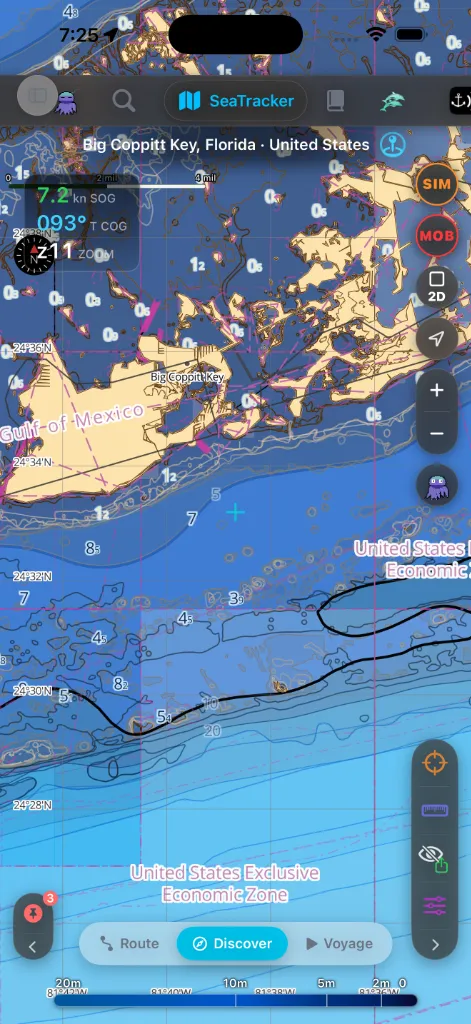
Haritanın altında üç alt modlu bir kapsül çubuğu vardır:
Rota — Keşif — Sefer.
Keşif
Varsayılan mod. Harita gezinmeniz için sizindir.
rozetli bir hücre taşır — şamandıralar, deniz işaretleri, limanlar,
demirleme yerleri, tehlikeler, batıklar, fener sektörleri, AIS tekneleri,
balık türleri, dalış noktaları, balıkçılık takibi, okyanus verileri,
Wikipedia makaleleri ve kendi kaptan işaretleriniz — ayrıca haritanın
altından oraya taşınan derinlik göstergesi.
panelini yatayda içerik rayının yanında, dikeyde alt sayfa olarak açar;
başka bir kategoriye dokunmak açık olanın yerini alır. Kartlar artık
haritanın üzerinde başıboş yüzmez, üst üste binmez. Görüş alanında hiçbir
şeyi olmayan kategori hücresini gizler; kenara sığmayanlar rayın •••
hücresinin cebine girer.
artı imlecin altındaki derinliği gösterir.
çizgi olarak çizer — trafiği keserken kullanışlıdır. Bunu Harita
Katmanları → Gezinme altında açıp kapatabileceğiniz (varsayılan olarak
açık) bir katmandır; orada rengini ve çizgi stilini de ayarlayabilirsiniz.
uzun basın.
Bir alanı öğrenmek, bir demirleme yerini keşfetmek ya da ilgi noktalarına göz
atmak için Keşif'i kullanın.
Canlı cihaz okuması
Bir NMEA cihaz kaynağı bağladıysanız (bir Wi-Fi ağ geçidi veya bir
Bluetooth modülü — bkz. [Ayarlar → Demir Nöbeti →
Cihazlar](settings.html#anchor-watch)), GPS HUD canlı bir cihaz bölümü
kazanır. Yalnızca bir kaynak bağlıyken görünür; dahili GPS'li bir cihazda HUD
değişmez.
YENİDEN DENE (kehribar) veya SİNYAL YOK (kırmızı) — taşıma katmanını
(TCP / UDP / BLE) ve son verinin ne kadar önce geldiğini gösterir. Akış
sustuğunda yaş yukarı saymaya devam eder; bu yüzden donmuş bir "12 sn önce"
ağ geçidinin göndermeyi durdurduğunun işaretidir.
kırmızı renk kodlu), rüzgârı (açısıyla birlikte görünür veya gerçek hız)
ve — kartı genişletmek için dokunduğunuzda — pruva yönünü, suya göre
hızı ve deniz sıcaklığını okur. Yalnızca cihazlarınızın gerçekten
gönderdiği değerler görünür.
eğilim mini grafiklerini de ortaya çıkarır; böylece bir bakışta deniz
tabanının sığlaştığını ya da esintinin arttığını görebilirsiniz.
Uydu ve Hibrit Taban Haritası
Kıyı sularının eksiksiz fotoğrafik ve metrik bir görünümünü elde etmek için doğrudan vektör seyir haritası katmanlarınızın altına yüksek çözünürlüklü uydu görüntülerini bindirebilirsiniz.
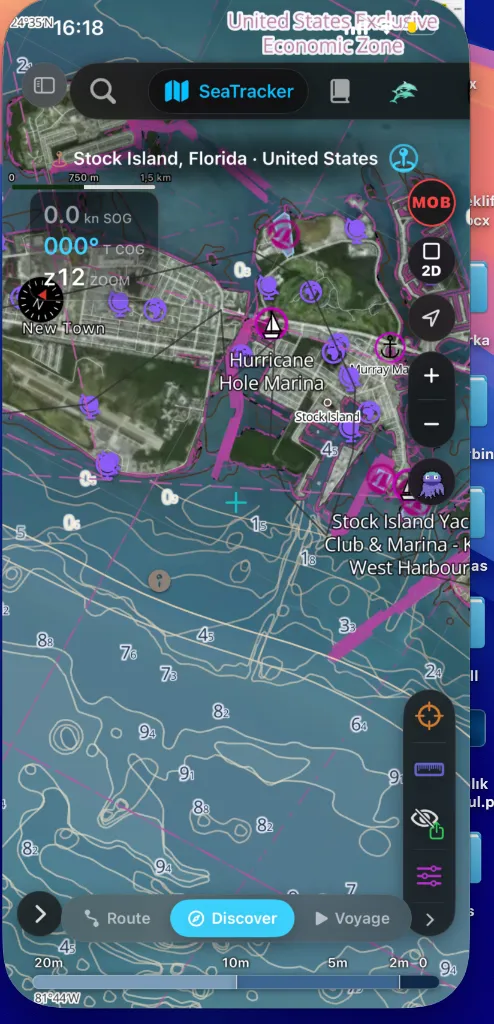
Bunu etkinleştirmek için:
stilini seçin.
Su Derinlikleri seçeneklerini açın.
Bu, yüksek hassasiyetli iskandilleri ve derinlik tehlike çizgilerini doğrudan gerçek dünyadaki kıyı yapılarının üzerine bindirir; böylece tanımadığınız marinalara (Stock Island, Florida'daki Hurricane Hole Marina gibi) giriş kanallarını planlamak son derece kolaylaşır.
Rota
Rota modu HUD'un yerine altta Rota Paneli'ni koyar.
Etkin bir plan yokken Rota moduna girdiğinizde Kayıtlı rotalarınıza
düşersiniz — listenin üzerindeki Tümü / Rotalar / Geçişler filtresi
planlanmış rotalarla kaydedilmiş geçişleri ayrı tutar (görünüm sayacı filtreyi
izler) ve kaydedilmiş geçişler satırın üzerinde doğrudan bir ▶ Tekrar
düğmesi taşır.
Rota satırları, mesafe ve nokta sayısının yanında oluşturulma tarihini de
taşır. Konumlan düğmesi haritayı her zaman rotanın ya da geçişin
başlangıç konumuna uçurur — ilk mevkideki isim levhası rotanın adını ve
tarihlerini gösterir. Planlanmış rotalara turuncu bir SIM düğmesi eklenir:
tek dokunuş, Simülatör Modunu o rota önceden seçilmiş olarak başlatır — simüle
tekne başlangıca bırakılır ve otopilot rotayı planlanan hızla seyreder. Bir
rota seçmek haritayı ona odaklar: gizliyse görünür olur
ve seçimi kaldırana kadar diğer bütün rotalar kenara çekilir — yalnızca etkin
olarak seyrettiğiniz bir rota her zaman haritada kalır. Bilinen bir seferden
başlayın ya da doğrudan başlık satırından yenisini başlatın: Yeni Rota Planla
ilk yol noktasını harita merkezine bırakır, Ara ise hedefi adıyla bulur
(sonuçlar su öncelikli sıralanır). Planlama panelinin içinde, kalkış (A)
yuvasındaki konum düğmesi yuvayı anlık GPS konumunuzla doldurur —
koordinatlar yuvada belirir, kısa bir onay çakar ve panel bir an sonra kendi
kendine varış (B) adımına geçer.
Komut Rayı, Rota kipinde sol kenarda durur. KALKIŞ Bırak'a
dokunun; harita sizi bekler — bir şerit *"Kalkış noktasını yerleştirmek için
haritaya dokunun…"* der. İstediğiniz yere dokunun (ya da basılı tutun), kalkış
oraya bir dalgacıkla iner. Hiçbir şey yerleştirmeden vazgeçmek için yanan
komuta yeniden dokunun ya da şeritteki ✕'e basın.
Bırak'ı yakar ve şerit *"Varış noktasını yerleştirmek için haritaya
dokunun…"* olarak değişir — nokta başına iki değil, tek komut basışı.
Sonraki dokunuşunuz varışı belirler ve seyir kendiliğinden planlanır.
sütunudur; yana sürükleyin (herhangi bir yerinden tutun — sağ kenarındaki
küçük kapsül nereden olduğunu gösterir), her komutun adını gösterecek kadar
genişler. Onu nasıl bıraktığınızı hatırlar.
üç komuttur — KALKIŞ Bırak, VARIŞ Bırak, Rotalar. Tersine Çevir, Temizle,
Rotayı Kaydet ve Rota Noktası Ekle, planınız onları hak ettikçe belirir,
hak etmediğinde yeniden kenara çekilir. Hiçbir şey soluk hâlde durmaz.
indikçe dolar; halkalı olan, rayın beklediği adımdır.
andan sonra Rota Noktası Ekle, ikisinin arasına bir ara nokta yerleştirir
ve seyir onun üzerinden yeniden planlanır. Komut kurulu kalır, yani dört
bacaklı bir seyir dört dokunuştur — arada yeniden kurmak yok.
bir rotayı sessizce üretmek yerine kehribar renkli bir uyarıyla reddedilir.
kapsülü, varış kırmızı bir ARR kapsülü, her ara nokta ise numaralı camgöbeği
bir daire olarak görünür — numara, kapattığı bacaktır. Bir uç noktayı yeniden
bırakmak onu zıplatmak yerine yeni yerine kaydırır, böylece neyin
değiştiğini görürsünüz.
çevirir), Temizle, Rotayı Kaydet ve Rotalar (kayıtlı rotalar
listesini yeniden açar) taşır.
"oluştur" veya "Tamam" adımı yoktur. Bir başlangıç (A) ve bir bitiş (B) var
olduğu an uygulama, yüksek performanslı Hibrit A*-APF (Yapay Potansiyel
Alan) Yol Bulma Motorumuzu kullanarak sığlıkların ve kara engellerinin
etrafından seferinizi otomatik planlar. Bu, noktaları nasıl yerleştirseniz
de geçerlidir: haritaya dokunarak, uzun basarak ya da ADD düğmesini
kullanarak.
aşağı sürükleyin. Üç yükseklik arasında oturur — ince bir bakış, bir
yarım sayfa ve tam — ve tek sürekli bir sürükleme tamamen tama
kadar gider; artık iki kez sürüklemeniz gerekmez.
önizler — herhangi bir bölümü incelemek için sürükleyin.
düğmelerinin altında) küçük bir ADD / UNDO / DEL kapsülü belirir:
ADD artı imlece bir yol noktası bırakır (ikinci ADD rotayı otomatik
planlar), UNDO sonuncuyu kaldırır, DEL en yakını kaldırır. Bir yol
noktasını taşımak için doğrudan harita üzerinde sürükleyin. Kapsül yalnızca
serbest biçimlidir — rotayı iki rıhtım yuvasından oluşturduğunuz
Rıhtımdan Rıhtıma modunda gizlidir.
teknenizin mevcut konumuna kıvrılmaz. Kameranın teknenizi izlemesini
istiyorsanız izleme düğmesini kullanın.
Hibrit A*-APF ve Gevşetme Şelalesi
Yönlendirme motoru, mutlak arayüz akıcılığı için ana iş parçacığının dışında çalışır ve yolları üç mantıksal aşamada çözer:
* Katı Mod: Rotanın tamamı boyunca tam su çekimi + güvenlik açıklığını zorunlu kılar.
* Sığ Mod: Katı başarısız olursa planlayıcı, uç noktalara yakın açıklık kurallarını gevşetir ve sizi olası su çekimi riskine karşı uyarır.
* Azami Çaba Modu: Bir yönlendirme hatasıyla durmak yerine sürekli bir rota üretildiğinden emin olmak için rıhtımlara yakın açıklık sınırlarını tamamen gevşetir.
Yol noktası ayrıntıları — göstermek için dokunun
Gösterilen bir rota boyunca yol noktaları, haritayı her yakınlaştırmada okunur
tutan numaralı macenta daireler olarak çizilir; seçili olan, rolünün
renginde parlayan bir halka kazanır. Ayrıntı kartını açmak için bir yol
noktasına dokunun; kart, iğneye ince bir bağlantı çizgisiyle bağlı kalır.
Kart köprüüstünün dilinden konuşur — WPT, BRG, LEG, DTG, TTG, ETA — ve
elinizdeki bacak için önemli olanı gösterir: geliş kerterizi ve bacak mesafesi,
toplama karşı kalan mesafe, planlanan hızda kalan süre, kalkış saati
ayarlandığında saat cinsinden ETA, rota havası yüklendiğinde yol noktasının
ETA anındaki dalga ve rüzgâr darbesi ve kartı çevirince açılan bir koordinat
paneli.
sürüklenebilir ve bağlantı çizgisiyle yol noktasına bağlı kalır —
kaydırdığınızda ya da yakınlaştırdığınızda iğnesiyle birlikte hareket eder ve
ona verdiğiniz yeri korur. Başka bir yol noktası seçmek kartı otomatik
yerleşime döndürür.
ve konumunuzdan işler, o anki hedef yol noktası da bir NEXT rozeti taşır.
Duruyorsanız kart planlanan hız değerlerine döner; bunlar soluk gösterilir ve
öyle etiketlenir.
üzerindeki bir mevkiye dokunun; kart FIX n/N gösterir — oradan geçtiğiniz
saat, orada kaydedilen SOG ve pruva yönünüz, alınan mesafe ve geçen süre —
asla planlanan hız hesabı değil. Karttaki ▶ Buradan oynat satırı,
[sefer tekrarını](#passage-replay) tam olarak o mevkiden başlatır.
Aynı anda tam olarak bir kart açıktır: başka bir yol noktasına dokunmak kartı
oraya taşır, açık suya — ya da başka herhangi bir harita nesnesine — dokunmak
kartı kapatır. Seyir HUD'undaki ‹ › oklarıyla yol noktaları arasında
ilerlemek, kartı da aynı adımda taşır.
Rıhtımdan Rıhtıma
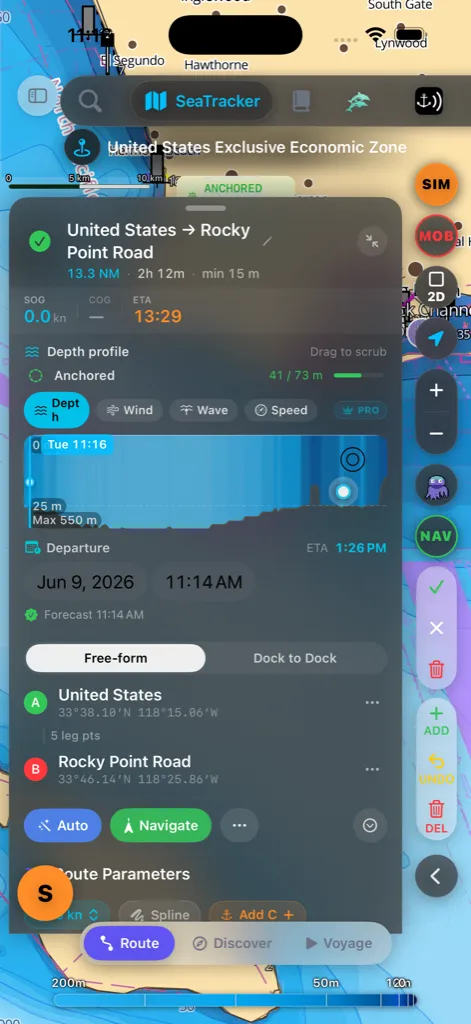
Rota Paneli'nin üstündeki çift yönlü bir anahtar, rotayı nasıl
oluşturacağınızı seçer:
haritaya dokunun ya da uzun basın; uygulama her çift arasında rota çizer.
bir A → B akışı.
Rıhtımdan Rıhtıma modunda panel iki yuva gösterir:
adıyla bulun. Mevcut konumunuzu kullanmak için konum simgesine ya da en
yakın limana bırakmak için feribot simgesine de dokunabilirsiniz.
seçin"). Bir kalkış seçtiğiniz an varış seçici otomatik açılır; böylece
doğrudan gideceğiniz yeri arayabilirsiniz.
Seçici önce limanları ve marinaları listeler, diğer yerler altta yer alır
ve mevcut görünümünüzden uzaklığı gösterir. Her iki rıhtım ayarlandığında
uygulama, tıpkı Serbest biçimde olduğu gibi sığlıkların etrafından aralarında
otomatik rota çizer.
doğrulayabilirsiniz — kalkış (A), tıpkı varış (B) gibi görünümü yeniden
ortalar.
varışı ters çevirin — rota anında yeniden planlanır.
Etap için tekne kiralama
Bir rıhtım yuvası, charter ortağımızın teknesi bulunan bir limana ya da
marinaya denk gelirse, o yuvanın koordinatlarının altında küçük bir
(liman) limanından kirala ▸ çipi belirir:
kalkış tarihinizde (bir tarih belirlemediyseniz bir sonraki cumartesi), iade
ise ya yedi gece sonra ya da tahmini varışınızda — hangisi daha ileriyse. İki
haftalık bir sefer, iki haftalık bir kiralama ister.
▸ der ve vardıktan sonraki ilk cumartesi gününde açılır. Kiralık tekneler
aynı üsten teslim alınıp aynı üsse iade edilir; bu yüzden B, oradan sonraki
seferinize başlamanız için bir tekliftir, asla bir tekneyi oraya bırakmanız
için değil.
belirebilir. Üzerindeki ✕'e dokunun; o rota için bir daha gelmez.
kiralama üssü olduğunda görünürler; demir alarmı çalarken, bir sürüklenme
uyarısı varken ya da 2 knot'tan hızlı yol alırken asla görünmezler ve panel
açıkken bir nöbet tetiklenirse kendiliğinden kaybolurlar. Dokunuştan sonra ne
olduğu [Burada tekne kiralama](#charter-rentals) başlığında anlatılır.
Kaptan Kütüphanesi
Yan menüdeki Capt's Routes girişi Kaptan Kütüphanesi'ni açar —
kaydettiğiniz veya topladığınız her şeyi yöneteceğiniz, aranabilir tek yer:
için birine dokunun; silmek için kaydırın. Tam eylem menüsü için uzun basın:
Haritada Görüntüle, Seyri Başlat, Çoğalt, Yönü Ters Çevir,
GPX Dışa Aktar ve Sefer Planı (PDF) — yazdırılabilir A4 sefer planı,
doğrudan listeden, ayrıntı sayfası gerektirmeden.
demirleme bekleme süresini düzenlemek için dokunun; kapsam düğmesi haritayı
ona uçurur.
silmek için kaydırın.
sefer izleri. İstatistikler ve ETA hesaplayıcısı ile tam sefer günlüğü için
birine dokunun. Bir sefer satırındaki ▶ Tekrar düğmesi seferi harita
üzerinde yeniden oynatır — bkz.
[Bir seferi yeniden oynatma](#passage-replay).
Bir arama kutusu, sıralama menüsü ve canlı sonuç sayısı listenin üzerinde yer
alır. ⋯ Gelişmiş menüsü GPX İçe Aktar ve Klasörleri Yönet
ekler.
Yatay modda kütüphane sağ ayrıntı panelinde açılır; böylece harita
görünürdeyken rotaları yönetebilirsiniz; dikey modda bir sayfa olarak açılır.
Rotaları seferlerden ayırmak. Bir listenin hem planlanmış rotaları hem de
kaydedilmiş seferleri içerebildiği her yerde — sefer planı oluştururken açılan
temel rota seçicisi ve harita üzerindeki kullanılabilir rotalar paneli —
listenin üzerinde küçük bir Tümü / Rotalar / Geçişler filtresi durur ve
seçiminizi hatırlar. Komut paletindeki arama sonuçları her kaydı Rota veya
Geçiş olarak etiketler; böylece ikisi birbirine hiç karışmaz.
Bir seferi yeniden oynatma
Kaydedilmiş bir sefer, harita üzerinde yalnızca bir çizgi değildir — teknenin o
gün gerçekte yaptığı her şeyi taşır: konum, yer üstü hız ve pruva yönü,
mevki mevki, gerçek saatle. Tekrar, o seferi kendi tekne sembolünüzle
harita üzerinde yeniden oynatır.
[Kaptan Kütüphanesi](#captains-library) içindeki herhangi bir sefer satırının
▶ Tekrar düğmesinden, seferin kendi ayrıntı sayfasından, haritadaki
kayıtlı rotalar listesinden, [arama](#search) ile bulunan bir seferden ya da
Kaptan Jurnali'ndeki günlük rapordan — kaydedilmiş seferi olan günler onu
yeniden oynatmayı önerir. Nasıl başlatırsanız başlatın, harita seferin
başlangıcına uçar ve seferi ilk mevkide duraklatılmış olarak yükler —
hazır olduğunuzda oynata basın.
hayalet teknesi olarak değil, gerçek tekne sembolünüzle çizilir ve gerçekte
dümen tuttuğunuz yöne döner. Ardından solan bir iz gelir; oynatılan izin
son birkaç dakikasını gösterir. Teknenin önünde, seferin henüz oynatılmamış
bölümü, çizgileri hedefe doğru ilerleyen beyaz kesikli bir çizgi olarak
görünür — rota planlayıcısının kullandığı aynı «henüz değil» dilidir.
HDG, gerçekte sahip olduğunuz rüzgâr — değer, hamle ve bir yön
ibresi —, harita verisinin izin verdiği yerde imlecin altındaki derinlik,
geçerli konumdaki saat ve seferin geçen/kalan süresi burada okunur. Rüzgâr,
bir sefer kaydedilirken sessizce örneklenir (bağlıysa cihazlarınızın gerçek
rüzgârından, değilse canlı tahminden); bu yüzden bu sürümden önce kaydedilmiş
seferler orada bir tire gösterir.
kaydedilmiş saati ölçekler — tekrar, gerçekte yavaşladığınız yerde
yavaşlar, hızlandığınız yerde hızlanır; böylece demirdeki bir durgunluk
tam olarak yaşandığı gibi okunur.
[Sefer](#voyage) modundaki gibi çalışır — seferin herhangi bir noktasına
sürükleyin ve oradan oynatın.
yukarı bakacak şekilde kilitler. Haritayı kaydırdığınızda kamera yine
sizindir; tıpkı canlı seyirde olduğu gibi.
Sefer
Sefer, etkin seyirdir. Tek bir basılı tutma, harita üzerindeki bir noktayı,
sonra başlatmayı seçtiğiniz planlanmış bir sefere dönüştürür. Birkaç sefer
yapana kadar harita üzerindeki bir ipucu size hareketi hatırlatır.
bir halka dolar; tamamlanana kadar tutun.
noktaya (B) sığlıkların ve karanın etrafından rota çizerken canlı ilerleme
gösterir. Planı bırakmak için kapsülün ✕ işaretine dokunun. Bir şey
rotayı engellerse — GPS sabitleme yok, karada bir hedef, tekneye çok yakın
bir nokta — kapsül bunu hemen orada söyler.
kartı belirir ve planlanan yol harita üzerine bir kesik önizleme çizgisi
olarak çizilir — incelemek için serbestçe kaydırın ve yakınlaştırın.
yol noktası varışlarınız ve istatistikler) başlar, derinlik ve hava durumu
grafikleri dolar ve her iki uçta yakındaki harita nesneleri bırakılır.
Planlanan rotayı atmak için Kapat'a dokunun; hiçbir şey başlatılmaz ya
da kaydedilmez.
Başlat ile onayladığınız için, yanlış bir uzun basma asla kendi başına bir
sefer başlatmaz. Her iki uç noktası da en yakın yerlerine göre adlandırılır.
Kart beklerken tekne anlamlı ölçüde hareket etmişse, Başlat'a dokunmak
seyir başlamadan önce gerçekte bulunduğunuz yerden sessizce yeniden plan
yapar; böylece rota her zaman pruvadan başlar — birkaç dakika önce bulunduğu
yerden değil.
Zaten seyrediyor musunuz? Bir sefer çalışırken yapılan bir basılı tutma
yenisini başlatmaz — o noktaya bir yol noktası ekleme önerir ve onayınız
beklenirken mevcut konumunuzdan oradan geçecek şekilde yeniden rota çizer.
Etkin Seyir HUD'u
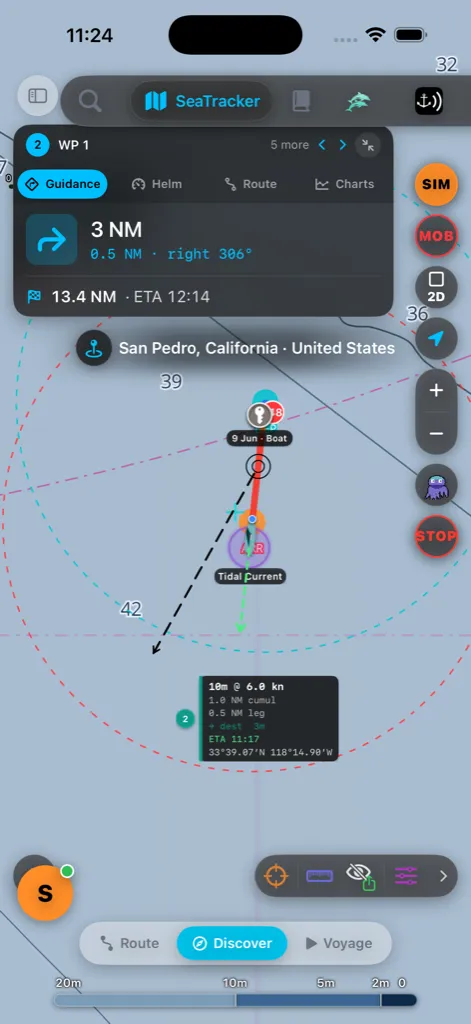
Seyrederken, haritanın üstünde dokunarak geçilen dört bölümlü tek bir kart yer
alır:
yer hızı okumaları.
rotadaki konumunuz.
Hangi grafiğin gösterileceğini değiştirmek için tür düğmelerine dokunun.
Derinlik her zaman ücretsizdir; Rüzgâr, Dalgalar ve Gel-git
tahmin grafikleri bir Pro özelliğidir — Ücretsiz hesapta o şeritler bir eğri
yerine kilitli bir "Pro özelliği" yükseltme önerisi gösterir. Bunların
kilidini açmak için Mağaza'ya bakın. Rüzgâr, hortumu
rüzgâr çizgisinin üzerine daha soluk kesik bir çizgi olarak çizer ve rüzgâr
yönü oklarıyla birlikte gelir. Her grafik, rota boyunca canlı tahmin
verilerini, yol noktası işaretlerini ve bir mesafe ölçeğini gösterir.
Beyaz bir nokta mevcut konumunuzu izler; grafiği sürükleyerek harita
üzerindeki rota boyunca beyaz bir noktayı tarayın — bir süre sonra canlı
konumunuza geri kıvrılır. Gel-git, rotanız boyunca öngörülen liman
gel-git yüksekliğini, bir ortalama deniz seviyesi çizgisi etrafına çizerek
gösterir (eğri, su alçaldığında çizginin altına iner); bir alan için gel-git
tahminlerinin bulunmadığı yerde grafik tahmin yerine bir boşluk gösterir.
Önceki veya sonraki yol noktasına geçmek için HUD başlığındaki ‹ ›
oklarını kullanın; kısa bir afiş yeni hedefi onaylar. HUD başlığındaki
küçült düğmesi (⤡) tüm kartı küçük bir NAV · WP çipine daraltır;
geri getirmek için çipe dokunun. Yer adı rozeti doğrudan HUD'un altına
sıkışır; böylece haritanın geri kalanı açık kalır.
Alttaki komut penceresi (derinlik tarayıcı + oynatma denetimleri) üç
boyuta sahiptir — tam → kompakt → küçültülmüş arasında geçiş yapmak için
aşama düğmesine dokunun; ihtiyacınız olmadığında harita alanı açın.
Yatay modda HUD, asla haritayı yemesin diye ön tarafa genişlik sınırlamasıyla
yerleştirilir ve ondan açtığınız paneller (rota ayrıntısı, sefer planı)
haritayı kaplamak yerine sağ ayrıntı sütununa yerleşir — tıpkı
[Kaptan Kütüphanesi](#captains-library)'ndeki bölünmüş davranış gibi.
Durdurma ve yeniden yönlendirme
kırmızıya döner ve STOP yazar. Buna dokunmak, kazara bir dokunuş
rotanızı düşürmesin diye seyri bitirmeden önce sizden onay ister.
belirirse, kazanacağınız zamanı ve mesafeyi gösteren bir afiş kayar.
Geçmek için Yeni rotayı kabul et'e ya da Mevcudu koru'ya dokunun —
hiçbir şey yapmazsanız birkaç saniye sonra kendini kapatır.
Otomatik geçiş kaydı
Artık REC'e basmayı hatırlamanız gerekmiyor. Denizdeki geçişleri otomatik
kaydet açıkken — varsayılan olarak açıktır — AnchorQueen teknenin gerçekte
nasıl hareket ettiğini izler ve geçiş kaydını kendisi başlatır.
Ne zaman başlar. Uygulama her 30 saniyede bir konumunuzu telefonun hareket
sensörleriyle birlikte okur ve ne yaptığınıza karar verir: yelkenle mi, makine
ile mi, yoksa yalnızca 2 knot'un üzerinde yol mu alıyorsunuz. Seyir hâlinde
üst üste iki döngü — yaklaşık bir dakika — ve mevki karada değil suda ise kayıt
başlar. Bu, REC düğmesinin başlattığı kaydın aynısıdır: aynı iz, aynı
istatistikler, sonrasında kütüphanede aynı yer.
salınım dairesinin dışına çıkarsanız bu kalkış için yeterlidir — ikinci
döngüyü beklemeye gerek yok. AnchorQueen bağlama yerinde zorla kapatılmış
olsa bile geçerlidir: daireyi geçtiğinizde iOS uygulamayı uyandırır ve kalkış,
uygulama geri döner dönmez dikkate alınır.
sabitlemeleri toplanıp birleştirilene kadar bekler; böylece bir kayıt asla
boş bir izin üzerinde kendini duyurmaz.
siz zaten bir rotada seyrederken hiçbir şey kendiliğinden başlamaz — o
seferin kendi kaydı vardır. Bir kaydı kendiniz durdurduktan sonra otomatik
kayıt bir süre geri çekilir; böylece bir sonraki mevki, az önce bitirmeyi
seçtiğiniz geçişi hemen yeniden başlatamaz.
Bildirim. Geçiş gerçekten yol aldığında haritanın altından bir kart yükselir
— Geçiş kaydı başladı, başladığı saatle birlikte — ve iki yol sunar:
ipucunu geri getirir. Yöneldiğiniz suya basılı tutun; rota kendini planlar ve
Rota hazır kartındaki Başlat, hâlihazırda süren kaydın üzerinde canlı
seyir rehberliğini çalıştırır — iz altta kesintisiz devam eder.
Siz zaten seyir hâlindeyken bildirim tümüyle yoldan çekilir.
Varışı sonra da belirleyebilirsiniz. Karara bildirimde varmak zorunda
değilsiniz. Bir kayıt sürerken ve etkin rehberlik yokken [Keşif](#discover)
uzun basma menüsü aynı Varışı ayarla komutunu taşır; böylece geçişin
birinci saatinde bile, hiçbir şeyi durdurmadan ya da yeniden başlatmadan bir
hedef seçebilirsiniz.
Varış onu sizin için kaydeder. Tekne yaklaşık üç dakika boyunca demirde ya
da karada kaldığında geçiş bitmiştir: kayıt durur ve kendini kaydeder. Mesafesi,
süresi ve tüm iziyle birlikte [Kaptan Kütüphanesi](#captains-library) içindeki
Geçişler filtresine düşer — ▶ Tekrar dahil, bkz. [Bir seferi yeniden
oynatma](#passage-replay) — ve gemi jurnalindeki sefer, tıpkı kaydı elle
durdurmuşsunuz gibi varış kaydıyla kapanır.
Davranışın tamamını Ayarlar → Harita →
Denizdeki geçişleri otomatik kaydet altından
kapatabilirsiniz.
Bir yer bulma
Arama panelini açmak için üst çubuktaki arama simgesine dokunun. İki
sekmesi vardır:
Harita Araması nelere bakar
Tek bir arama kutusu her şeyi aynı anda sorgular ve sonuçları geldikleri yere
göre, önce kendi verileriniz olacak şekilde gruplandırır:
| Grup | Ne bulur | Nereden gelir |
|---|---|---|
| Kaptan İşaretleri | Kaydettiğiniz iğneler, dalış noktaları ve kaydedilmiş makaleler | Cihazınızda |
| Rotalar | Kaydettiğiniz rotalar (ada göre) | Cihazınızda |
| Yol Noktaları | Adlandırdığınız yol noktaları | Cihazınızda |
| AIS Tekneleri | Yakınınızdaki canlı gemiler; ada, MMSI, çağrı işareti, türe veya hedefe göre | Canlı AIS akışı |
| Limanlar | Yerleşik veritabanından marinalar ve limanlar | Cihazınızda |
| Deniz İşaretleri | Haritalı şamandıralar, bikonlar ve deniz fenerleri | Cihazınızda |
| Yerler | Koylar, adalar, kasabalar, belirgin işaretler, adresler | OpenStreetMap (çevrimiçi) |
| Yerler (Google) | Marinalar, işletmeler ve ada göre ilgi noktaları (mevcut olduğunda) | Google Places (çevrimiçi) |
| Limanlar (Çevrimiçi) | Dünya çapındaki marina/liman veritabanı — olanakları, barınağı ve yaklaşım derinliğiyle binlerce marina | OpenSeaMap (çevrimiçi) |
| Keşifler | Yakınınızdaki yerler hakkında Wikipedia makaleleri | Wikipedia (çevrimiçi) |
Kendi verileriniz ve canlı AIS, siz yazdıkça anında görünür. Çevrimiçi
gruplar bir an sonra katılır — üç harf yazdığınızda başlarlar ve uygulama,
her tuş vuruşunda bir istek göndermesin diye ulaşmadan önce yazmanızda kısa
bir duraklamayı bekler. Çevrimiçi sonuçlar önbelleğe alınır; böylece son
bir aramayı tekrarlamak anında geri döner ve daha sonra çevrimdışı olduğunuzda
da çalışır.
Bir sonucu okuma
Her satır adı, kısa bir alt başlığı (tekne ayrıntıları, rota uzunluğu, liman
olanakları vb.) ve — uygulama konumunuzu bildiğinde — deniz mili cinsinden
mesafeyi gösterir. Küçük kesik kareli bir simge, yerin bilinen bir sınırı
olduğu anlamına gelir; bu nedenle oraya uçmak tek bir nokta yerine tüm alanı
çerçeveler.
Haritayı oraya uçurmak ve adıyla etiketlenmiş bir iğne bırakmak için bir
sonuca (ya da → düğmesine) dokunun; böylece kamera yerleştikten sonra konum
işaretli kalır. Temizlemek için iğneye dokunun. Bir rota sonucuna
dokunmak o rotayı ortaya çıkarır ve uçtan uca çerçeveler; bir Wikipedia
sonucuna dokunmak makale panelini de açar.
Son aramalar
Kutu boşken panel Son aramalarınızı gösterir. Her satır, onu kimin
çalıştırdığını gösteren küçük bir rozet taşır:
yer bulmasını istediğinizde tam olarak yukarıda listelenen kaynakları arar;
böylece bulduğu bir marina dokunmaya hazır olarak buraya gelir.
Yalnızca Jules'un bulduğu yerleri göstermek için listenin üzerindeki ✦
Jules çipine dokunun. Geçmişi Temizle son listeyi ve çevrimdışı
önbelleği siler.
> Tüm çevrimiçi kaynaklar seyir için değildir ve bağlantı olmadan
> kullanılamayabilir — haritalarınız, işaretleriniz, rotalarınız ve yerleşik
liman ile deniz işareti verileriniz her zaman çevrimdışı çalışır.
Harita stilini seçme
Taban haritası stili ve derinlik paleti haritanın kendisinde yer alır — sağ
alt köşeden Harita Katmanları sayfasını açın ve bunları Haritalar
sekmesi altından seçin (bkz. [Harita Katmanları](#layers)). Seçim geneldir ve
açılışlar arasında kalır; yeni kurulum varsayılanları (Nautica Day taban
haritası + ters NOAA paleti) demirde gündüz netliği için ayarlanmıştır.
Ayarlar'daki tek harita-görünümü denetimi, iOS
açık/koyu modu değiştirdiğinde paleti gündüz ve gece eşleri arasında çeviren
Cihaz Görünümüyle Otomatik Eşleştir anahtarıdır — taban haritasını seçmez.
Harita Katmanları paneli
Harita Katmanları sayfası her örtü katmanının açılıp kapatıldığı yerdir.
Uzun bir listeyi kaydırmak yerine doğrudan istediğinize atlayabilesiniz diye
üstte beş sekmeye düzenlenmiştir:
sağlayıcılar), derinlik paleti teması, Derinlik ve Batimetri grubu
(Derinlik Eğrileri ve Derinlik Poligonları varsayılan olarak
açıktır; böylece yeni bir kurulum okunabilir bir batimetri haritasıyla
açılır; daha ağır olan Su Derinlikleri / EMODnet dolgusu siz açana kadar
kapalı kalır ve harita temasını değiştirmek, gizlemişseniz eğrileri ve
poligonları yeniden gösterir) ve vektör taban haritası alt katmanları
(yollar, binalar, etiketler, ilgi noktaları, sınırlar). Haritanın nasıl
görüneceğini ayarlamak için buradan başlayın.
örtü katmanları (deniz işaretleri, sınırlar, denizel bölgeler,
[trafik ayırım düzenleri](#tss), gümrük, raster haritalar) ve bir bölge
kurarak kilidini açtığınız çevrimdışı S-57 ENC yığını (iskandiller, kanallar,
tehlikeler, deniz tabanı).
işaretleri, liman veritabanı, hava durumu ve keşif katmanları (deniz
canlıları, dalış noktaları, balıkçılık etkinliği, okyanus verileri).
bağlantı durumuyla AIS API akışı (aisstream.io / VesselAPI) ve
Filo (Uzaktan Senkronizasyon) grubu — bir SafeAnchor uzaktan kanalı
üzerinden canlı konum paylaşan kaptanlar; kanal adını ve kaç teknenin
senkronize olduğunu gösteren bir özetle. Akış her açılışta varsayılan
aisstream.io sağlayıcısında başlar; VesselAPI yalnızca otomatik bir
yedek olarak (aisstream.io erişilemez kaldığında) veya kendiniz seçtiğinizde
kullanılır ve bu seçim yalnızca oturum boyunca sürer — bir sonraki açılış
aisstream.io'ya döner. Kaydırdığınızda veya yakınlaştırdığınızda, ekranda
zaten bulunan gemiler yerinde kalırken akış arka planda yeni alana yeniden
abone olur — sönüp yeniden yanmak yerine yerinde yenilenirler.
Kendi AIS anahtarınız — sağlayıcı satırının altındaki isteğe bağlı bir
alan, ortak gömülü anahtar yerine kendi aisstream.io hesabınızla bağlanmanızı
sağlar; bkz. [Kendi AIS anahtarınızı kullanma](#ais-own-key).
yakın bir bölüm; baktığınız yere yakın genel vericide yayın yapan diğer
AnchorQueen kaptanlarının canlı konumları için. Haritada bir kehribar
halkayla gösterilirler (böylece onları, camgöbeği olan kendi filonuzdan
ve halkası olmayan ham AIS'ten ayırt edebilirsiniz) ve siz yakınlaştırdıkça
canlı güncellenirler. Bir özet, görüş alanında kaçının olduğunu gösterir.
Canlı akışı açık tutmak veri kullandığından kapalı başlar — meşgul bir koy
çevresinde kimin demirlediğini görmek istediğinizde açın.
izler, kıvrılma çizgisi, demir geçmişi) artı demir nöbeti halkalarının,
kendi-tekne çizgilerinin ve mod başına artı imleç renklerinin görünümü.
Sol üst köşedeki şimşek menüsü, herhangi bir sekmeden ulaşılabilen
Tüm Katmanları Göster ve Tüm Deniz İşaretlerini Gizle kısayollarına
sahiptir.
Kendi AIS anahtarınızı kullanma
Canlı tekne trafiği, ücretsiz ve herkese açık bir AIS servisi olan
aisstream.io'dan gelir. AnchorQueen ona uygulamanın içine gömülü tek bir
anahtarla bağlanır — denizdeki her AnchorQueen kopyası için aynı anahtar.
aisstream.io bir hesaba aynı anda yalnızca üç bağlantı tanır; bu yüzden
ortak anahtar neredeyse hep doludur. Üç yer de alındığında servis yeni
bağlantıları geri çevirir ve haritada hiç gemi görünmez.
Kendi aisstream.io hesabınız — ücretsiz, ödeme bilgisi istenmeden — size
kimsenin kullanmadığı üç bağlantı verir. Bu tümüyle isteğe bağlıdır. Hiç
dokunmazsanız AIS, bir yer boş olduğu sürece gömülü anahtarla çalışmayı
sürdürür.
Gerekenler. Bir GitHub hesabı: aisstream.io'nun kendi kayıt formu
yoktur, yalnızca GitHub ile giriş yaptırır. Hesabınız yoksa önce github.com'da
açın — ücretsiz; bir e-posta adresi ve bir parola yeter.
Anahtar almak için
gösterdiği izin isteğini onaylayın.
kez gösterir, sonra gizler. Kaybederseniz aynı sayfadan yenisini oluşturun.
AnchorQueen'de kullanmak için
emin olun.
eklemeden önce Ortak anahtar kullanılıyor yazar — ya da trafiğin
durmasının nedeni gömülü anahtarsa, kehribar renginde Ortak anahtar dolu.
Hâlâ anahtarınız yoksa aisstream.io'dan ücretsiz anahtar alın siteyi
açar.
yeniden bağlanır.
Satırda bundan sonra anahtarınızın son dört karakteriyle birlikte Sizin ····
yazar; böylece hangi anahtarın kullanıldığını bir bakışta görürsünüz. Anahtarı
kaldır ve ortak anahtarı kullan, her şeyi eski hâline döndürür.
Üç bağlantı ve nereye gittikleri. Anahtarınızı kullanan her cihaz üç
bağlantınızdan birini alır — aynı anahtardaki bir iPhone ve bir iPad ikisini
kullanır. Anahtarı mürettebata vermeyin: dördüncü tekne geri çevrilir ve o
tekne sizinki olabilir. aisstream.io, vedalaşmadan kopan bir bağlantıyı da geç
fark eder; akışın ortasında kapanan bir telefon bir yeri uzun süre tutabilir.
AnchorQueen, uygulamadan çıktığınızda ya da AIS'i kapattığınızda bağlantısını
düzgünce kapatır; böylece kendi yerleriniz siz bakmayı bıraktığınız anda geri
gelir — ama panelde bir gün anahtarınız dolu yazarsa, diğer cihazlarınızda
AnchorQueen'i kapatın ve yeniden denemeden önce biraz bekleyin.
Anahtar nerede saklanır. Bu iPhone'un Anahtar Zinciri'nde, başka hiçbir
yerde. Cihazdan hiç çıkmaz, AnchorQueen'e ya da başka birine hiçbir zaman
gönderilmez, iCloud yedeğine girmez ve başka bir iPhone'a sizinle taşınmaz —
ikisinde de istiyorsanız orada yeniden kurun. Uygulamayı kaldırmak anahtarı da
siler.
Burada tekne kiralama
Bir marinaya, limana ya da demir yerine dokunduğunuzda kart, ayrıntıların
altında bir Tekne kiralama bölümü taşıyabilir. Yalnızca charter ortağımız
Boataround'un gerçekten teknesi olduğu yerlerde görünür ve uygulamada kiralama
envanterini açan tek yerdir — siz seyir hâlindeyken size hiçbir şey dayatılmaz.
Yalnızca marinalar değil. Cannes'daki Port de Moure Rouge haritada
bir fener olarak geçer ve böyle bir kart şimdiye kadar hiç kiralama içeriği
sunmuyordu. Artık her kıyı işareti bir kiralama sorusunu yanıtlayabilir —
hangisini, işaretin kendisi belirler:
bağlı teknelerdir ve bölüm, yanıt hiçbiri olsa bile görünür.
… Limanı, Hafen …, Luka … — o liman gibi ele alınır.
bir batık — bunun yerine yer için yanıt verir: *buraya yakın ne
kiralayabilirim. Ortak satırı o zaman Cannes yakınında kiralık tekneler ·
Boataround der, üs listesinin başlığı Cannes yakınındaki kiralama
marinaları* olur ve çıkış yolu Boataround'da Cannes ara ▸'dır.
Tekneler sekmesi Cannes yakınında tekne (6) yazar. Hafta seçenekleri de
oradadır, böylece kartı kapatmadan tarihleri değiştirebilirsiniz.
Böyle bir bölüm yalnızca gerçekten gösterilecek bir şey olduğunda çıkar:
yakında en az bir tekne ya da bir kiralama üssü. Boş bir koydaki tek bir
şamandıra hiçbir şey göstermez ve haritada çevresine tekne çizilmez: bir filo
üssüne aittir, dokunduğunuz işarete değil.
Bölümde neler var
bir ⓘ: Boataround kimdir, rezervasyonun onların sitesinde yapıldığı ve
bizim komisyon kazanabileceğimiz. Bir kez okuyun; bu sayfayı kapatan
bilgilendirmenin aynısıdır.
Rezerve et düğmesi. Düğmeye ya da afişin kendisine dokunduğunuzda bu yer
ve tarihleriniz için Boataround aramasına gidersiniz. Kampanya biterse
indirim yalnızca kaybolur, afiş çalışmaya devam eder.
fotoğraf, model ve başlangıç fiyatıyla. Açmak için birine dokunun. Fiyatlar
partnerin o tekne için verdiği gerçek liste fiyatlarıdır; bu yüzden yanlarında
indirim rozeti yoktur — kampanya tek bir tekneye değil, yukarıdaki afişe
aittir.
açar. Burada hiçbir tekne yoksa bölüm bunun yerine
Boataround'da ara ▸ sunar.
Sayfada neler var
Motorlu katamaran. Bir çipi değiştirmek o kategoriyi yeniden sorar; önceki
yanıt önbellekte kalır, bu yüzden geri dönmek anında olur.
cumartesiye işlediği için bir sonraki cumartesi artı yedi gecede açılırlar.
Herhangi birini değiştirin; liste — ve ayrılırken götürdüğünüz bağlantı —
yeni pencereyi izler.
sayısını ve gecelik başlangıç fiyatını gösterir. Tekne kartı için bir
satıra dokunun: aynı ayrıntı daha büyük, artı Boataround'da kirala ▸.
üslendikleri marinaya göre, en yakın önce olacak biçimde gruplanır —
"Marina Kornati'de 3 tekne, 12 km" — çünkü kiralık tekneler koylarda değil
marinalarda yatar.
için ortağın kendi aramasını açan Boataround'da ara ▸ seçeneğini sunar.
Tekneler sekmesi. Burada üslenen tekneler varsa kartın sahne bölgesinde
Fotoğraflar'ın yanına bir Tekneler (N) sekmesi eklenir. Aynı fotoğraf
karuselidir; yalnızca Google'ın kıyı fotoğrafları yerine Boataround'un kendi
tekne fotoğrafları vardır: tam genişlikte tek fotoğraf, bir 1 / N sayacı,
kaynağı gösteren küçük mavi bir B ve teknenin modelinin altında onu kiraya
veren kiralama şirketiyle Fotoğraf: satırı. Filoyu gezmek için kaydırın ya da
yuvarlak › düğmesine dokunun; o teknenin kartını açmak için fotoğrafa
dokunun. Üstünde bir hızlı filtre sırası durur — Tümü · Katamaran · Yelkenli
· Motorlu · Gulet — ve hem karuseli hem de haritadaki tekneleri aynı anda
daraltır; anında ve ortağa yeniden sormadan. Kartı kapattığınızda filtre
sıfırlanır.
Haritadaki tekneler. Bir marina ya da demir yeri kartı açılır açılmaz
uygulama filoyu sessizce getirir ve teknelerinden altı tanesine kadarı —
fazladan bir dokunuş gerekmeden — haritada işaretin yanında yan yana bir
bağlama sırası hâlinde belirir: eşit aralıklarla, baş tarafları rıhtıma dönük,
uygulamanın kendi tekneniz için kullandığı gövdelerin tıpatıp aynısıyla
çizilmiş, her biri bağlı bir gemi gibi demir takımının üzerinde ve ortağı
gösteren küçük mavi bir B ile. Onları görmek için yaklaşık z11'in ötesine
yaklaşın; model adları ve başlangıç fiyatları biraz daha yakında onlara
katılır. Altısı sırayla kategori kategori seçilir; böylece katamaran, yelkenli
ve gulet bulunduran bir üs size en yakın türden altı tane yerine üçünü birden
gösterir. Sıra çizilmiştir, ölçülmüş değildir — bu teknelerin her biri
marinanın kendi içinde yanaşmıştır, bu yüzden okunabilir kalsınlar diye
marinanın yanına bir dizi hâlinde yerleştirilirler. Listenin verdiği tekne
kartının aynısı için birine dokunun.
İğneler yerinde kalır. Dokunduğunuz yerin bir parçası oldukları ve reklam
olmadıkları için her abonelikte çizilirler — haritada aynı anda yalnızca tek
bir marinanın tekneleri bulunur. Kartı kapattıktan sonra da haritada kalırlar;
başka bir marina açana ya da kendiniz temizleyene kadar. Uygulama artık onları
bir zamanlayıcıyla kaldırmaz. Onları kendiliğinden götüren tek şey
güvenliktir: bir nöbet çaldığı anda kaybolurlar. Tarafsız mod onları tümüyle
gizler.
Ne değildir. Bir kiralık teknenin konumu onun kiralama üssüdür — kiraya
verildiği marina — asla canlı bir konum değil. Bu tekneler AIS trafiği
değildir: radarda asla görünmezler, bir CPA/TCPA hesabına asla girmezler ve AIS
tekne listesinde asla yer almazlar. Haritada birine dokunmak bir kiralama kartı
açar, asla bir tekne kartı değil.
Rota planlayıcıdan. Rıhtımdan Rıhtıma yuvaları, planlanmış bir sefer için
aynı teklifi taşır — bkz.
[Etap için tekne kiralama](#dock-to-dock-charter).
Önce güvenlik. Demir alarmı çalarken, bir sürüklenme uyarısı varken ya da
2 knot'tan hızlı yol alırken kapsül de sayfa da bastırılır. Sayfa açıkken bir
nöbet tetiklenirse sayfa kendini kapatır.
Her Kirala dokunuşu uygulamadan çıkıp Safari'de Boataround'a gider;
rezervasyon, ödeme ve kiralama sözleşmesi tamamen sizinle onların arasındadır.
AnchorQueen tamamlanan bir rezervasyondan komisyon kazanır; ücretsiz katmanı
ücretsiz tutan da budur.
Işıklı gövdeler ve fiyat etiketleri. Kiralık tekneler artık parlıyor: her gövde, sırayı ek trafik değil bir teklif olarak okutmak için yavaşça nefes alan yumuşak mavi bir hale üzerinde durur ve fiyatı olan her tekne pruvasının üstünde mavi bir fiyat etiketi taşır — ortağın verdiği para biriminde gecelik tutar, her para birimi işareti doğru görünecek biçimde çizilir. Model adı gövdenin altında yer alır. Tekneyi açmak için etikete ya da gövdeye dokunun; Hareketi Azalt açıkken hale sabit kalır.
Tekne kartı size ne anlatıyor
Bir tekneye dokunun — listede, Tekneler karuselinde ya da haritada — ve
kart artık fiyatlı bir küçük resim değil, tam bir dosya. Kartta ne varsa
ilanın kendisinden gelir; işletmecinin doldurmadığı satır hiç görünmez, yani
kısa bir kart yavaş değil, dar bir ilan demektir.
vergisizse Fiyata KDV dahil değil — karttaki rakamla ödeme ekranındaki
rakam sizi şaşırtmasın diye.
Puan yoksa henüz değerlendirme yok demektir.
rezervasyonda isteyeceği ön ödeme — genelde %25.
motorlu bot, kokpit plotterı, SUP, nevresim — ilanda varsa mürettebat
kalemleriyle birlikte: kaptan, aşçı, host, transit log,
yakıt, depozito sigortası. Boataroundʼun kendi dahil ettikleri
renkli görünür.
yolcu sayısı, motor gücü ve yakıt tipi, yakıt ve su deposu sizin
birimlerinizle, arma, yapım ve yenileme yılı ve çektiği bayrak — sınırı
kiralama ortasında geçecekseniz ülke önemlidir.
ülkesindeki sıralaması (Türkiye genelinde 334 şirket içinde 4.). Bu
sıralama Boataroundʼun, bizim değil.
Görüntü alanı ve altındakiler
Görseli uzatın. Tekneler ve Fotoğraflar karuselinin altında kısa
bir tutamak vardır. Aşağı sürükleyin, görsel büyür — kartın yaklaşık onda
yedisine kadar — yukarı sürükleyin, küçülür. Yükseklik oturum boyunca her iki
sekmede de bıraktığınız yerde kalır; böylece yeniden açtığınız kart eski
haline dönmek yerine seçtiğiniz boyutta çizilir. VoiceOver bunu adım adım
ayarlayabilir.
Altta olan, bulunduğunuz sekmeyi izler. Kart artık her sekmenin altında
aynı yığını göstermiyor:
çipleri, fiyatı ve müsaitliğiyle her tekne bir satır, yakındaki diğer
kiralama marinaları ve Boataround'a çıkış.
ayrıntıları ve dosya.
altlarında kiralama bölümüyle.
Partner afişi bir kez görünür, asla iki kez: ekrandaki iki kiralama görünümünden
hangisiyse sahibi odur.
Hafta seçmek
Teknelerin üstünde — marina kartının kiralama bölümünde olduğu kadar Tekneler
sekmesinde ve tam sayfada da — bir hafta sırası bulunur: Son Dakika,
+1 hf, +2 hf, +3 hf ve Özel. Kiralama haftaları cumartesiden
cumartesiye işler, dolayısıyla her çip bunlardan biridir. Uygulama dört haftanın
fiyatını tek bir istekte sorar; bu yüzden çipler arasında gezinmek anında olur
ve hiçbir maliyeti yoktur.
Özel, iki tarih seçici açar — Teslim alma ve Teslim etme — ve bunlar
tam bir yıl ileriye uzanır, çünkü yaz kiralaması genellikle kışın
ayırtılır. Altlarında bir Cumartesiden cumartesiye anahtarı vardır:
istediğiniz tarihler için kapalı bırakın; açtığınızda teslim alma kendi
cumartesisine geri döner ve teslim etme bir hafta sonrasına düşer — ortağın
teknelerinin çoğu böyle fiyatlanır. Hafta çiplerinin aksine özel aralık yeni bir
sorudur; uygulama tam o tarihler için ortağa yeniden sorar.
Her çip o hafta müsait tekne sayısını taşır — "+2 hf. · 7". Bu üssün tamamen
dolu olduğu bir hafta · 0 gösterir ve gizlenmek yerine soluklaştırılır;
böylece boşluğun nerede olduğunu bir bakışta görürsünüz. Sayılar kategori
çiplerini izler: katamaran sorarsanız haftalar size katamaranları anlatır.
Hafta seçmek listeyi daraltır. O hafta dolu olan tekneler listeden ve
haritadan çıkar; kalanlar seçtiğiniz hafta için en ucuzdan başlayarak sıralanır.
Ortak bu filoyu hiç fiyatlandırmadıysa çipler sayı taşımaz ve hiçbir şey
gizlenmez — tahmin etmek yerine susarız. Seçtiğiniz hafta bütün tekneler doluysa
liste O hafta boş tekne yok der ve yukarıdaki çipler çıkış yolunuzdur.
Listenin sırası. Hafta çiplerinin sonunda küçük bir ⇅ Sırala düğmesi vardır: tekneleri En iyi eşleşme (varsayılan), fiyat düşükten yükseğe ya da yüksekten düşüğe, en yüksek puanlı veya boy sırasına dizer — seçiminiz kiralama bölümünde, Tekneler sekmesinde ve tam sayfada geçerlidir ve bir dahaki sefere hatırlanır. Haritadaki iğneler kendi bağlama sırasını korur.
Marinanın filosu yokken tekne bulmak
Haritadaki her liman bir kiralama üssü değildir, küçük bir koy ise neredeyse
hiç değildir. Dokunduğunuz işaretin adı ortağın kataloğunda hiçbir şeyle
eşleşmezse uygulama pes etmek yerine soruyu genişletir: işaretin çevresindeki
üsleri ve bulunduğu şehri arar ve yaklaşık 25 km içinde bulduğunu getirir.
Kendiliğinden olur. İki kez sormanız gerekmez. İşaret için yapılan tam
arama tekne bulmadan döndüğünde — gerçek bir liman, ama kiralama üssü değil —
uygulama hemen yeniden arar: yerin kendi adresinin çevresinde, yani kartın
Adres satırındaki şehirde. Bunu çalışırken söyler (*Key Largo çevresinde
aranıyor…*) ve bulduklarını Key Largo yakınındaki tekneler başlığı altında
verir; böylece teknelerin dokunduğunuz iğneye değil, bölgeye ait olduğunu
bilirsiniz. Bu ikinci arama da bir şey bulamazsa bölümün altındaki düğme
Boataround'da Key Largo ara ▸ olur ve sizi ortağın ana sayfası yerine o yer
için kendi sonuçlarına götürür.
Bir kez daha, şehrin adıyla. Kiralama siteleri mahalleleri değil şehirleri
listeler: Salacak gibi bir semtin açığında demirlediğinizde o adla yapılan
arama boş döner, oysa aynı su İstanbul adı altında listelidir. Bu yüzden
işaretin adresi çevresindeki arama da boş dönerse uygulama üçüncü kez, işaretin
bağlı olduğu şehrin adıyla dener ve bulduklarını İstanbul yakınındaki
tekneler başlığı altında verir. Yalnızca aranan ad genişler — her tekne yine
dokunduğunuz işaretin yakınında olmak zorundadır, dolayısıyla kıyının çok
ilerisinde bağlı bir filo kartınızda asla görünmez — ve boş kalan bir yer, hem
metinde hem Boataround'da … ara ▸ düğmesinde kendi adını korur.
Bunun olduğunu, bölüme eklenen Yakındaki diğer kiralama marinaları
satırından anlarsınız — her üs, mesafesi ve kaç tekne barındırdığıyla birlikte.
Birine dokunun; harita oraya ortalanır ve sayfa o üssün teknelerini gösterir.
Haritada tekneler gerçekte yattıkları yere çizilir: her üste bir yanaşma sırası,
aynı anda en fazla dört üs — hepsi dokunduğunuz işaretin yanına yığılmaz.
Bir işaretin çevresinde kiralık tekne getirmek
Bir kartın size tekne önermesini beklemek zorunda değilsiniz. Herhangi bir
marina, liman veya demirleme kartının altındaki ⊕ halkasını açın ve
Kiralama'yı seçin: uygulama o işaretin çevresinde arar ve bulduğunu
haritaya koyar.
Bu tekneler üç gün sabitlenir. Kartı kapatmaya ve uygulamadan çıkmaya
dayanırlar ve uygulamayı bir sonraki açışınızda haritada yine oradadırlar —
böylece pazartesi bir koyu listeye alıp çarşamba filoyu hâlâ görebilirsiniz.
Başka bir marina açmak veya filoyu temizlemek onları kaldırır; bir nöbet de
öyle. Güvenlik onları sabitlenmiş olsun olmasın anında kaldırır.
Varış yeri aramak
Kiralama sayfasının başlığında bir arama alanı vardır — Varış yeri, marina,
şehir…. İki veya daha fazla harf yazın; ortağın kendi yerleri
Marina, Varış yeri, Şehir, Ülke veya Bölge etiketiyle ve
size uzaklığıyla listelenir. Birini seçin; sayfa oradaki tekneleri yeniden
sorar ve harita takip eder. Bir marina seçmek doğrudan o marinaya sorar; daha
geniş bir şey seçmek, halkanın yaptığı gibi onun çevresinde arar.
Son kategoriniz uygulama çalıştığı sürece hatırlanır, böylece marinadan
marinaya geçerken yaptığınız aramayı korursunuz. Hafta ise daha ileri gider:
en son aradığınız tarihler açılışlar arasında saklanır ve her kiralama yüzeyi
onlarla açılır — hâlâ önünüzde oldukları sürece. Seçtiğiniz aralık geçtiğinde
uygulama geçen sezonu açmak yerine sessizce Son Dakika'ya döner.
Kendi paranızla ne tutuyor. Mavi B rozetinin altında her tekne fotoğrafı
artık o teknenin gecelik ve tüm hafta fiyatını, iş ortağının verdiği
haliyle gösteriyor — hafta asla gecenin yedi katı değildir, çünkü kiralama
haftalarının kendi indirimleri vardır. Para birimini değiştirmek için
fiyatların altındaki koda dokunun: uygulama iş ortağından filoyu yeniden
fiyatlandırmasını ister ve gördüğünüz her tutar iş ortağının gerçekten
kullandığı para birimindedir; desteklemediği bir para birimi seçilirse fiyatlar
sadece euro olarak kalır. Seçiminiz hatırlanır ve Boataround destekliyorsa
kendi para biriminizle başlar.
Trafik Ayırım Düzenleri (TSS)
Meşgul sularda gemiler Trafik Ayırım Düzenleri üzerinden yönlendirilir —
zıt trafik akışları için, dışında kalmanız gereken bir ayırım bölgesiyle
bölünmüş tek yönlü şeritler. AnchorQueen IMO/IHO düzen verisini çevrimdışı
taşır ve harita üzerine çizer; katman Harita Katmanları → Haritalar (Seyir)
altında yer alır ve varsayılan olarak açıktır; çünkü
denizin kuralları (COLREGS Kural 10) bu bölgelere özen
göstermenizi gerektirir.
Haritada şeritler trafiğin hangi yöne aktığını gösterir; ayırım
bölgesi zıt şeritler arasındaki şerittir.
Seyir halindeyken AnchorQueen, yakınında olduğunuz herhangi bir düzene karşı
izinizi izler ve bir afiş kaldırır:
girmeden önce şeridin hangi yöne aktığını gözden geçirin.
mümkün olduğunca dik açıya yakın geçmenizi söyler — 90°'ye doğrultun.
gidiyorsunuz, bir Kural 10 ihlali. Rotanızı değiştirin.
Bir alarm canlıyken afiş ekranda her zaman gösterilir; uygulama arka
plandayken bir işletim sistemi bildirimi de gönderilir. Demir atmak özel bir
durumdur — Kural 10(g) bunu bir ayırım bölgesi içinde yasaklar — ve demir
nöbeti tarafından ele alınır, bkz.
SafeAnchor → Bir ayırım bölgesinde demirlemek.
Alarmları (katman kalır) [Ayarlar → Seyir → Güvenlik
Alarmları](settings.html#safety-alarms) altından kapatın.
S-52 Harita İşleme ve Yerel Vektör Karoları
Özünde AnchorQueen, tamamen çevrimdışı olarak son derece etkileşimli, 60fps'lik bir harita deneyimi sunmak için tasarlanmış özelleştirilmiş bir MapLibre GL Vektör Derleme Motoru kullanır.
* S-52 Gündüz ve Gece Haritaları: IHO (Uluslararası Hidrografi Örgütü) Sunum Kütüphanesi standartlarına uygun olarak uygulama, S-57 ENC öznitelik özelliklerini (derinlik eğrileri, fener sektörleri, şamandıralar, kısıtlı alanlar) özel biçimlendirme sayfaları (Nautica Day ve Nautica Night) kullanarak dinamik olarak çevirir.
* Çevrimdışı Vektör MBTiles: Ham batimetri, kara hatları ve denizel sınırlar, optimize edilmiş matematiksel sadeleştirmeler (tippecanoe) kullanılarak son derece sıkıştırılmış yerel MBTiles paketlerine (adminland.mbtiles, maritimezones.mbtiles, admin_places.mbtiles) derlenir. Bu, yerleşik depolamayı gigabaytlarca ham GeoJSON'dan birkaç yüz megabayta düşürerek mobil cihazlarda bellek-yetersiz çökmelerini önler.
* Yerleşik SDF Glifleri: Tamamen çevrimdışı bir İşaretli Mesafe Alanı (SDF) yazı tipi paketi; Latin, Kiril, Yunan ve Türk karakter setlerini kapsayarak herhangi bir eğim ve yakınlaştırma açısında gerçek zamanlı yazı tipi işlemeyi mümkün kılar.
* Omurga İskandil Sorguları: Artı imlece dokunmak, imlecin altındaki iskandilleri ve fiziksel tehlikeleri sorgulamak için yerel bir uzamsal Kd-Tree sorgusunu tetikler. Bu işlem, hızlı kaydırmalarda harita takılmasını önlemek için ana iş parçacığının dışında çalışır.
Bir iz kaydetme
Bir iz kaydetmeye başlamak için haritanın eylem menüsünden İz kaydı
sayfasını açın. İzler, saklayabileceğiniz, paylaşabileceğiniz veya daha
sonra Capt's Notebook'tan yeniden oynatabileceğiniz
GPX dosyaları olarak kaydedilir.
Bu suları hiçbir harita bölgesi kapsamadığında
Rota planlama, bir harita bölgesinin içinde gelen derinlik ızgarasını okur.
Kurulu hiçbir bölgenin kapsamadığı sularda — yeni bir kurulum ya da henüz satın
almadığınız bir denize yapılan sefer — uygulama hiç rota planlayamaz ve artık
hiçbir şey yapmamak yerine bunu söylüyor:
*"Bu alan için derinlik haritası yok — rota planlamak üzere bir harita
bölgesi indirin."* Şerit, Mağaza'nın harita bölümünü
açan bir Harita Al düğmesi taşır.
bir hap olarak, yine Harita Al ile gösterir. Sizi bekler — sıradan
uyarıların aksine birkaç saniyede kaybolmaz, çünkü asıl mesele ona
dokunmanızdır.
olarak gösterir ve panelde aynı şeridi kaldırır.
"Bu alan için derinlik haritası yok — indirmek için dokunun" satırı taşır.
Rota motoruna ihtiyaç duymayan her şey kapsanmayan sularda çalışmayı sürdürür:
taban harita, konumunuz, demir nöbeti, iğneler, izler ve sefer kaydı.
Aynı çözümü işaret eden iki akraba ileti:
paketi eksik. Mağazadan yeniden yükleyin.
yarıda kesilmiş bir indirmeden. Mağazadan yeniden yükleyin.
Her ikisi de bölgenin satırının altında
Ayarlar → Kurulu Bölgeler içinde görünür.
Çevrimdışı karolar
Seyrettiğiniz alan için bir karo paketi indirmek üzere haritanın eylem
menüsünden Önbellek sayfasını açın. Mağaza'dan kurulmuş bir
bölgeyle alan tamamen çevrimdışı kullanılabilir hale gelir.
Bir şeyler ters giderse
kurulu eşleşen bölgenizin olduğundan emin olun. Bkz.
çekiminiz için çok sığ suda; noktayı daha derin suya itin ve tekrar deneyin.
ayarladıktan sonra Sefer'i yeniden çalıştırın.